If your pupil forgets their password or is having trouble logging in, you can reset it for them directly from the Instructor App—no need to contact support.


Steps to Reset a Pupil's Password

1. Navigate to the Pupils Section

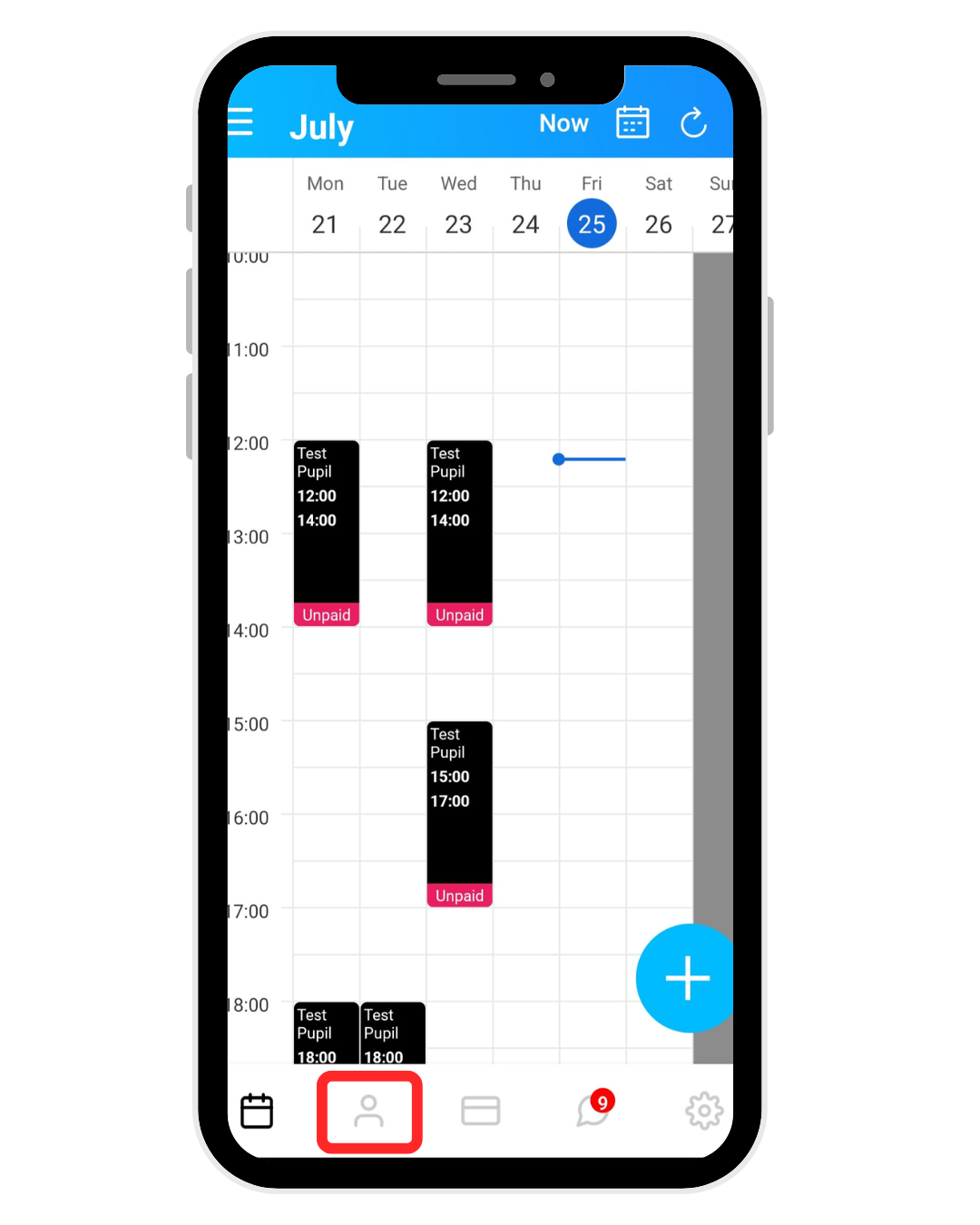
  • From the home screen, tap the person icon at the bottom to open the Pupils list.
2. Select the Pupil

  • Find and tap on the pupil who needs their password reset.

3. Access Their Profile

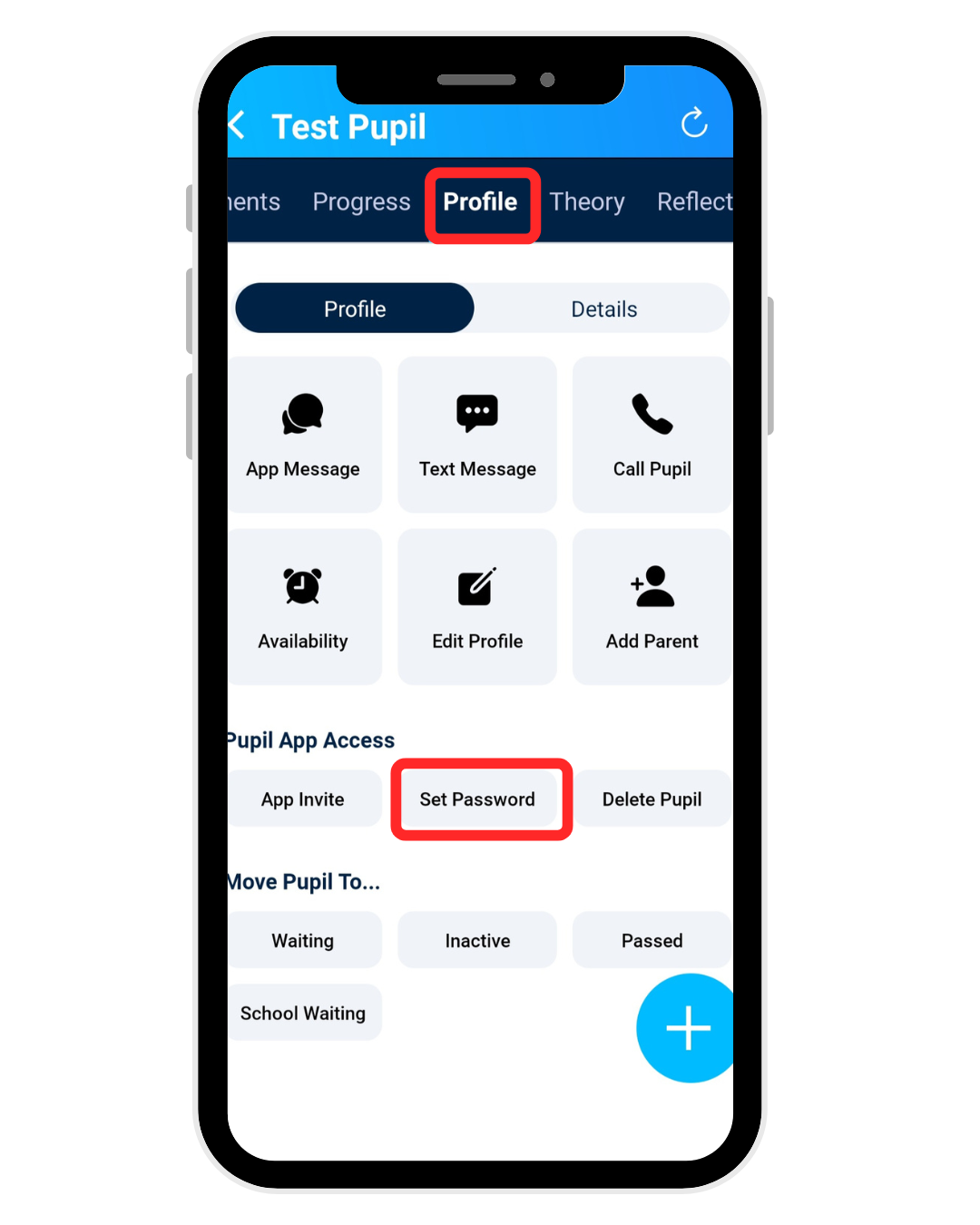
  • Swipe across the tabs at the top and select "Profile."

4. Set a New Password

  • In the middle of the screen, tap "Set Password."

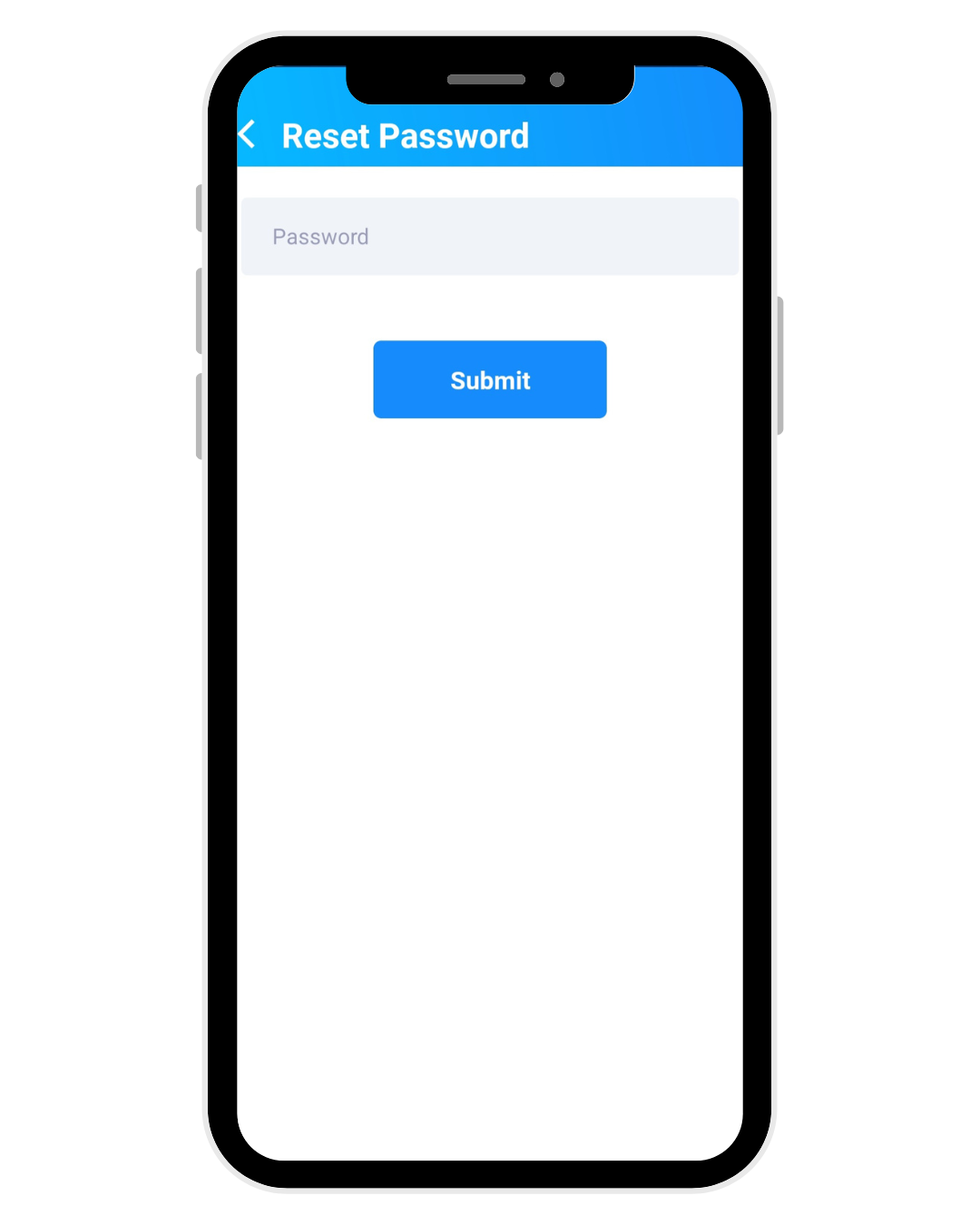
  • Enter a new password of your choice (ensure it meets any security requirements).

  • Tap Submit to save the change.


Share the New Login Details

Once the password has been reset, you'll need to pass the new credentials to the pupil. We recommend sharing them in a secure way, such as:

  • Text message (SMS)

  • WhatsApp or other messaging apps

  • Email

  • Verbally during a lesson


    Make sure to remind them of their full login details:

    CredentialWhat to use
    UsernameTheir registered phone number
    PINTheir existing PIN code (unchanged)
    PasswordThe new password you just set

    Security Tip: Encourage the pupil to change their password to something memorable after they log in for the first time. Avoid sharing passwords via unsecured channels where possible.


CredentialWhat to use
UsernameTheir registered phone number
PINTheir existing PIN code (unchanged)
PasswordThe new password you just set

Security Tip: Encourage the pupil to change their password to something memorable after they log in for the first time. Avoid sharing passwords via unsecured channels where possible.

Make sure to remind them of their full login details:

CredentialWhat to use
UsernameTheir registered phone number
PINTheir existing PIN code (unchanged)
PasswordThe new password you just set

Security Tip: Encourage the pupil to change their password to something memorable after they log in for the first time. Avoid sharing passwords via unsecured channels where possible.


Make sure to remind them of their full login details:

CredentialWhat to use
UsernameTheir registered phone number
PINTheir existing PIN code (unchanged)
PasswordThe new password you just set

Security Tip: Encourage the pupil to change their password to something memorable after they log in for the first time. Avoid sharing passwords via unsecured channels where possible.

Make sure to remind them of their full login details:

CredentialWhat to use
UsernameTheir registered phone number
PINTheir existing PIN code (unchanged)
PasswordThe new password you just set

Security Tip: Encourage the pupil to change their password to something memorable after they log in for the first time. Avoid sharing passwords via unsecured channels where possible.