
If a pupil is having trouble logging into the Total Drive app, use this guide to troubleshoot and resolve the issue.
Step 1: Check for Duplicate Phone Numbers
Tap the person icon at the bottom of the screen to open the Pupil section.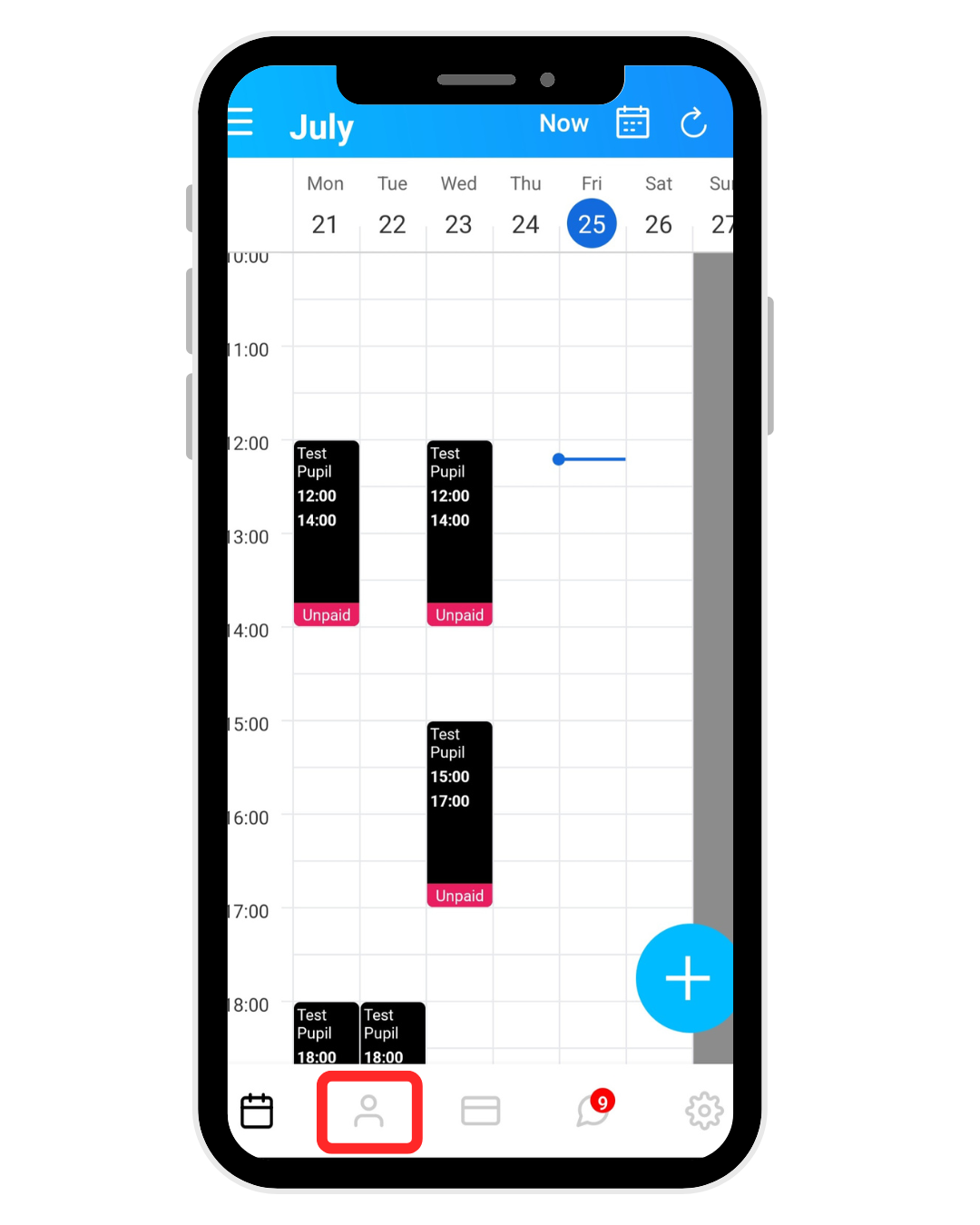
Use the search bar to search for the pupil’s phone number.
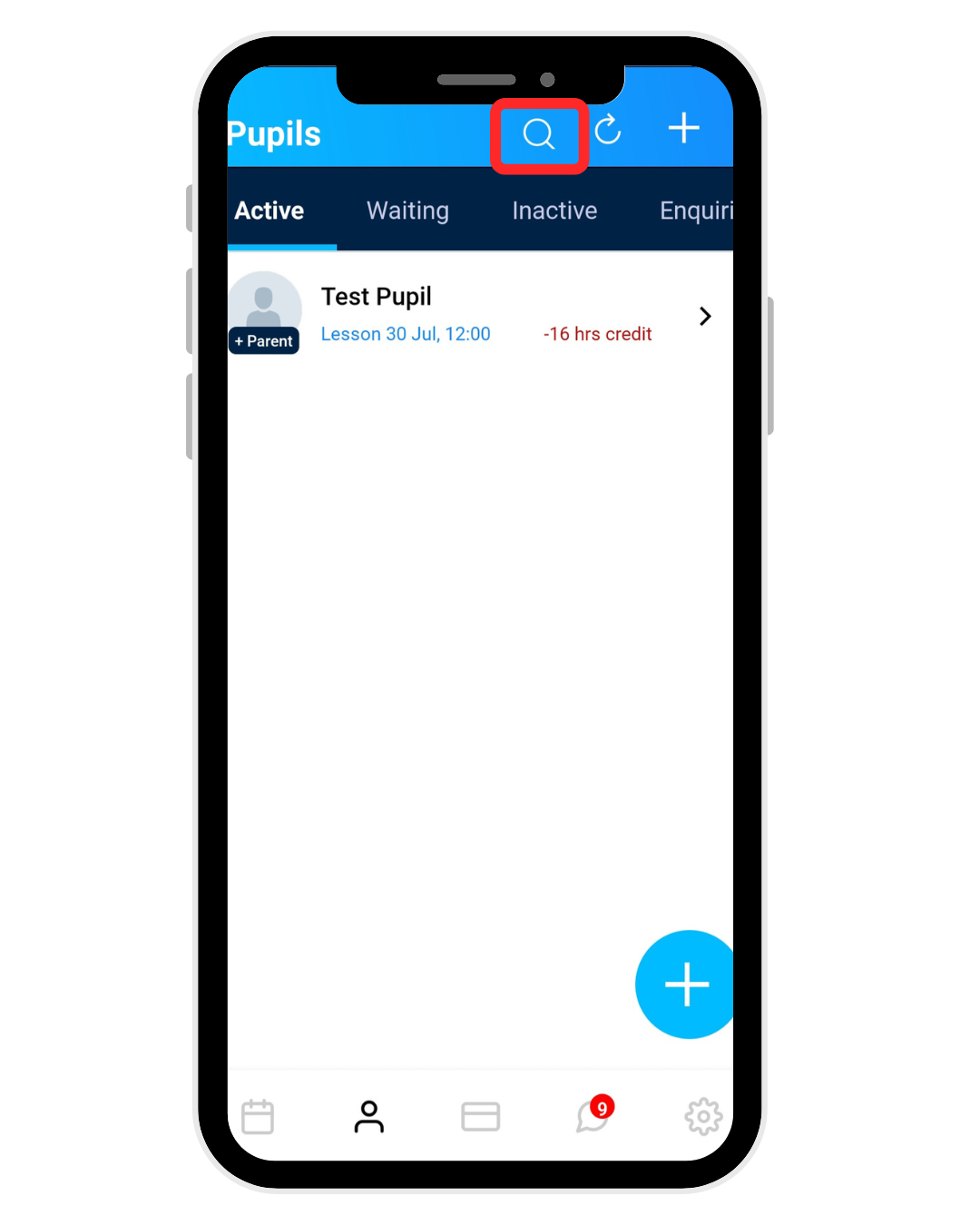
If the same number appears on more than one pupil record, delete the duplicate entry.
Note: The system does not allow the same phone number to be registered to multiple accounts
Step 2: Verify Their Phone Number
If there are no duplicates and the pupil is in your Active list:
Tap the pupil’s name.
Swipe across the top tabs and select the Profile tab.
Tap Edit Profile (centre of the screen).
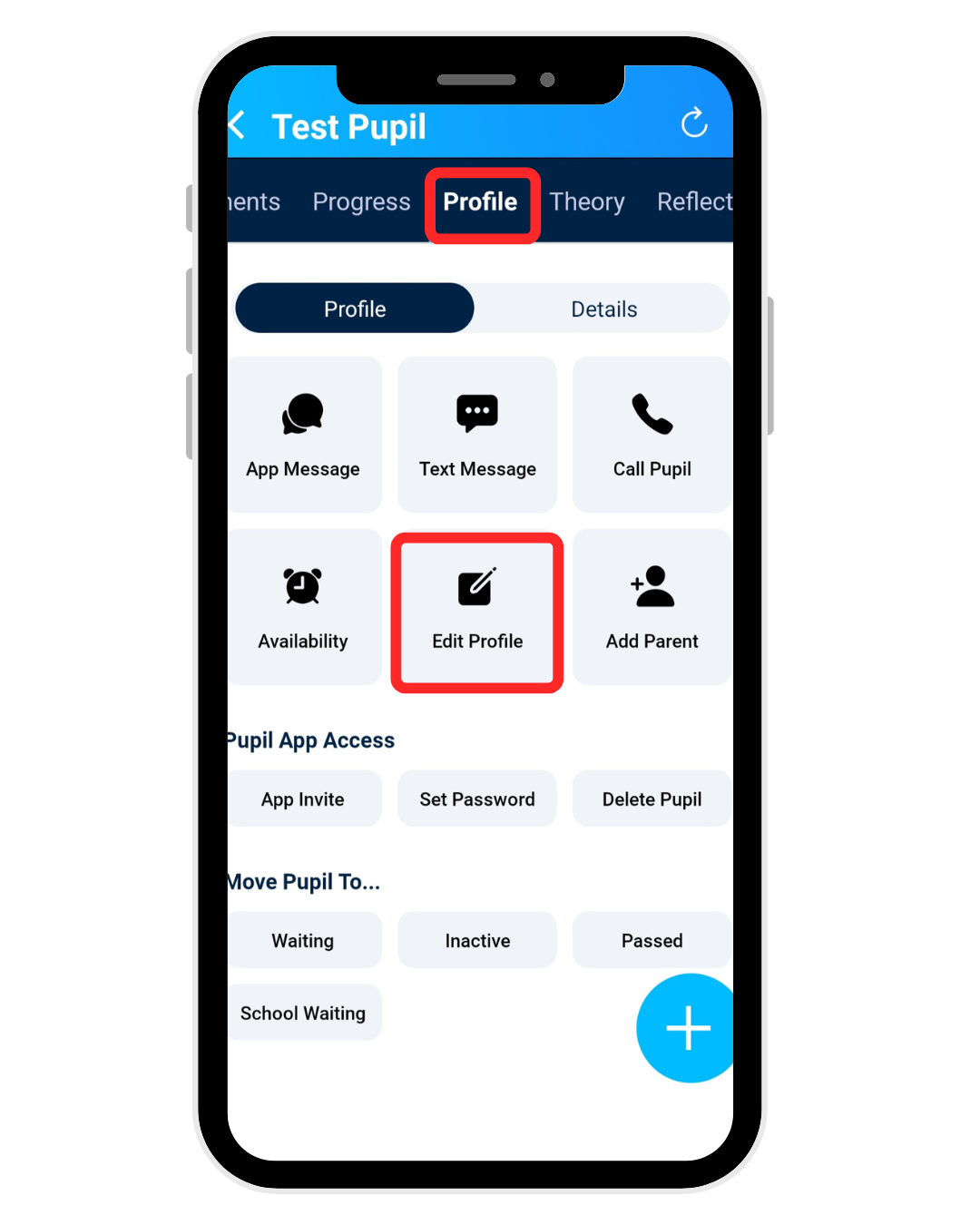
4. Check their mobile number carefully:
Remove any spaces at the beginning, middle, or end.
Ensure the number is accurate with no typos.
5. Tap the tick icon at the top to save changes.
Step 3: Reset Their Password
Still in the pupil’s profile screen:
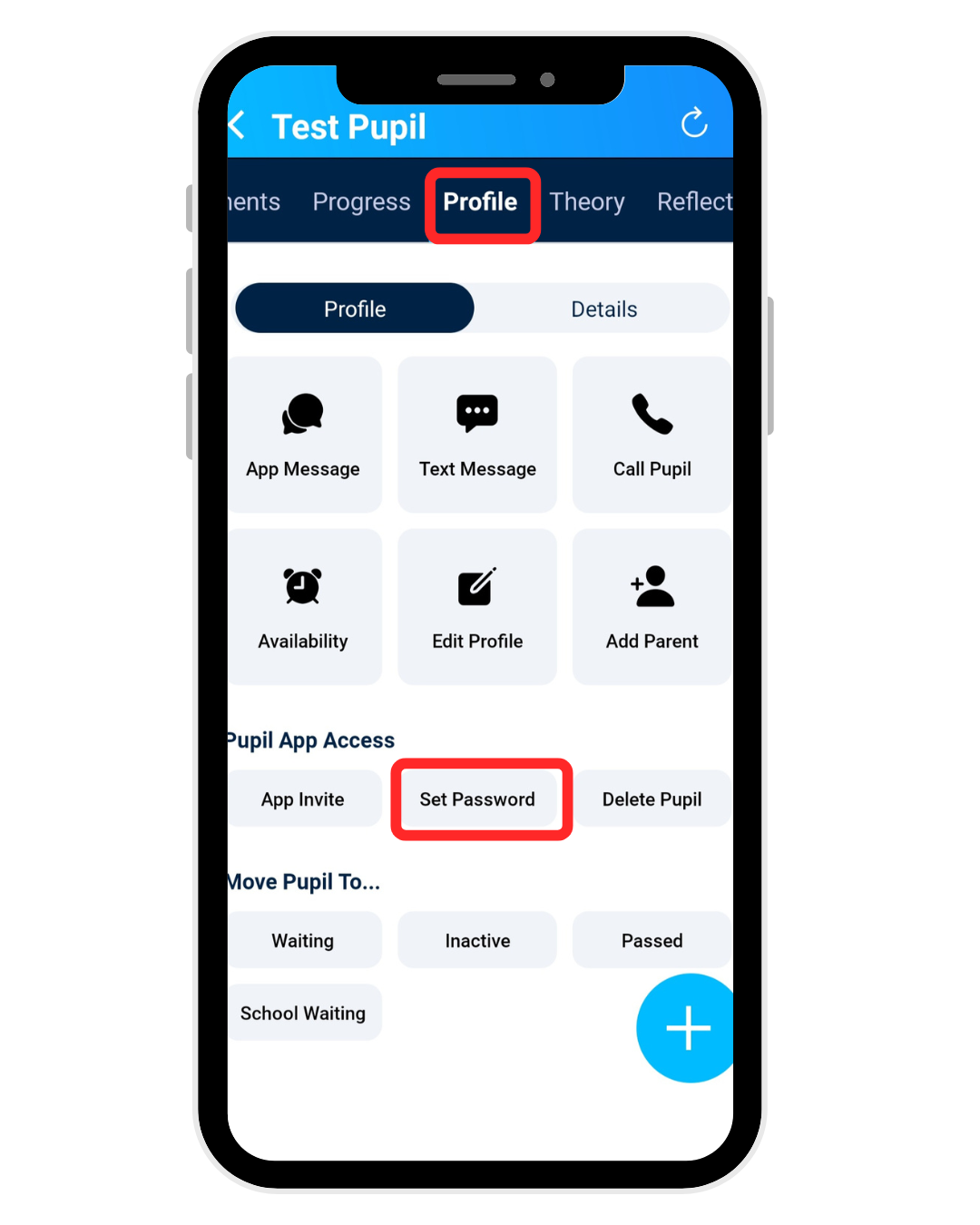
Tap Set Password.
Enter a temporary password (write it down to share with the pupil).
Tap Submit to save.
Step 4: Test the Login
Log out of your Instructor App.
On the login screen, enter:
Your PIN
The pupil’s phone number (used as their username)
The temporary password you just set
If login is successful, everything is working correctly on your end.
Step 5: Share the Login Details with Your Pupil
Send the pupil the following information via text, WhatsApp, or email:
Your PIN
Their phone number (username)
The temporary password you set
Still Having Trouble?
If your pupil still can’t log in after following these steps, email us at support@totaldrive.co.uk
Please provide:
Your PIN
The pupil’s name
Their phone number
A description of what they’re experiencing
We’ll help resolve the issue as quickly as possible.