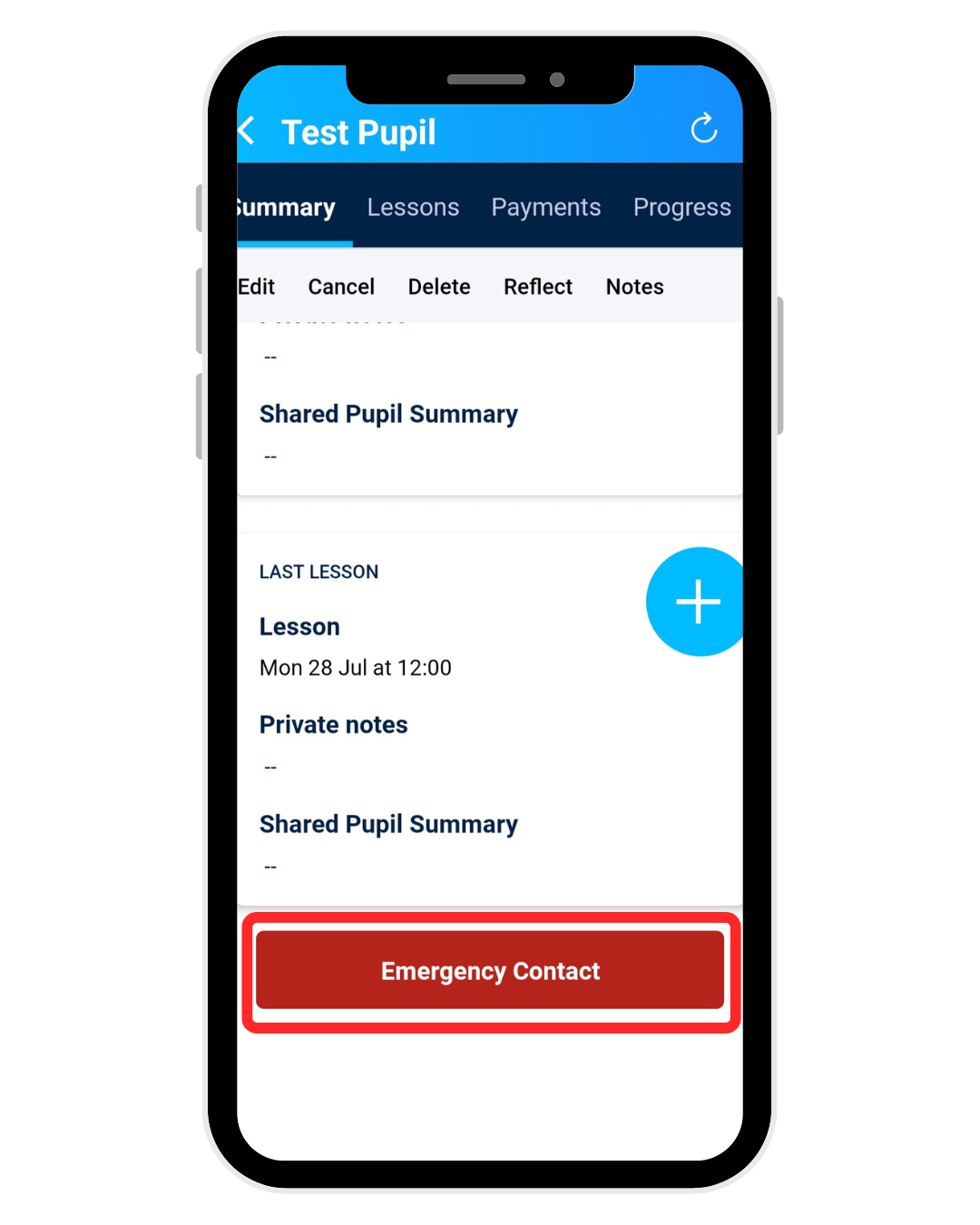
You can add a parent, guardian, or emergency contact to any pupil's profile—even if they don't need their own app access. This ensures you always have the right information on hand when it matters most. Please note, pupils can also add these details from their app.
Step-by-Step Guide
1. Navigate to the Pupil's Profile
From the home screen, tap the person icon at the bottom to open the Pupils section.
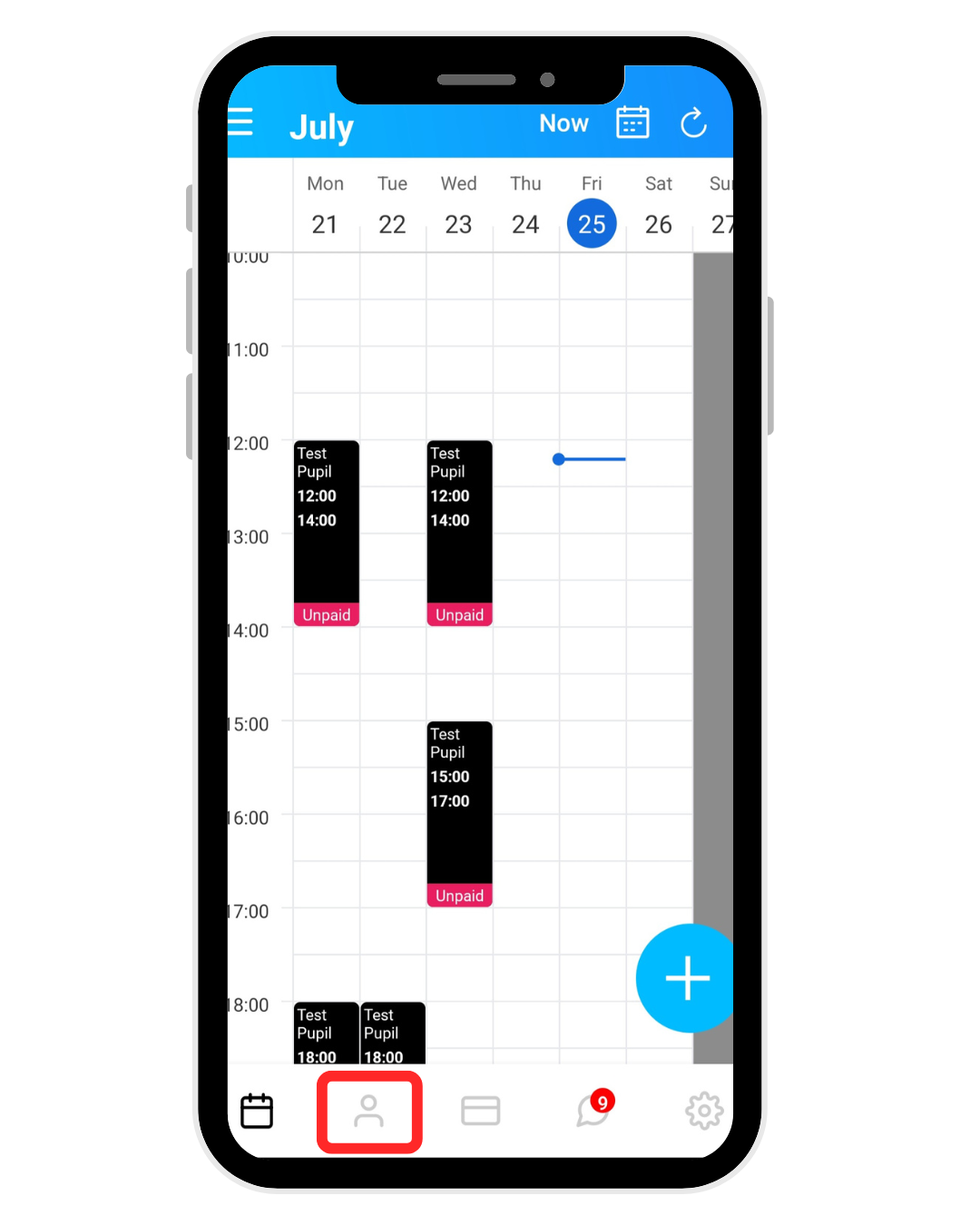
Select the pupil you wish to add the contact for
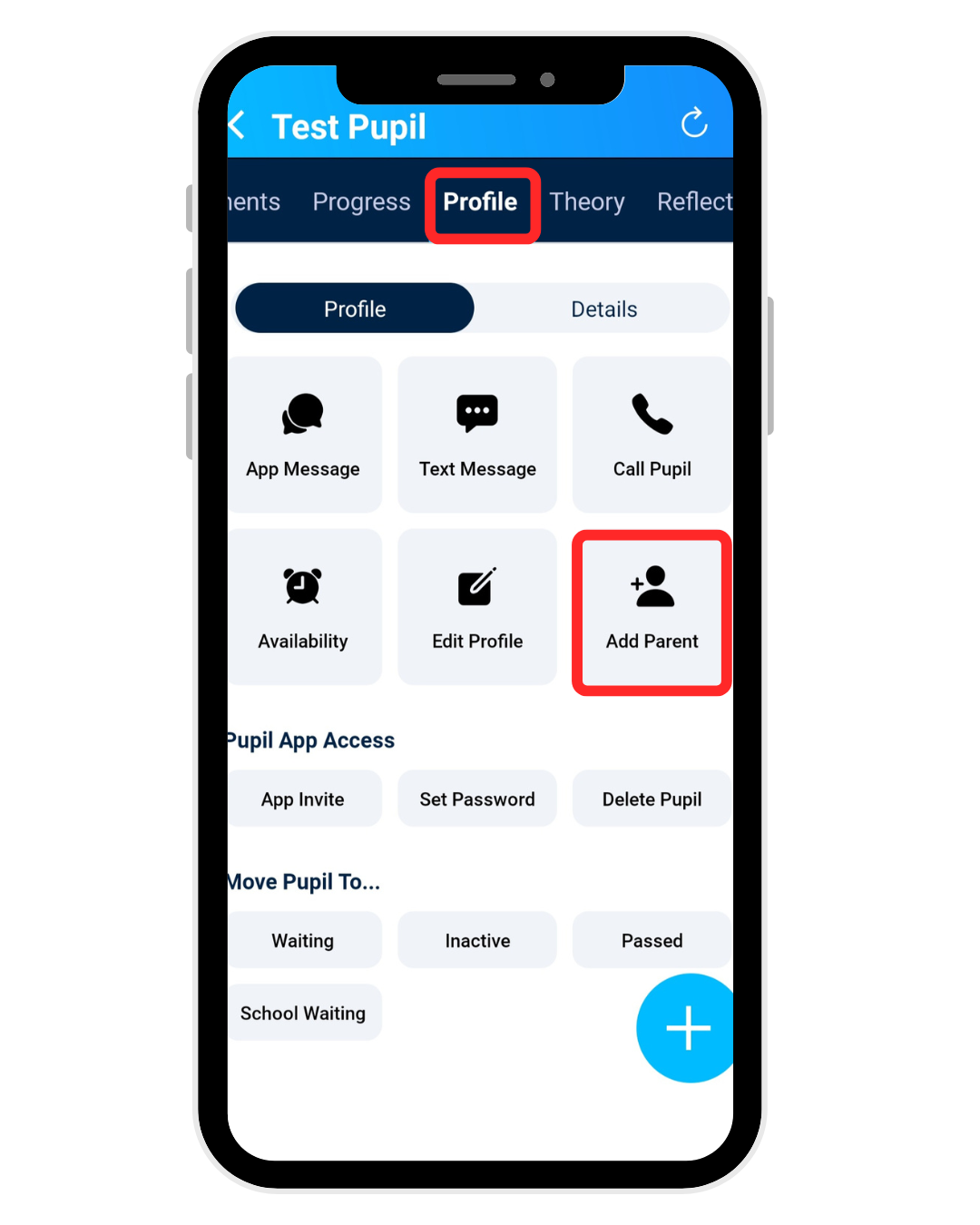
- Swipe across the tabs at the top and tap "Profile."
2. Start Adding the Contact
Tap "Add Parent" (this button is also used for guardians and emergency contacts).
On the next screen, tap the plus (+) icon in the top-right corner to create a new contact entry.
Fill in the Contact Details
Complete the basic information for the new contact:
Name & Mobile Number: Enter their full name and primary phone number.
Role: Select one of the following from the dropdown:
Primary Contact
Secondary Contact
Emergency Contact
None (if not applicable)
Tip: If the contact is already saved in your phone's address book, tap "Import Parent Details" to auto-fill their information.
App Access & Advanced Options
Decide how this contact will interact with your school:
App Invite: Toggle this on if you want to send them an invitation to download and use the pupil app. Leave it unticked if they only need to be on record as a contact.
Tap "Advanced Options" to expand and add further details:
Address: Enter their full postal address.
Secondary Phone Number: Add an alternative number, such as a work or home line.
App Permissions: If they will be using the app, adjust their access levels here (e.g., view-only booking access or full lesson management).
Save the Contact
Once all details are complete, tap the tick (✓) icon in the top-right corner to save.
The new contact will now appear in the list under the pupil's Profile tab.
Quick Access in an Emergency
For fast retrieval during urgent situations:
Go to the Pupils section and tap the pupil's name to open their Summary page.
Scroll to the bottom and tap "Emergency Contact."
The contact's name and phone number will be displayed immediately—no need to dig through menus.