This guide covers everything you need to know about managing an individual pupil's record—from viewing their summary to editing their profile, tracking progress, and managing payments.
Table of Contents
Pupil Summary
Lessons
Pupil Payments
Progress
Pupil Profile
Theory Screen
Reflect Screen
Tests
Learning
Pupil Summary
How to access: From the dashboard, tap the second icon on the bottom navigation bar to open Pupils. Select a pupil by tapping the ">" icon next to their name.
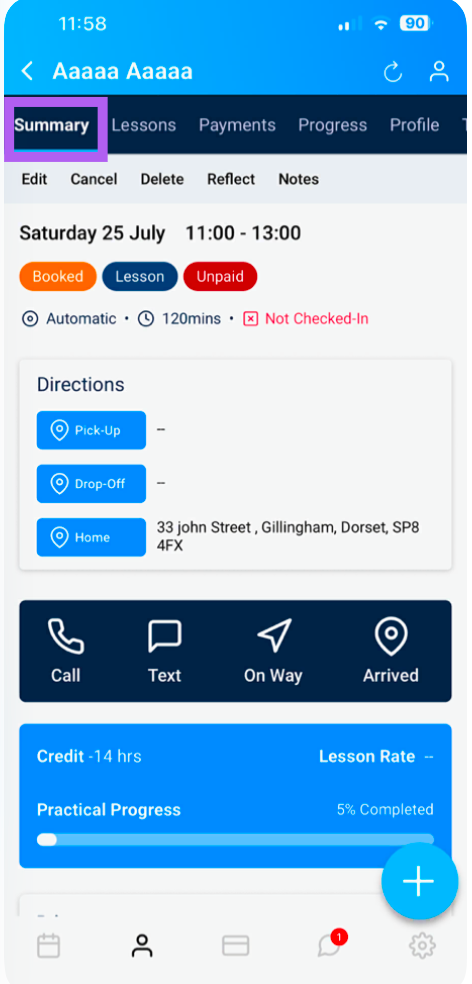
The Summary screen gives you an at-a-glance overview of key information:
Pupil Credit: Available balance or credit remaining.
Next Lesson: Date and time of the upcoming lesson.
Last Lesson: Date and time of the most recent lesson.
Emergency Contact: Quick access to emergency details. (scroll to bottom of screen)
Quick Actions (top of screen):
Edit / Cancel / Delete the upcoming lesson
Edit a reflective log on goals, achievements, and aims

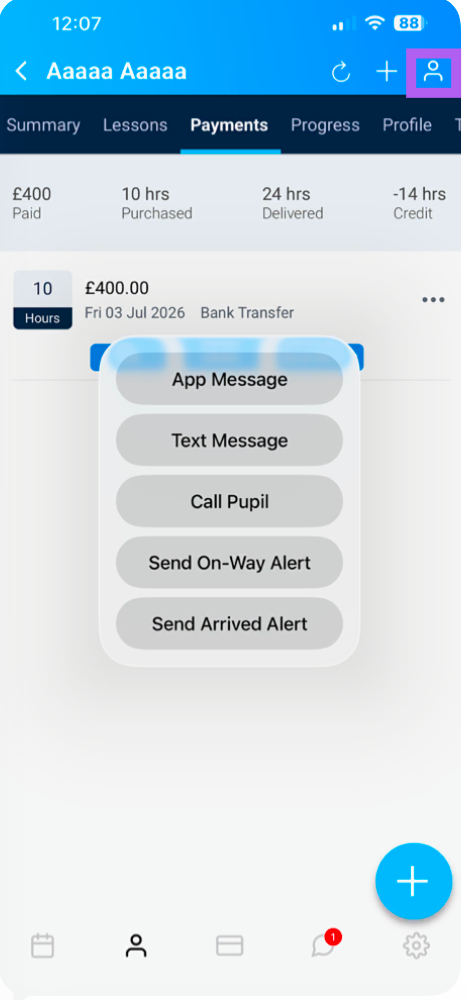
Head and shoulders Icon top right
By clicking on this you can choose a way to send a message or send a short message direct
Note: This is available from all the pupiil pages
You can easily send an app or text message or cal the pupil, or send the on way or arrived message
Lessons
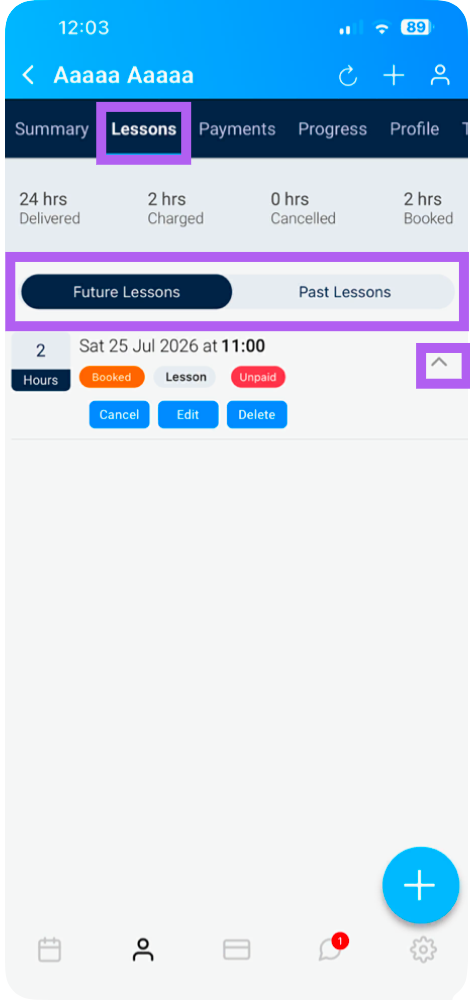
From this screen, you can view and manage all lessons for the selected pupil:
Future Lessons: See all upcoming booked lessons.
Past Lessons: Tap to view lesson history.
Managing a Lesson:
Tap the arrow to the right of any lesson to access options:
Cancel
Edit
Delete
Note: These options are available for both Future and Past Lessons.
Pupil Payments
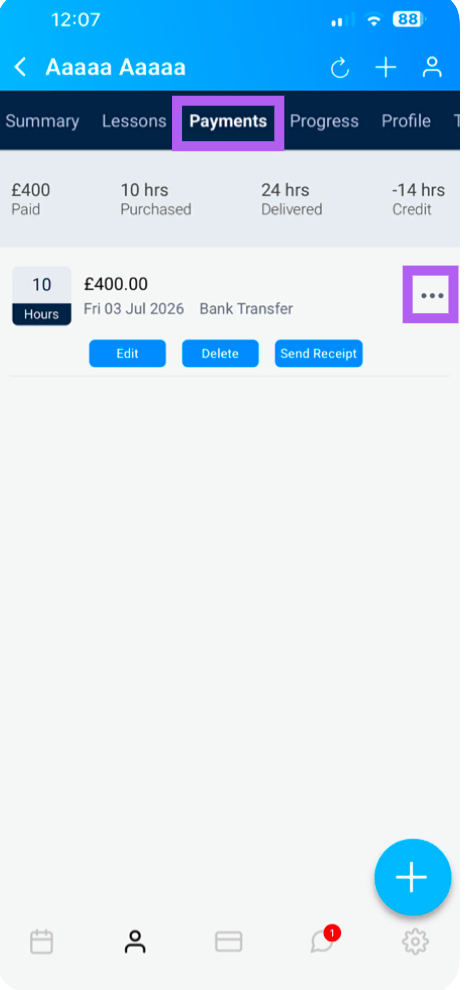
This screen shows all payments made by the selected pupil.
Add a Payment: Tap the "+" button at the top to log a new payment.
Manage Existing Payments: Tap the "..." next to any payment to:
Edit the payment details
Delete the payment
Send Receipt to the pupil via email
Progress
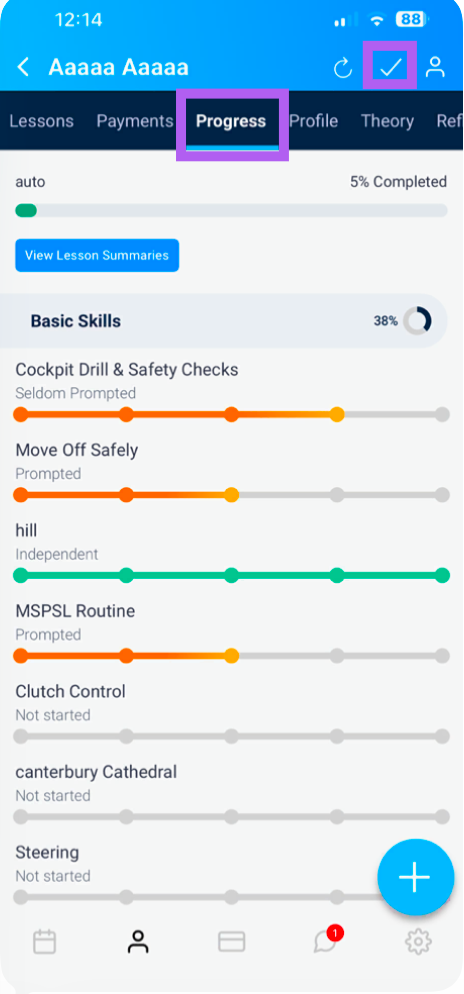
This is where you track and update the pupil's skill development.
Edit Progress: Quickly update the pupil's progress against their assigned syllabus.
View Lesson Summaries: See any summaries you've previously entered.
Important: If you make changes to any skills, remember to tap "the tick" at the top before exiting the screen.
Pupil Profile
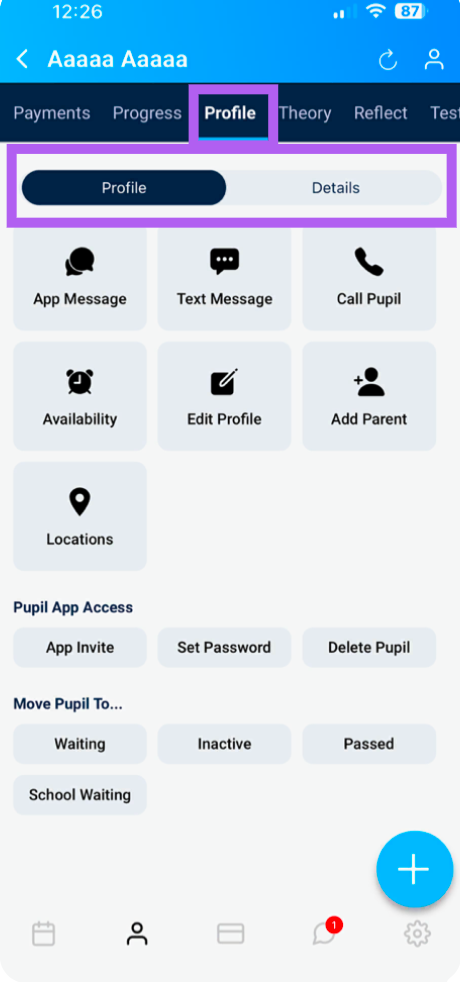
The Profile screen contains 14 key actions :
| Action | Description |
|---|
| App Message | Send an internal message through the Total Drive app (accessible on the pupil's side). |
| Text Message | Opens your SMS app with the pupil's number pre-filled. |
| Call Pupil | Opens your phone dialler with the pupil's number ready to call. |
| Availability | View the pupil's day-to-day availability in half-hour time slots. |
| Add Parent | This is where you can add a parent/guardian or emergency contract |
| Edit Profile | Amend pupil information (e.g., address, contact number). |
| Locations | Add pick up and drop off locations for this pupil |
| Contacts | View and add emergency contacts or parent/guardian details. |
| Reset Password | Reset the pupil's app password (changes take effect immediately). |
| Send App Invite | Send a new app invite (note: this generates a new randomised password). |
| Move to Inactive | Move the pupil to your Inactive list (confirmation prompt appears). |
| Move to Waiting | Move the pupil to your Waiting list (confirmation prompt appears). |
| Move to School Waiting | Add the pupil to your school's waiting list (confirmation prompt appears). Only applicable if part of a school) |
| Move to Passed | Move the pupil to your Passed list once they've passed their test (confirmation prompt appears). |
| Delete Pupil | Permanently remove the pupil. See important note below. |
⚠️ Important: Deleting a Pupil
When you delete a pupil:
Personal information is stripped from their record to comply with GDPR rules.
Historical lesson dates and payments remain in the system for accounting purposes.
Before deleting: Ensure any future booked lessons for this pupil are cancelled or deleted first—otherwise, you may encounter errors.
Details
You can also click on details where important information such as when the students last logged in, when they agreed to your terms and conditions etc can be found
Theory Screen
This screen displays the pupil's theory test progress, including:
Courses Taken: Overview of completed theory courses.
Overall Summary: Breakdown of performance across different areas.
Timed Reports: Insights into timing and accuracy.
Pass Rate Information: Statistical data on their likely pass probability.

Reflect Screen
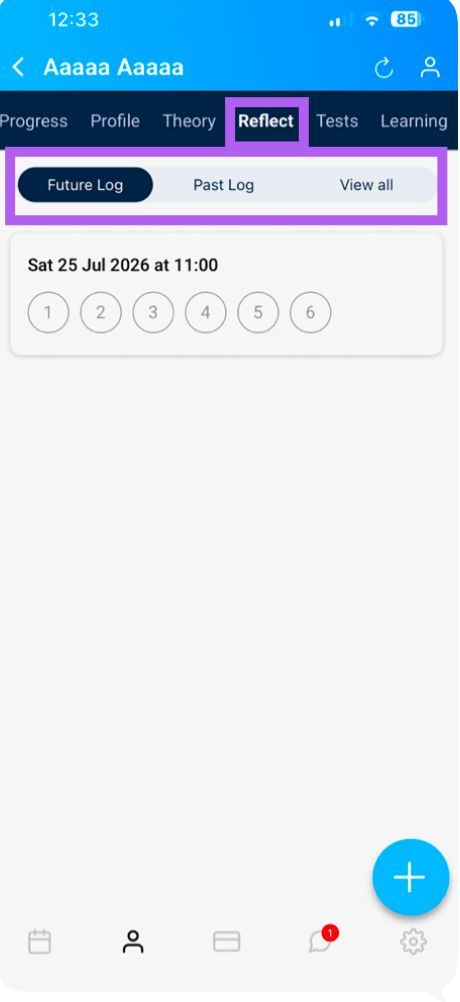
This screen shows reflective logs and questions your pupil has answered.
View Logs: Switch between Future and Past logs using the tabs.
View All Answers: Tap "View all" to see the full details of the pupil's responses to reflective questions.
Tests
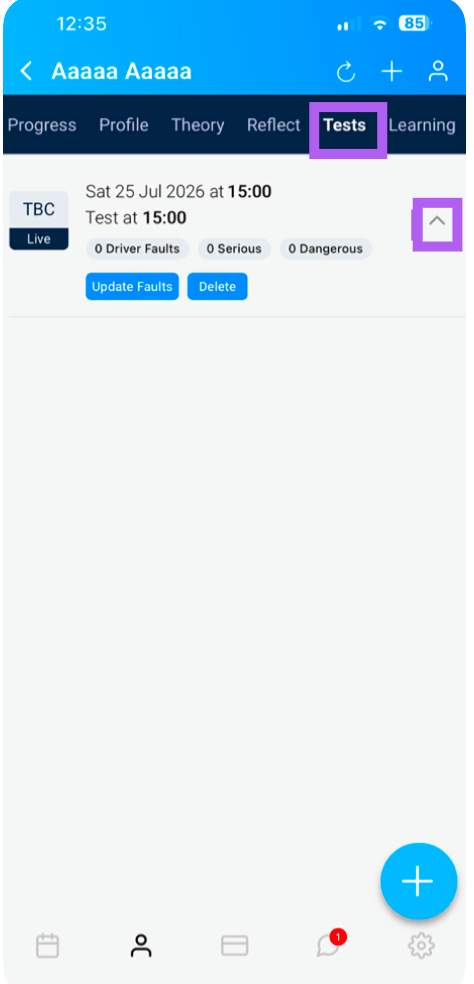
You can see any tests the pupil has booked or has taken and can add the results or delete the test by clicking on the arrow at the end of the row
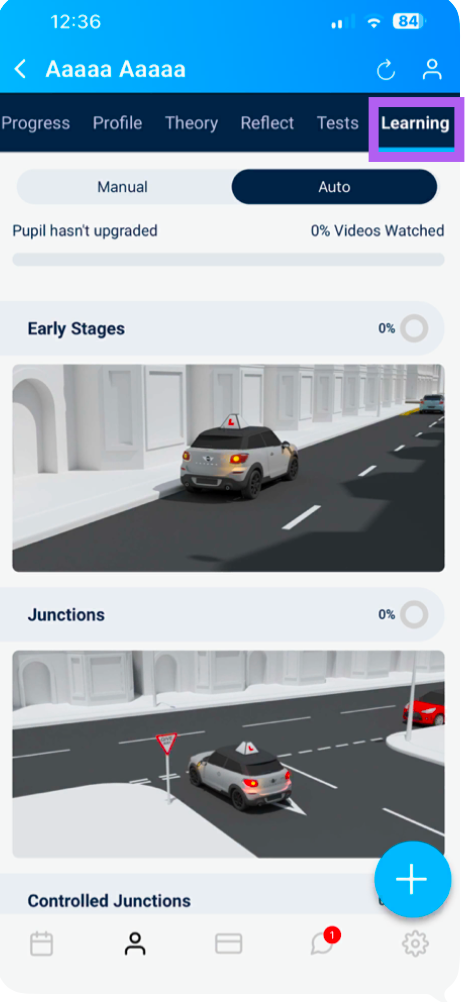
Learning
If the pupil has paid for the 3D video's, you can see which they have watched and the progress they are making.