The Money section is your central hub for tracking income, expenses, and mileage. Access it by tapping the third icon on the lower navigation pane—labelled "Money."
Table of Contents
Income
Expenses
Mileage
Income
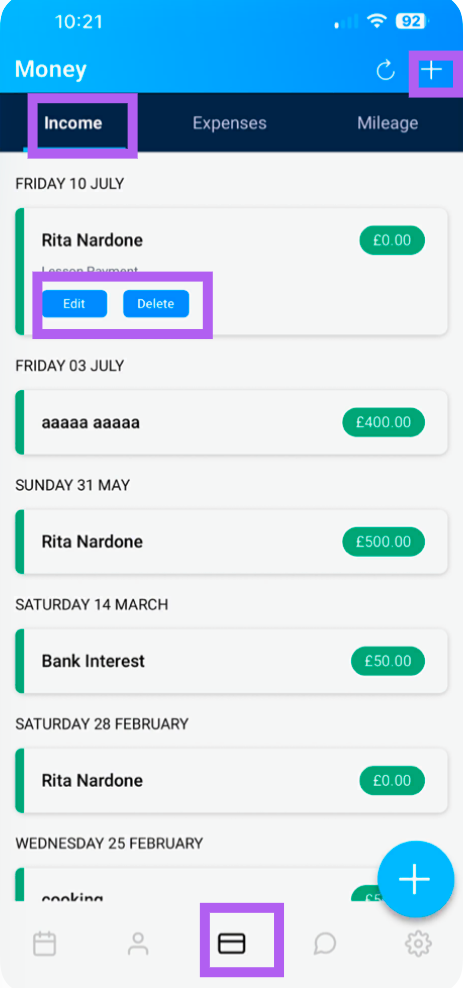
This screen displays all pupil payments received for the last 6 months, giving you a clear overview of your earnings. For a full list of payments (more than 6 months) please use the web admin, where your full history can be seen
What You Can Do:
View Payments: See a list of all income entries, including pupil payments.
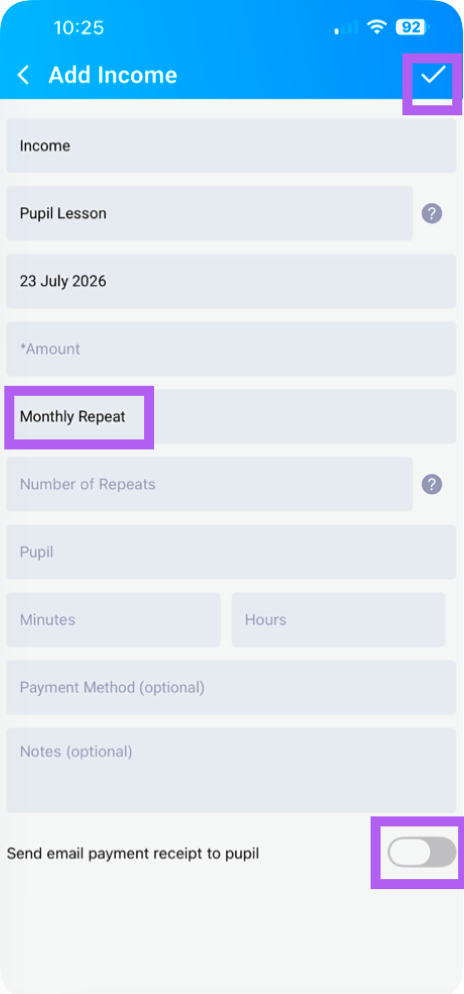
Add a Payment: Tap the "+" icon at the top to manually log a new payment. Remember to click the tick at top right to save
Refresh the Screen: Tap the refresh icon to update the list with the latest data.
Add other income such as bank interest: As add a payment but change the category by clicking in the grey box that says pupil lessons. You can add more categories from the web admin.
Repeat Payment: If you have a repeated income that needs recording for your end of year finances, there is a repeat option of daily, weekly, fortnightly or monthly
Send a receipt: You can send a receipt to a pupil by toggling at the bottom. NOTE: this goes by email so the pupils email address must be in their profile
Edit or delete a payment: By clicking on the payment entered you will bring up the option to edit and delete. Remember to tick the tick at the top right to save
Tip: Adding payments promptly ensures your financial records stay accurate and up to date.
Expenses
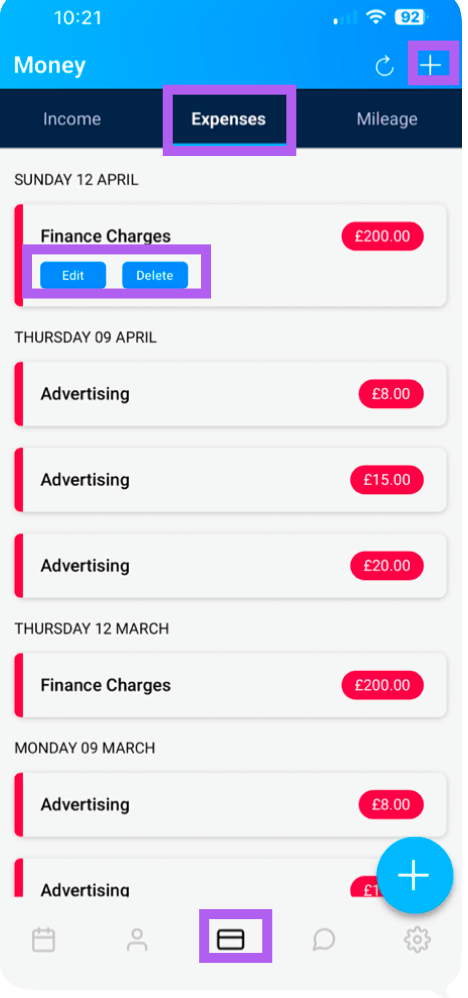
This screen shows all your business outgoings, helping you track costs and manage your budget.
What You Can See:
Costs: Log and view all expenses.
Refunds: Any refunds you've processed to pupils will also appear here.
What You Can Do:
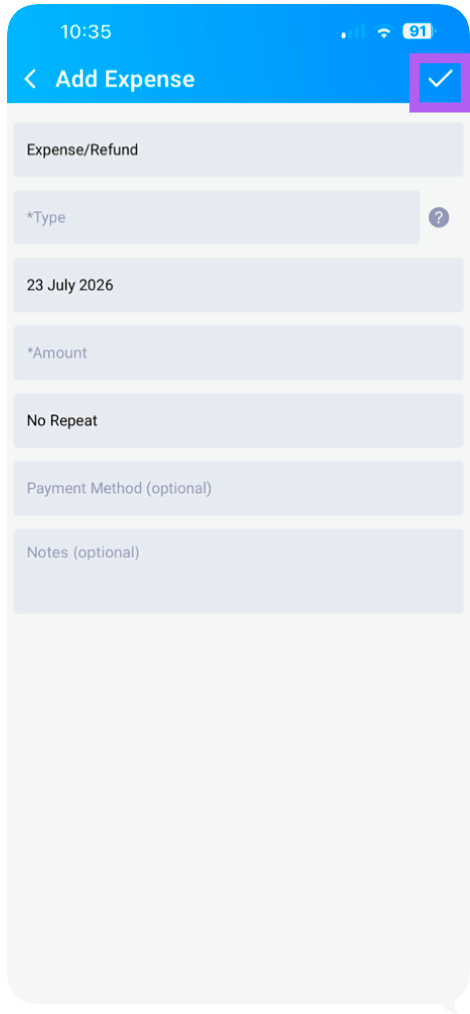
Add an Expense: Tap the "+" icon to log a new expense (e.g., Fuel, Maintenance, Insurance, Advertising). Please remember to click the tick at the top right to save.
Document Refunds: If you need to refund a pupil, you can record it here as an expense entry.
- Repeat Payment: If you have a repeated expense that needs recording for your end of year finances, there is a repeat option of daily, weekly, fortnightly or monthly
- Edit or delete an expense: By clicking on the payment entered you will bring up the option to edit and delete. Remember to tick the tick at the top right to save
Tip: Regularly logging expenses makes tax reporting much easier and gives you a true picture of your profitability.
Mileage
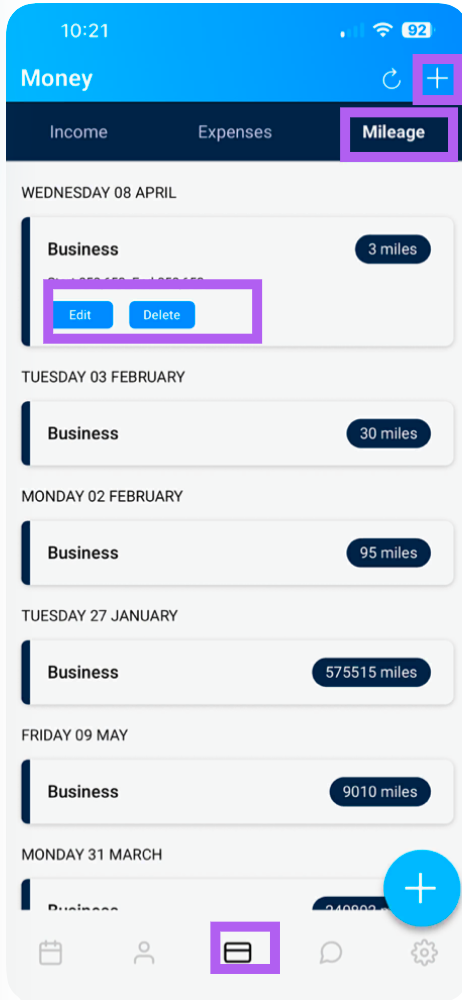
This screen helps you separate Business and Personal mileage—essential for accurate record-keeping and tax purposes.
How to Add Mileage for a Lesson:
Tap the "+" icon at the top of the screen.
Enter the current mileage (odometer reading at the start of the journey).
Add the end mileage (odometer reading at the end).
Tap "save" —the entry will now appear in your mileage list.
What You Can View/do:
A complete log of all mileage entries.
A clear breakdown of Business vs. Personal mileage.
Edit or delete: By clicking on an entry you have the option to edit or delete it
Tip: Keeping an accurate mileage log can help you claim legitimate business expenses and simplify your tax return.