How to Add away time to Your Diary
If you need to block out time when you're not available for lessons—whether for holidays, appointments, or personal time—you can easily add away time to your diary. There are two quick ways to do this.
Two Ways to Add Away Time
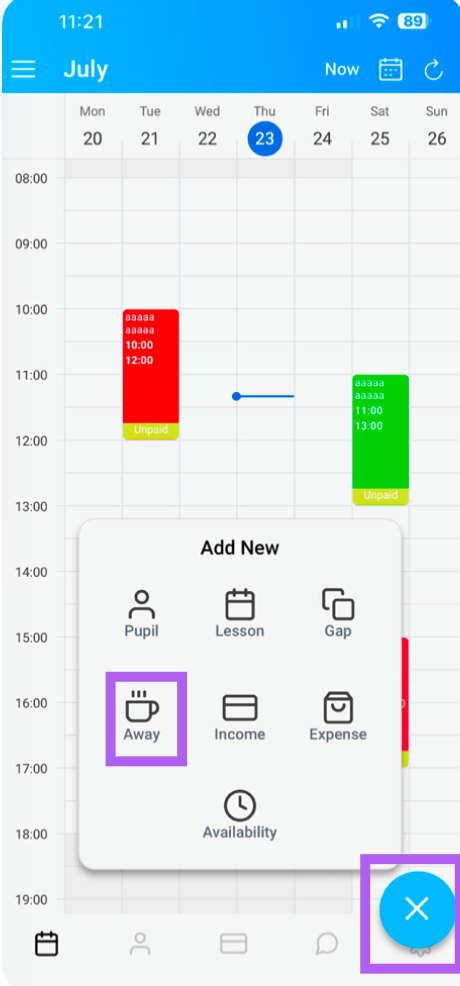
Option 1: Using the Quick Add Button
Tap the blue circle (+) icon (at the bottom of the screen).
From the options that appear, select "Away."
Option 2: From the Diary View
Tap on any free time slot in your diary.
Select "Away" from the options presented.
Set Your Away Time
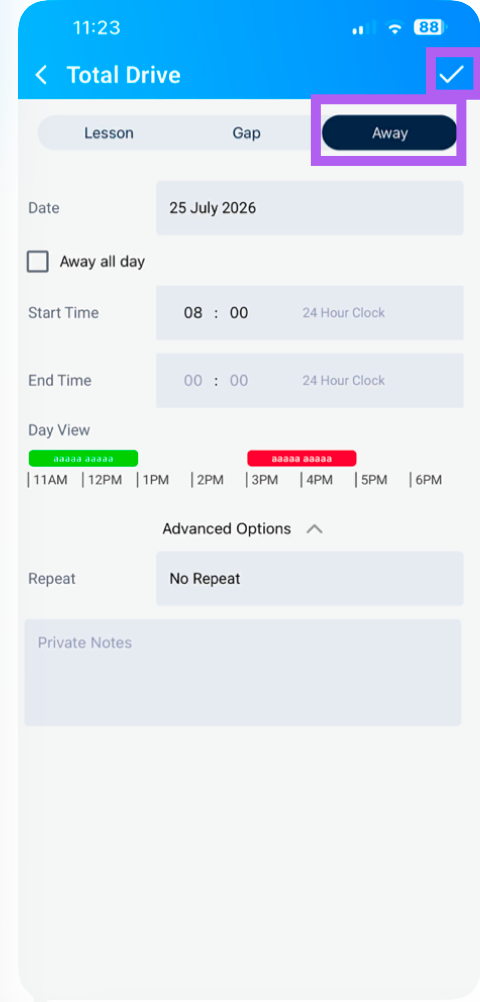
Once you've chosen your preferred method, you'll be taken to the Add Away Time screen. Here you can customise your time off:
| Option | Description |
|---|
| Away All Day | Toggle this on if you're unavailable for the entire day. |
| Start & End Time | Set a specific duration—for example, 10:00 AM to 12:00 PM. |
| Date | Choose the day(s) you'll be away. |
Repeating Away Time(Advanced Options)
If your unavailability needs to be in place for a longer period—such as a weekly recurring appointment or a block of holiday—tap "Advanced Options" to set:
Repeat Frequency: Daily, Weekly, or Monthly.
Repeat Until: Choose an end date for the recurrence.
Private Note: You ca add a private note if you wish
Save Your Changes
Once all details are correct, tap tick at the top to save. The blocked time will now appear in your diary, preventing any bookings from being made during those hours.
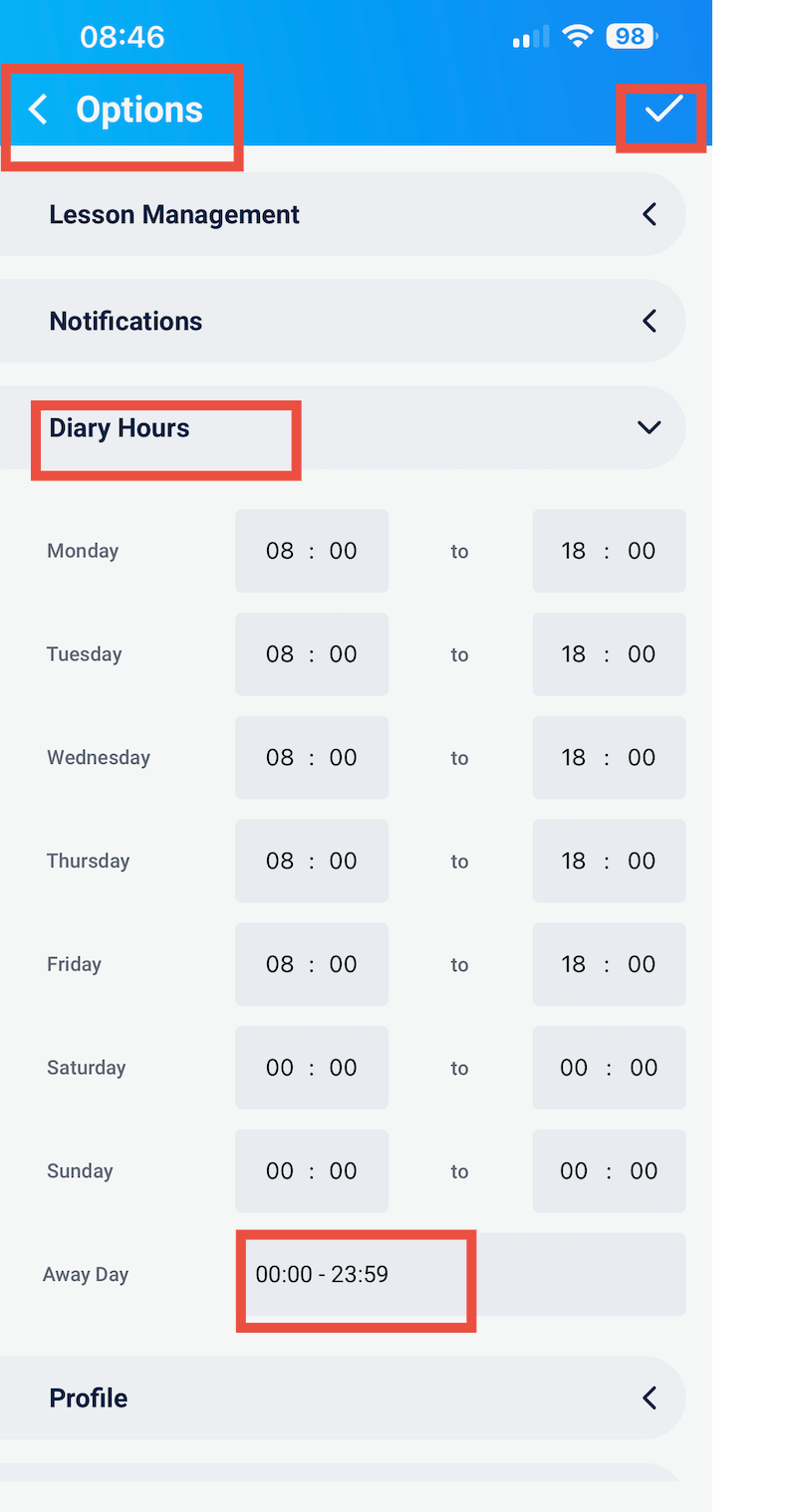
Note: to change the away day time shown in your diary
Click the three lines next to the month on the calendar
- Select Options (about halfway down, on the right)
- Go to Diary hours > Away hours
- Set the times to 00:00–23:59 or which ever you prefer
- Save by tapping the tick at the top of the page