
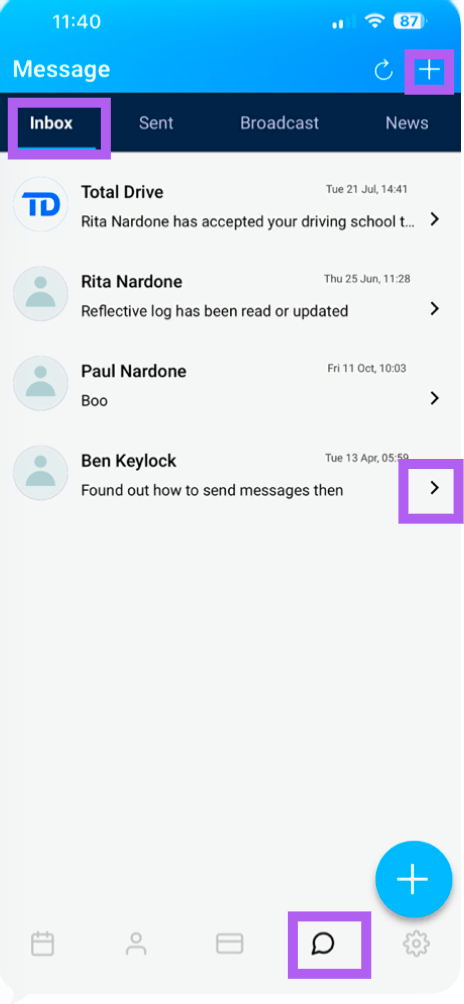
The Messages section is your central hub for all communication with pupils. Access it by tapping the message bubble icon on the lower navigation pane.
Table of Contents
Receiving Messages (Inbox)
Sending Messages (Sent)
Broadcast Message
News
Receiving Messages (Inbox)
This is where you'll find all incoming messages and updates from your pupils.
What You Can Do:
View Messages: See a list of all messages received from pupils.
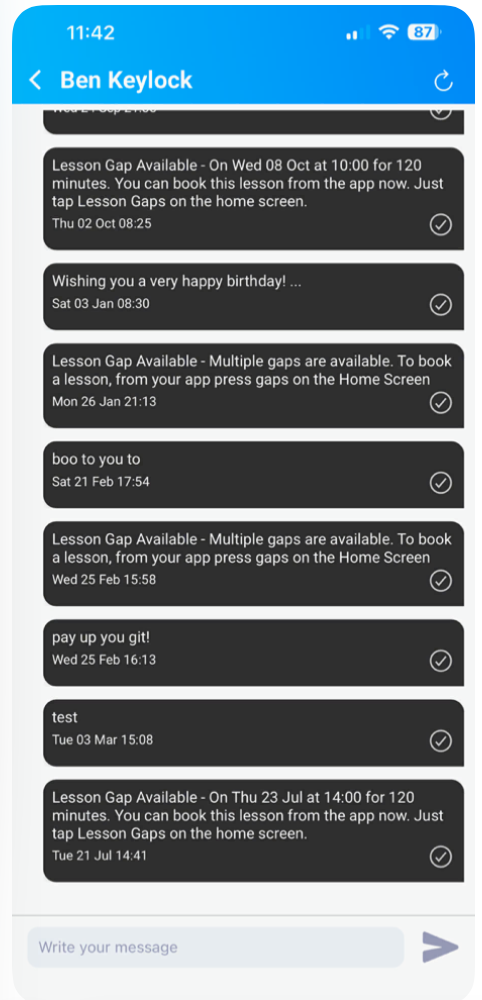
Read in Full: Tap the ">" icon next to any message to view it in detail.
Reply: From the full message view, you can reply directly to the pupil.
Tip: Check your Inbox regularly to stay on top of pupil queries, lesson changes, and important updates.
Sending Messages (Sent)
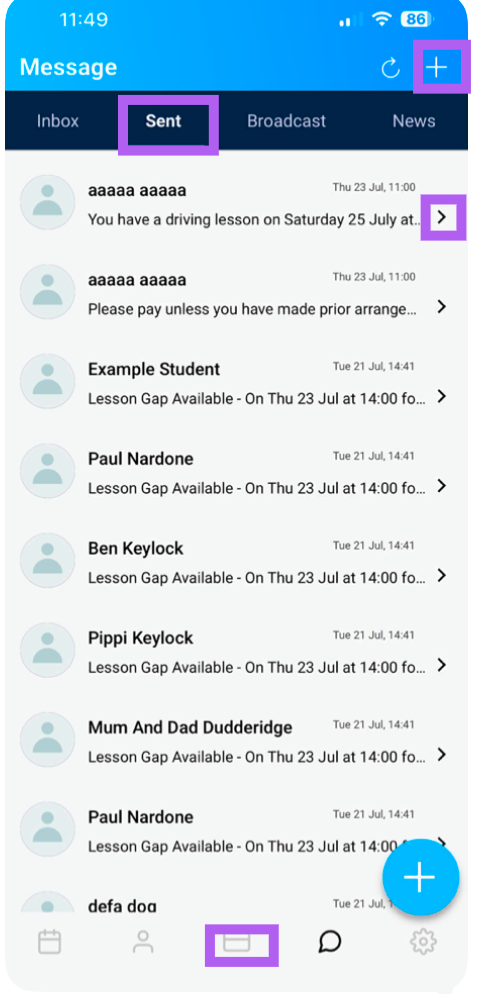
This screen shows a history of all messages you've sent to pupils.
What You Can Do:
View Sent Messages: See a complete list of messages you've sent.
Read in Full: Tap the ">" icon next to any message to view it in detail.
Send More Messages: From the full view, you can send additional messages to the same pupil.
Sending Messages from the + (top right)
Clicking on the plus which is on all pages, will take you to the list of your students, you can then quickly sent them a message as well as see all previously sent messages. This is also where you can check that they received payment and lesson reminders.
Tip: Reviewing your sent messages is a great way to keep track of past conversations and ensure you've followed up on any outstanding queries.
Broadcast Message
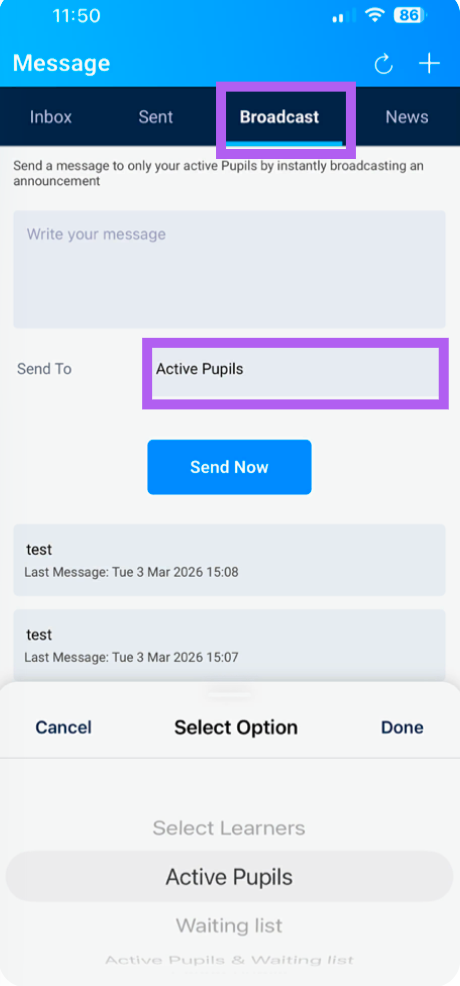
This powerful feature allows you to send a single message to multiple pupils at once—perfect for announcements, reminders, or updates.
Who You Can Send To:
Active Pupils – Message all currently active pupils.
Waiting List – Message all pupils on your waiting list.
All Active & Waiting List – Send to both groups simultaneously.
Select pupil(s): - Choose which pupils you send a particular broadcast from
Additional Information:
A timestamp shows when the last Broadcast Message was sent, so you can keep track of your communications.
Tip: Use Broadcast Messages for important updates like holiday closures, test tips, or promotional offers—but use them sparingly to avoid overwhelming pupils.
News
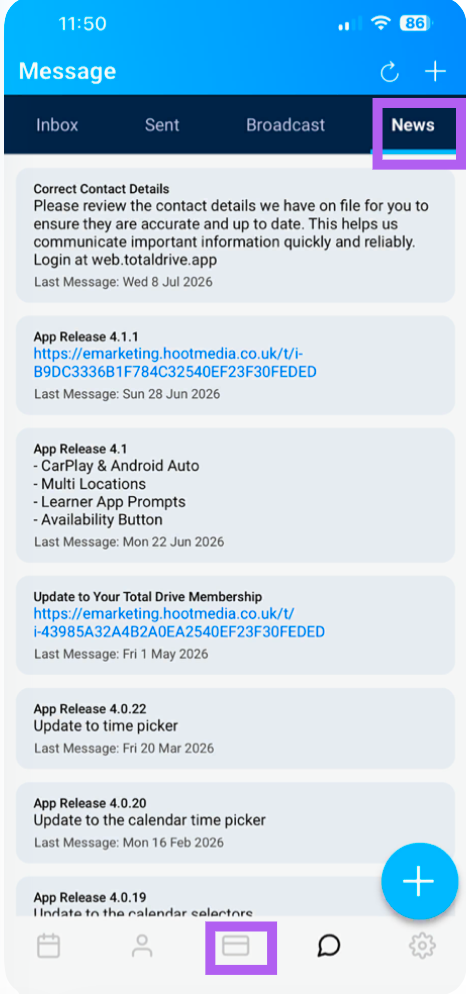
This section contains all the latest updates, announcements, and resources from Total Drive.
What You'll Find:
Important Information: Key updates about the app or your account.
New App Releases: Notifications about the latest version and what's new.
Bug Fixes: Information on recent fixes and improvements.
Features: Helpful tips and guides on using new features.
Helpful Tips: Advice and best practices for instructors.
How It Works:
Tap on any link to open the content—this may be:
A webpage
A PDF document
An image
A YouTube video
Tip: Check the News section regularly to stay informed about app updates and new features that can make your teaching easier.
Pro Tip: Effective communication is key to a successful driving school. Use the Inbox for quick replies, Broadcast Messages for group announcements, and keep an eye on News for app updates that can enhance your teaching experience.