
Settings Guide
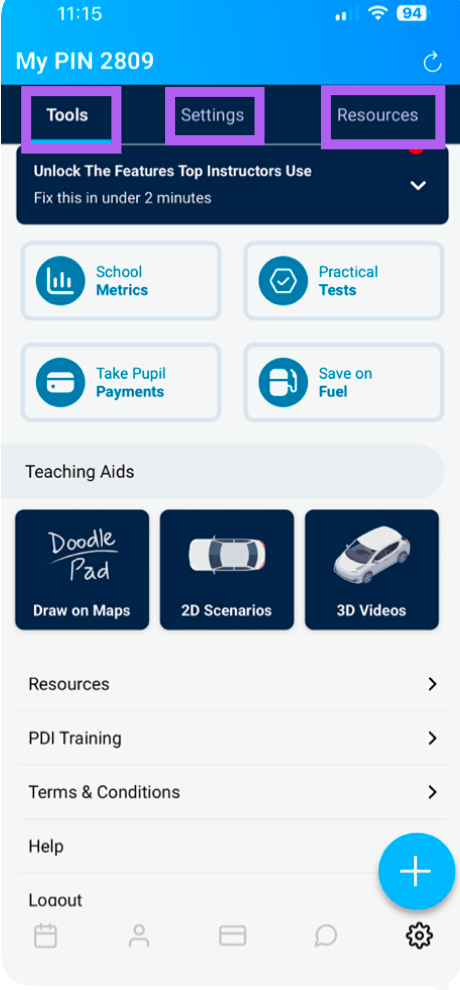
The Settings menu is your central hub for customising the Total Drive app. Access it by tapping the cog icon (⚙️) on the lower navigation pane. At the top you have 3 options Tools, Settings, & Resources. Please see https://totaldrive.freshdesk.com/a/solutions/articles/80001218079 for Settings and Resources help file
Table of Contents - Tools
School Metrics
Practical Tests
Payments
Fuel Card
Doodle Pad
2D Scenarios
3D Videos
Resources
PDI Training
Terms & Conditions
Help
Logout
School Metrics
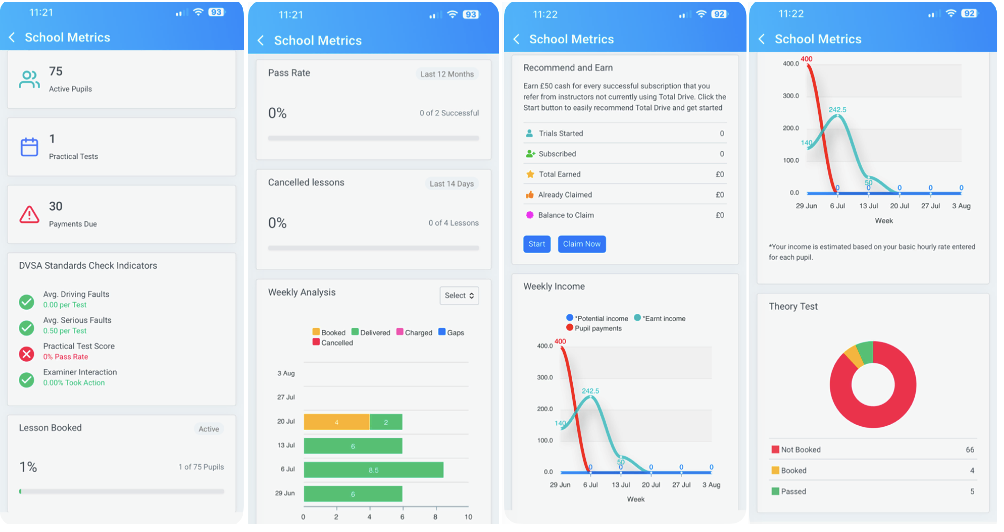
Tapping "School Metrics" opens the Instructor Stats dashboard, giving you a comprehensive overview of your teaching performance.
What You'll See:
Active Pupils – Total number of active pupils currently on your books.
Practical Tests – Upcoming test & past tests
Payments Due – number of outstanding payments due
DVSA Standards Check Indicators – Key metrics for your Standards Check.
Lessons Booked - number of lesson currently booked
Pass rate - pass rate in last 12 months
Weekly Analysis – Performance trends over the past week. You can click on Select to change the dates
Recommend and Earn – Referral tracking for your recommendations.
Weekly Income - Potential vs Earnt vs payments
Theory Test – Breakdown of pupils by Booked, Not Booked, and Passed.
Driving Tests
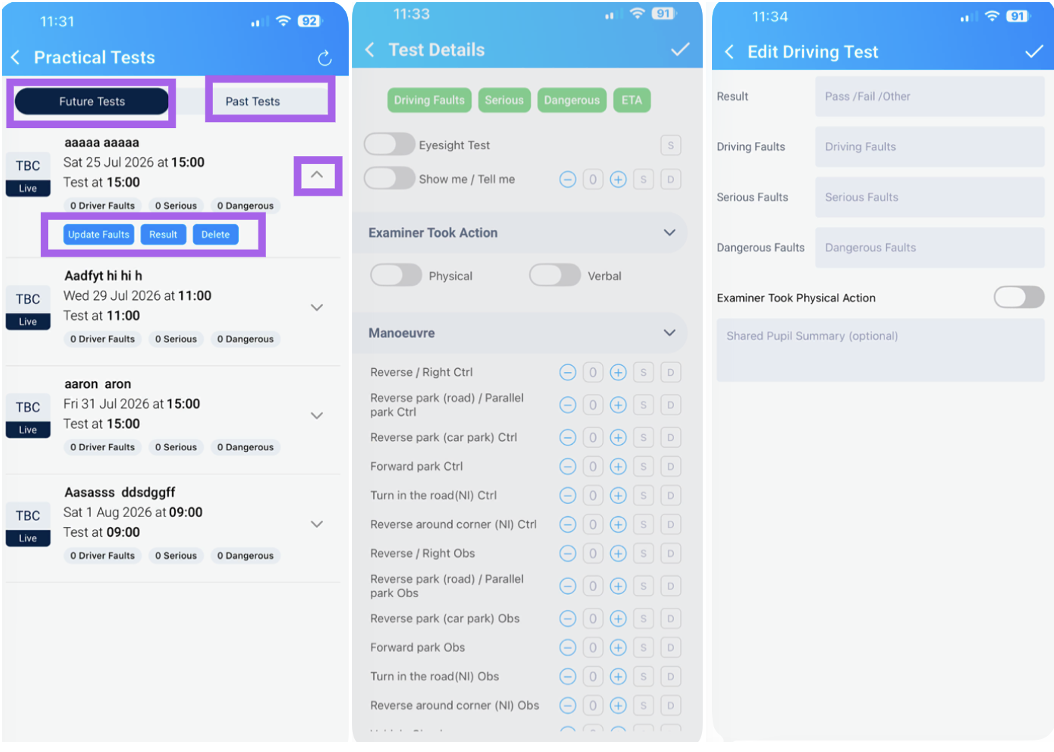
This screen displays all Future and Past Driving Tests for your pupils.
What You Can Do:
View Results – See test outcomes at a glance (under past tests)
Update Faults – Record Driving Faults (DF) and Serious & Dangerous Faults (S&D).
Add Results – Tap the "Results" button to add faults to a test. You'll need to acknowledge a notice before proceeding. Once you've added the faults, tap Save to update the record.
Delete a test
Payments
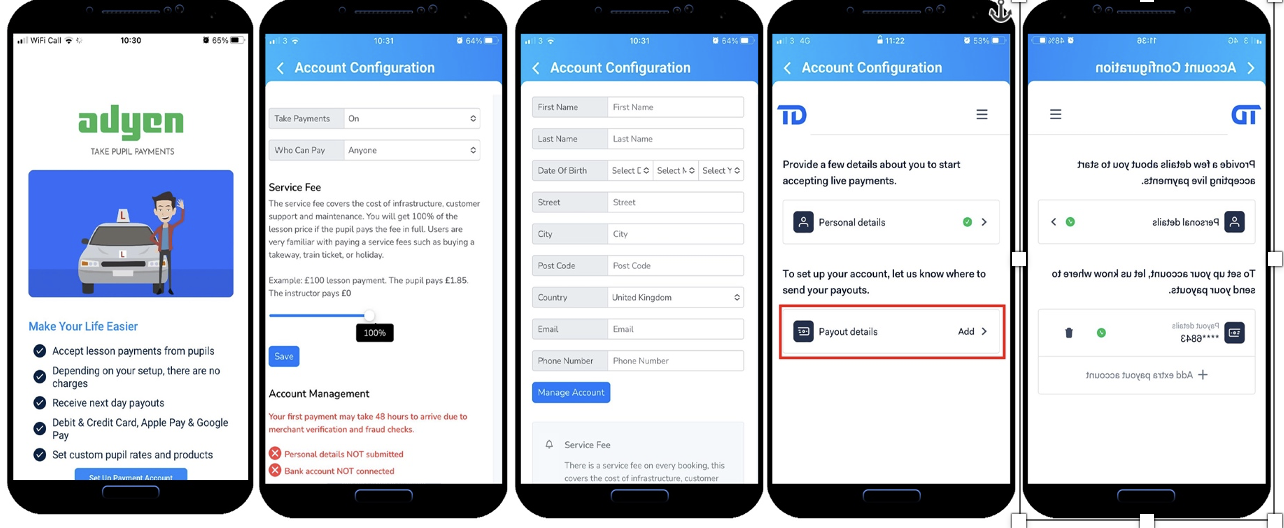
This section allows you to set up and manage payment processing through Adyen.
Getting Started:
Tap "Payments" to begin the Adyen setup.
Tap "Setup Payment Account" to start the configuration.
Configure Payment Settings:
Ensure "Take Payments" is toggled On.
Set the Service Fee slider to your preferred percentage, then choose whether the fee is paid by the Pupil or the Instructor.
Account Setup:
Fill in the required Account fields below the settings.
Tap "Manage Account" to proceed.
Payout Details:
Complete the three-step process to connect your bank account.
You'll need to provide your Account Number and Sort Code.
Upload supporting evidence, such as a bank statement, for verification.
Completion:
Once both sections are complete, a green tick will appear next to each.
You can now accept payments through the app.
Fuel Card
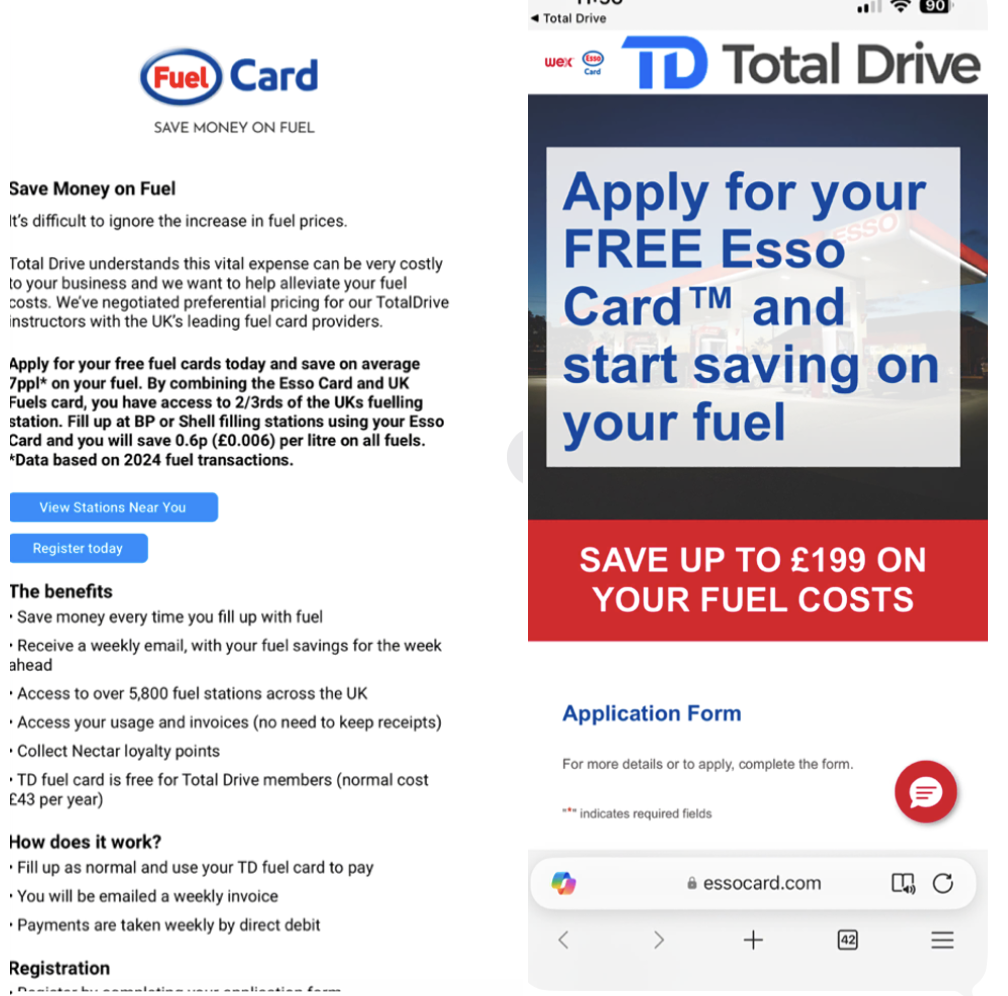
We have set up an agreement with WEX to offer a free fuel card. To apply click on the "Save on Fuel. The first screen will tell you more about it, if you click on register today, you will be taken off to a website. Please complete the information if you are interested
Doodle Pad
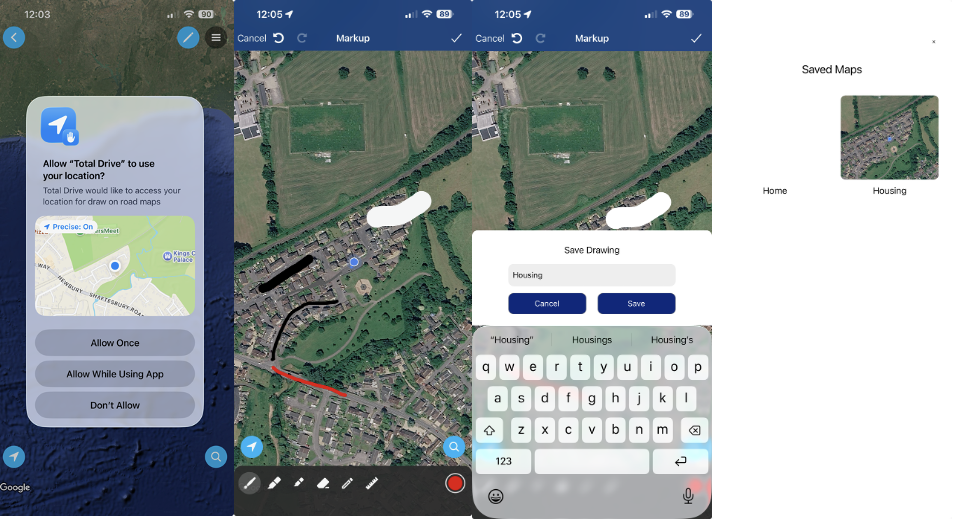
Clicking on the Doodle Pad will bring up the local area as a satellite map
You may need to accept usage first, once done you will be able to draw on itwith various pens and save. To reopen any saved maps, click the 3 lines in the top right corner
2D Scenarios
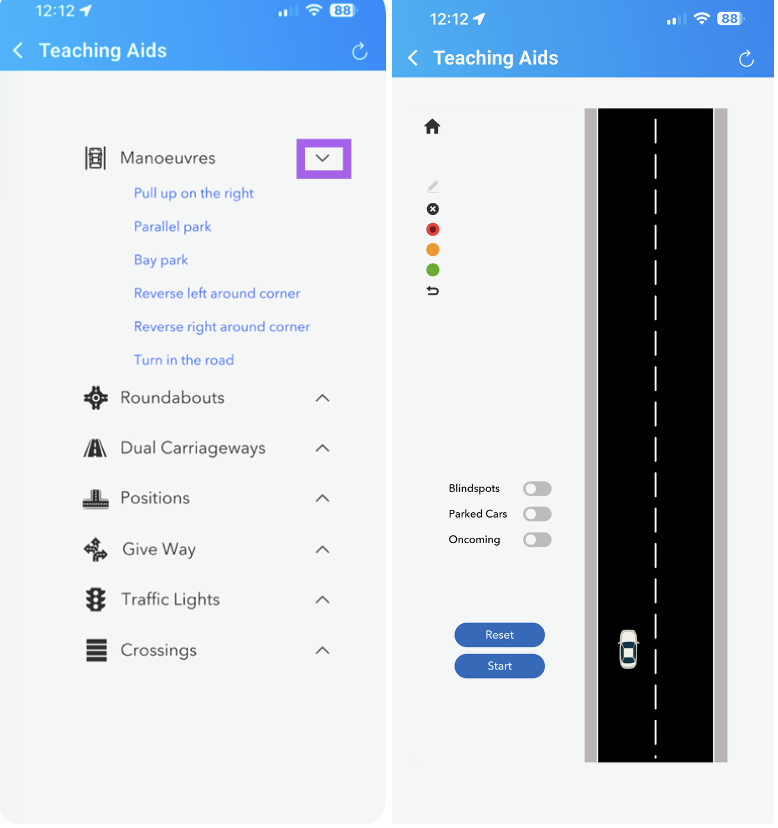
Clicking on the 2D Scenarios will bring up a list of options that you can show your pupil in the car
If you click on the arrow at the end of each heading, it will bring you up detailed options. Each of these will take you to a short video which you can play, talk over, add options like blind spots and draw on
Resources
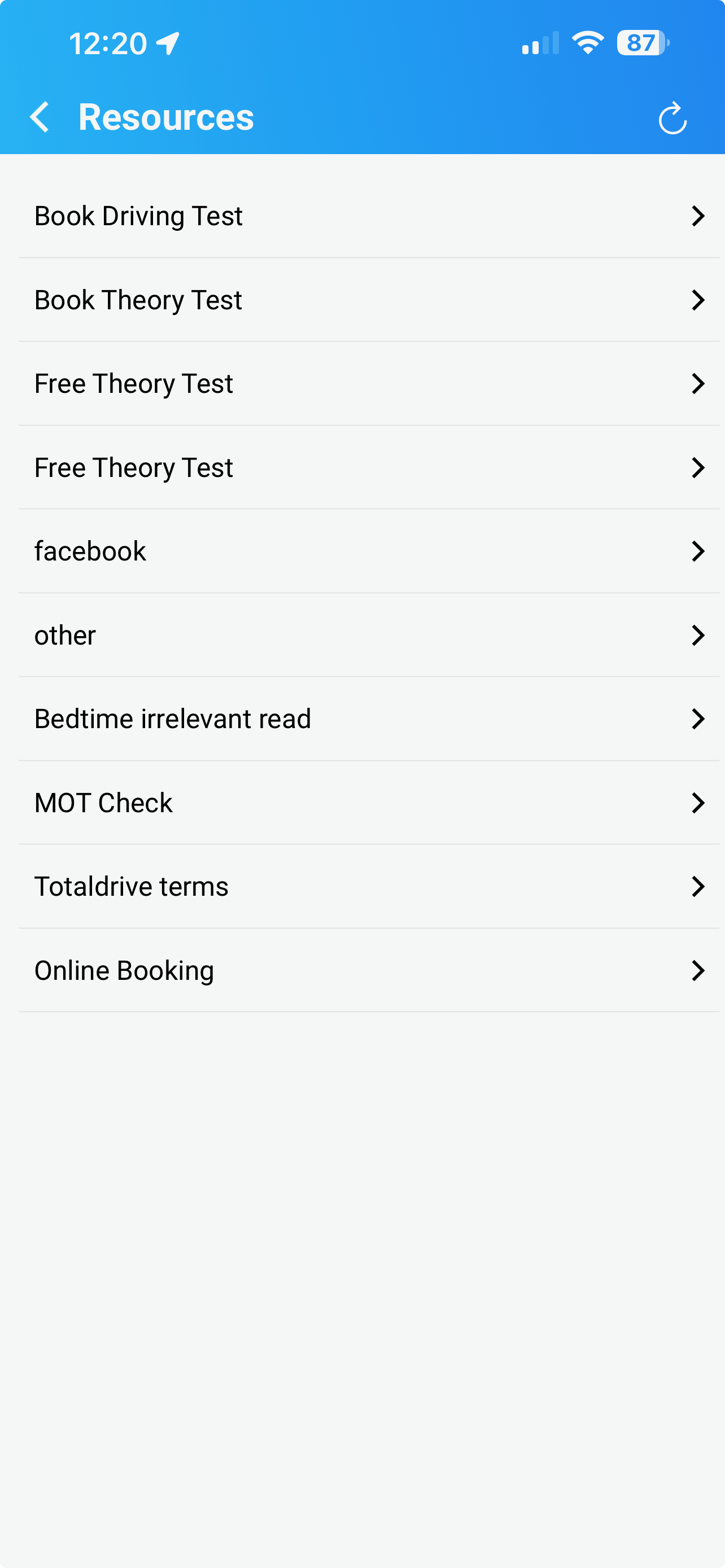
Takes you to a link where you have stored your resources which are also on the pupil app. This is a quick link, for you to be able to show pupils in the car. from your list click on the error at the end end to be taken to the web page you wish to view.
Please see the Resources help file for details on how to set up Resources
PDI Training
For use if you are a PDI using the app, this is where you can record your Part 2 and part 3 hours, by clicking on the + at the top right. Once you have added the information, don't forget to save by clicking the tick, top right.

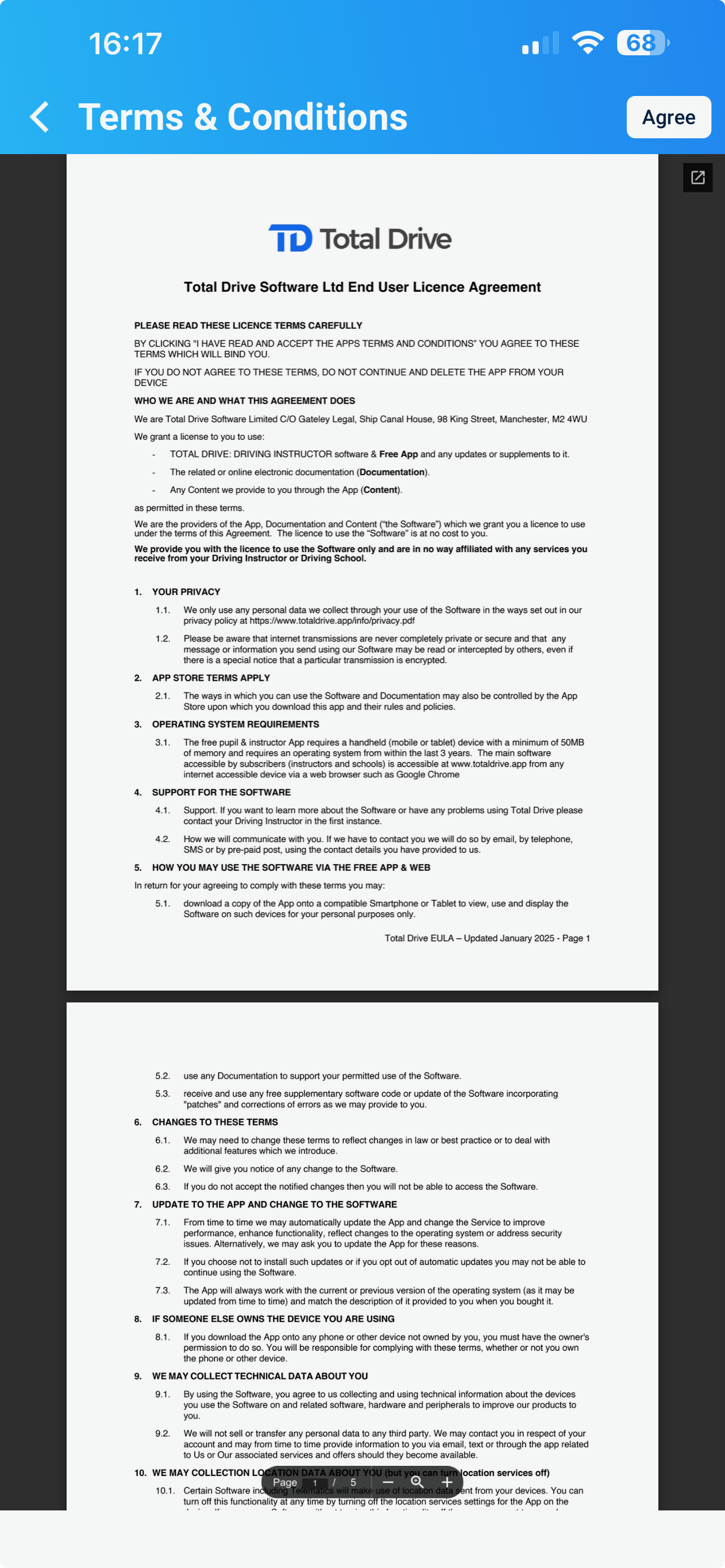
Terms & conditions
This is where you can find the Total Drive app terms & conditions
Help
Click help if you need our support
Log out
This is where you can log out of the app if you ever need to