
The Broadcast feature allows you to send a single message to multiple pupils at once—perfect for announcements, reminders, or important updates.
Steps to Send a Broadcast Message
1. Navigate to Messages
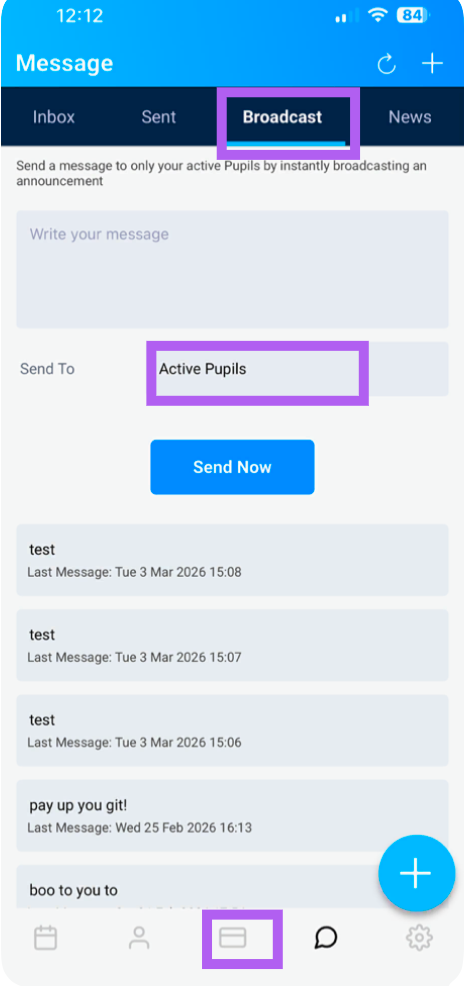
Tap the message bubble icon on the lower navigation pane to open the Messages section.
2. Access Broadcast
At the top of the screen, tap "Broadcast" to open the broadcast message screen.
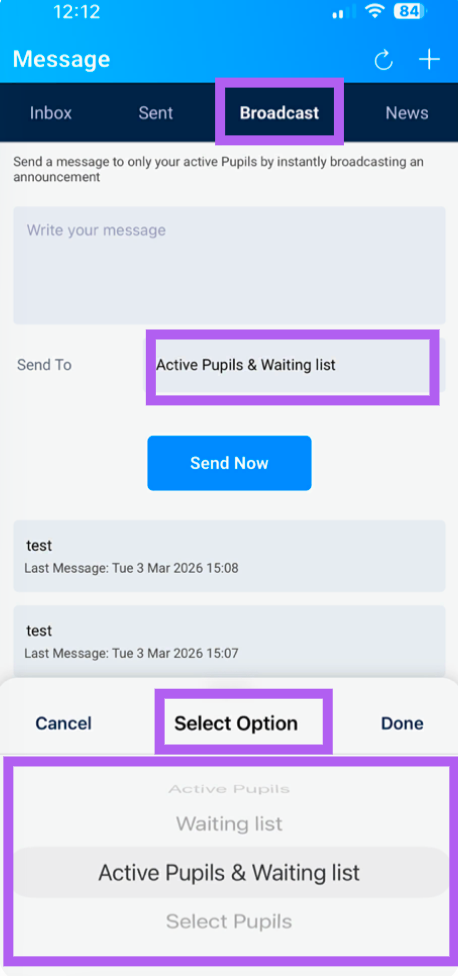
3. Select Your Recipients
You have two ways to choose who receives your message:
| Option | Description |
|---|
| Filter by Group | Select a pre-defined group—such as Active Pupils, Waiting List, or All Active & Waiting List—to send to everyone in that category. |
| Select Individually | Manually choose specific pupils from your list by tapping their names. This gives you full control over exactly who receives the message. |
4. Compose and Send
Write your message in the text field.
Tap Send to deliver the broadcast to all selected recipients.
Example Use Cases
| Scenario | Recommended Recipients |
|---|
| Holiday closure announcement | All Active & Waiting List |
| Test tips and advice | Active Pupils only |
| Special offer or promotion | Waiting List |
| Follow-up on a specific group | Manually selected pupils |
Tip: Use broadcasts sparingly and keep messages clear and relevant—pupils are more likely to read and act on messages that aren't sent too frequently.
Important Notes
Broadcast messages are sent as app notifications and will also appear in the pupil's inbox within the app.
A timestamp showing when the last broadcast was sent will appear on the broadcast screen for your reference.