Managing Pupil Status
This guide explains how to change a pupil's status from Active to Waiting, Inactive, Enquiry or Passed.
Table of Contents
Accessing a Pupil’s Profile
Moving a Pupil to Waiting
Moving a Pupil to Inactive
Moving a Pupil to Passed
Moving a Pupil from Enquiry
Accessing a Pupil’s Profile
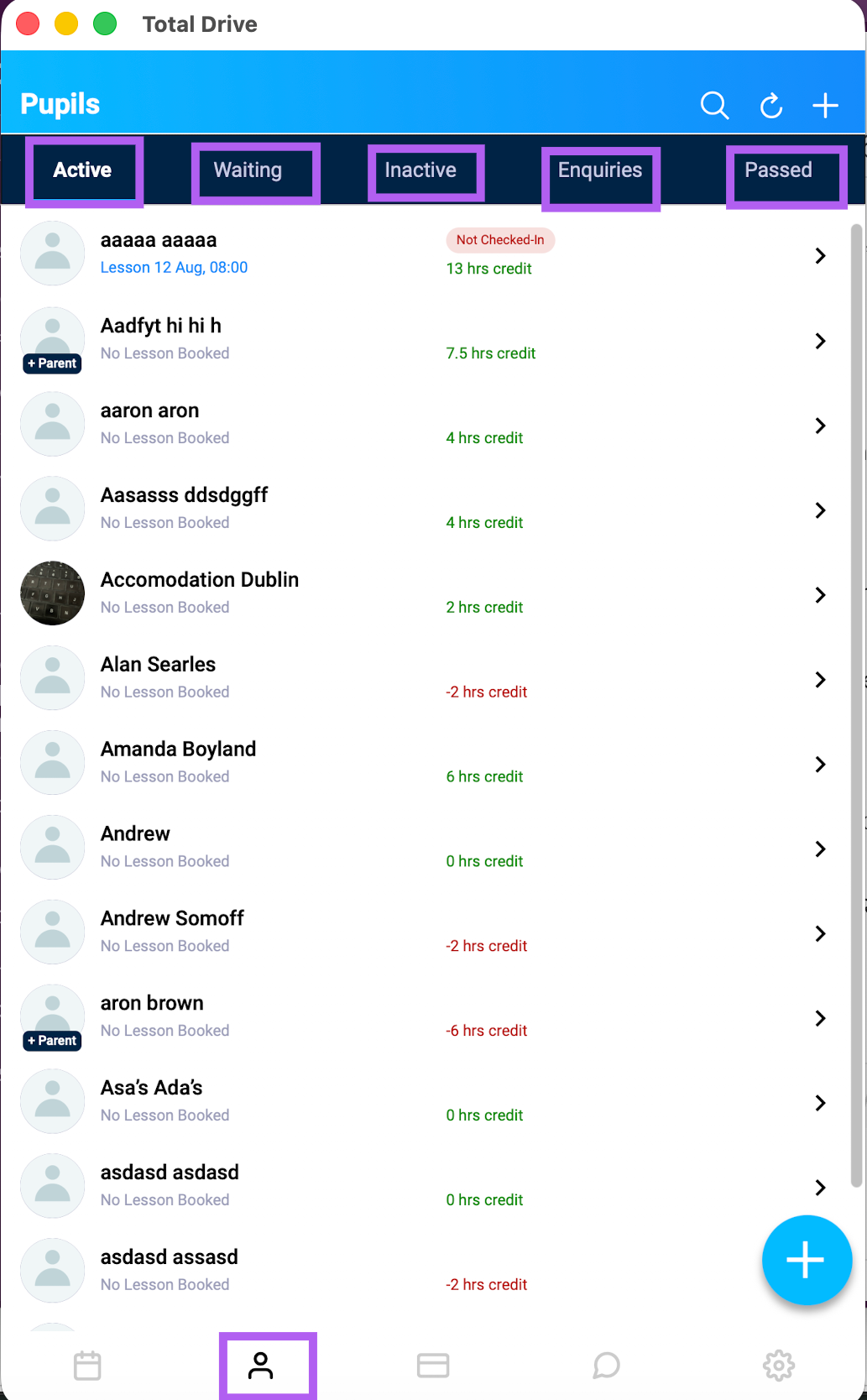
From your main Pupil Menu, locate the Active list.
Tap on the name of the pupil you wish to manage.
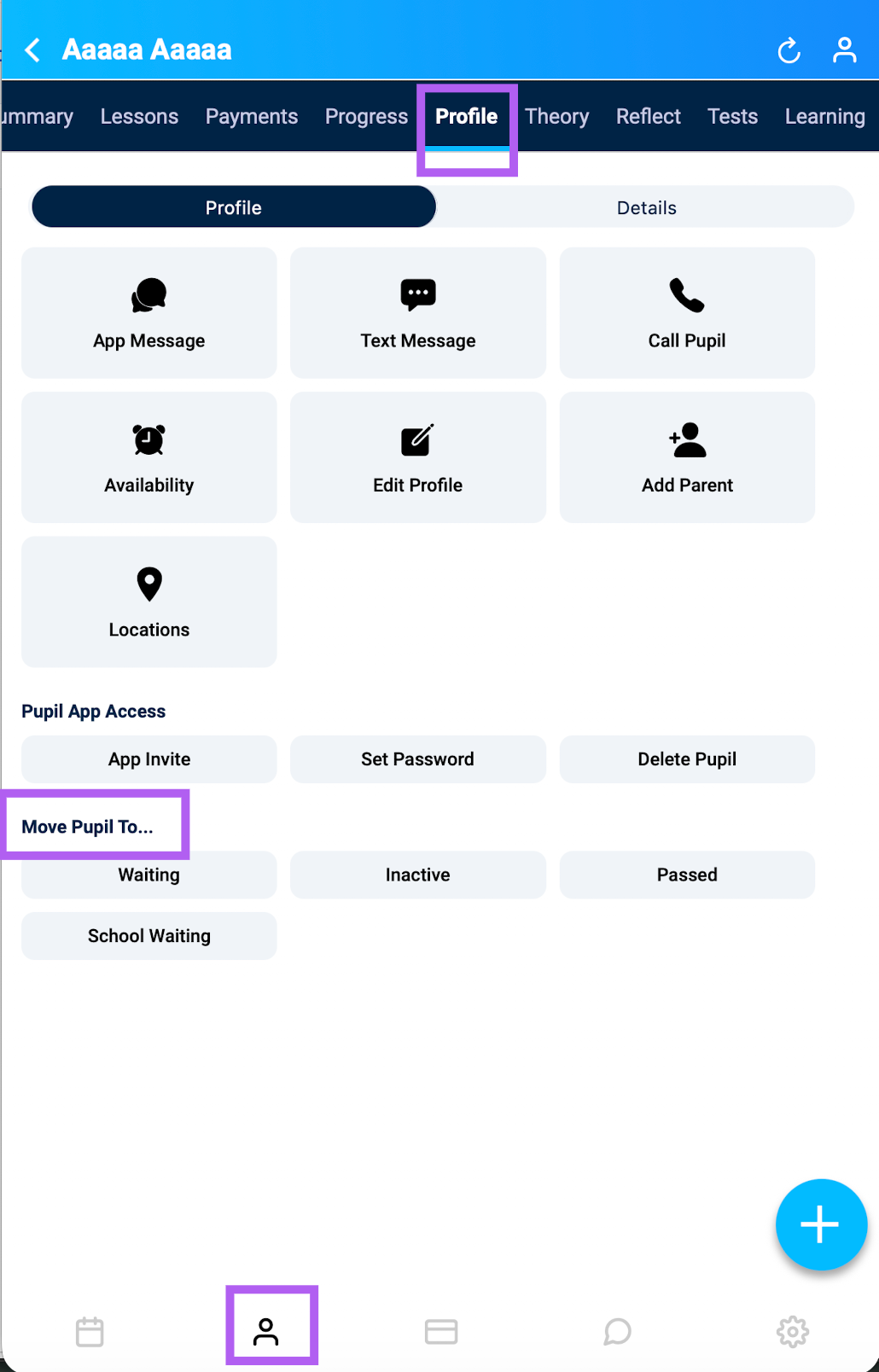
On the pupil’s detail screen, tap Profile to open the management menu.
Moving a Pupil to Waiting
Use this option when a pupil is taking a break or is on a hold list.
In the Profile menu, scroll to the bottom.
Tap Move Pupil To... and select Waiting.
A confirmation box will appear. Tap Confirm to complete the action.
The pupil is now removed from your Active list.
To verify, tap the Waiting tab at the top of your Pupil Menu – you will see the pupil listed there.
Note: If you're part of a school, you'll have the option to move the pupil to the school's waiting list. This returns them to the school and removes them from your personal waiting list. Only use this option if you no longer want the pupil on your own list.
Moving a Pupil to Inactive
Use this option for pupils who have discontinued lessons permanently (e.g., moved away or no longer require instruction).
In the Profile menu, scroll to the bottom.
Tap Move Pupil To... and select Inactive.
A confirmation box will appear. Tap Confirm to complete the action.
The pupil is now removed from your Active list.
To verify, tap the Inactive tab at the top of your Pupil Menu – you will see the pupil listed there.
Moving a Pupil to Passed
Use this option when a pupil has successfully passed their test.
In the Profile menu, scroll to the bottom.
Tap Move Pupil To... and select Passed.
A confirmation box will appear. Tap Confirm to complete the action.
The pupil is now removed from your Active list.
To verify, tap the Passed tab at the top of your Pupil Menu – you will see the pupil listed there.
Moving a Pupil from Enquiry
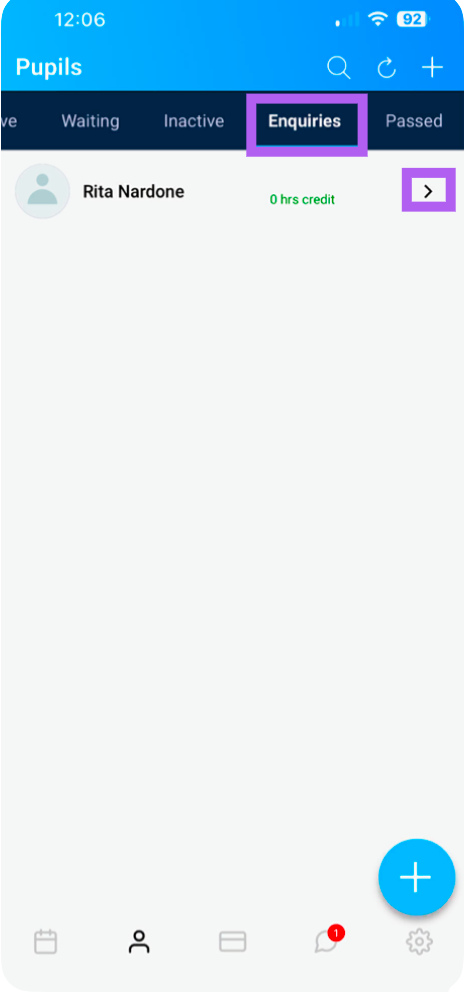
If you are using the enquiry form on your website, then pupils who have filled in the form will appear in your enquiry list
From the pupil list Click on Enquiry
Click on the pupil you would like to move
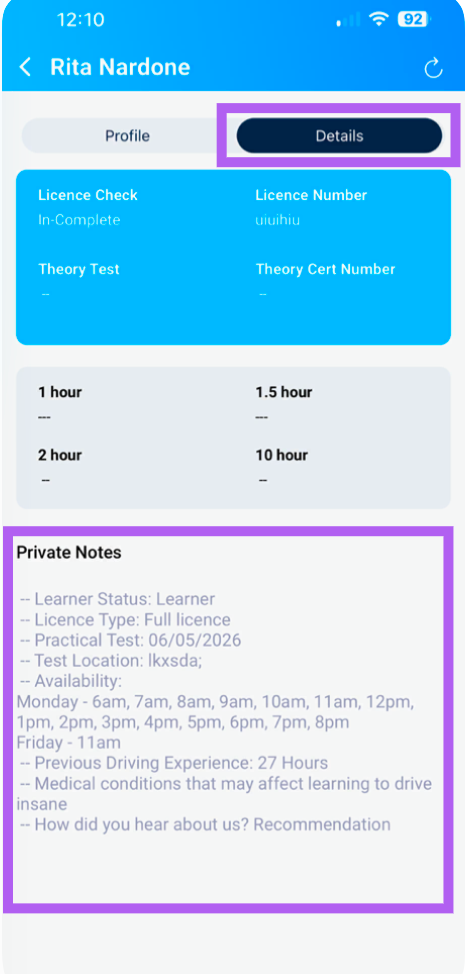
Click on details to check they are in your area/you are happy to take them on
Go back to profile and send app invite and move to Active, waiting or School waiting
To verify, tap the corresponding tab at the top of your Pupil Menu – you will see the pupil listed there.
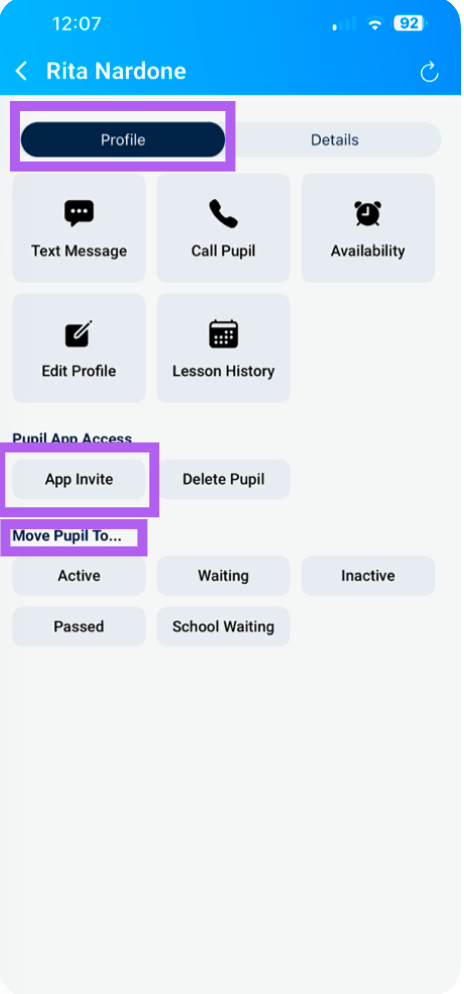

Tap on Profile which will bring up the menu for that pupil.
Located at the bottom you will see "Move Pupil To...", tap on "Waiting".

A confirmation box will appear asking you to confirm the action.

Now you have moved the pupil to the Waiting List, tap on "Waiting" and you will now see them listed there.

Moving a pupil from Active to Inactive

Tap on Profile which will bring up the menu for that pupil.
Located at the bottom you will see "Move Pupil To...", tap on "Inactive".

A confirmation box will appear asking you to confirm the action.

Now you have moved the pupil to the Inactive list, tap on "Inactive" and you will now see them listed there.

Moving a pupil from Active to Passed

Tap on Profile which will bring up the menu for that pupil.
Located at the bottom you will see "Move Pupil To...", tap on "Passed".

A confirmation box will appear asking you to confirm the action.

Now you have moved the pupil to the Passed list, tap on "Passed" and you will now see them listed there.
