You can easily update your driving school's Terms and Conditions directly from the app. This ensures that every pupil sees the most current version when they receive app invitations or join your school.
Accessing the School Terms Section
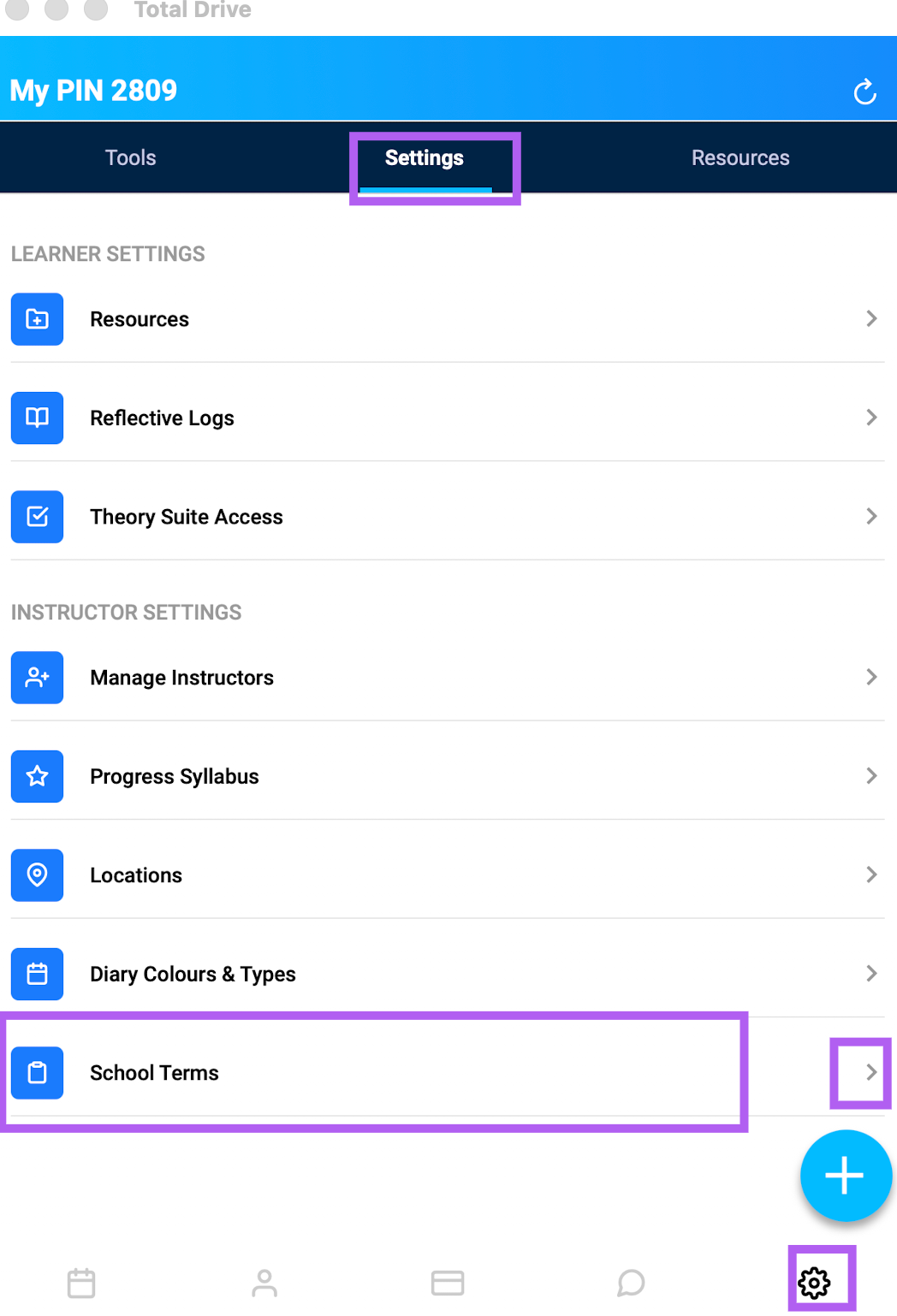
From the main app screen, tap the Cog icon located at the bottom right to open Settings.
Scroll down through the Settings menu until you find School Terms.
Tap on School Terms to open the current version of your terms.
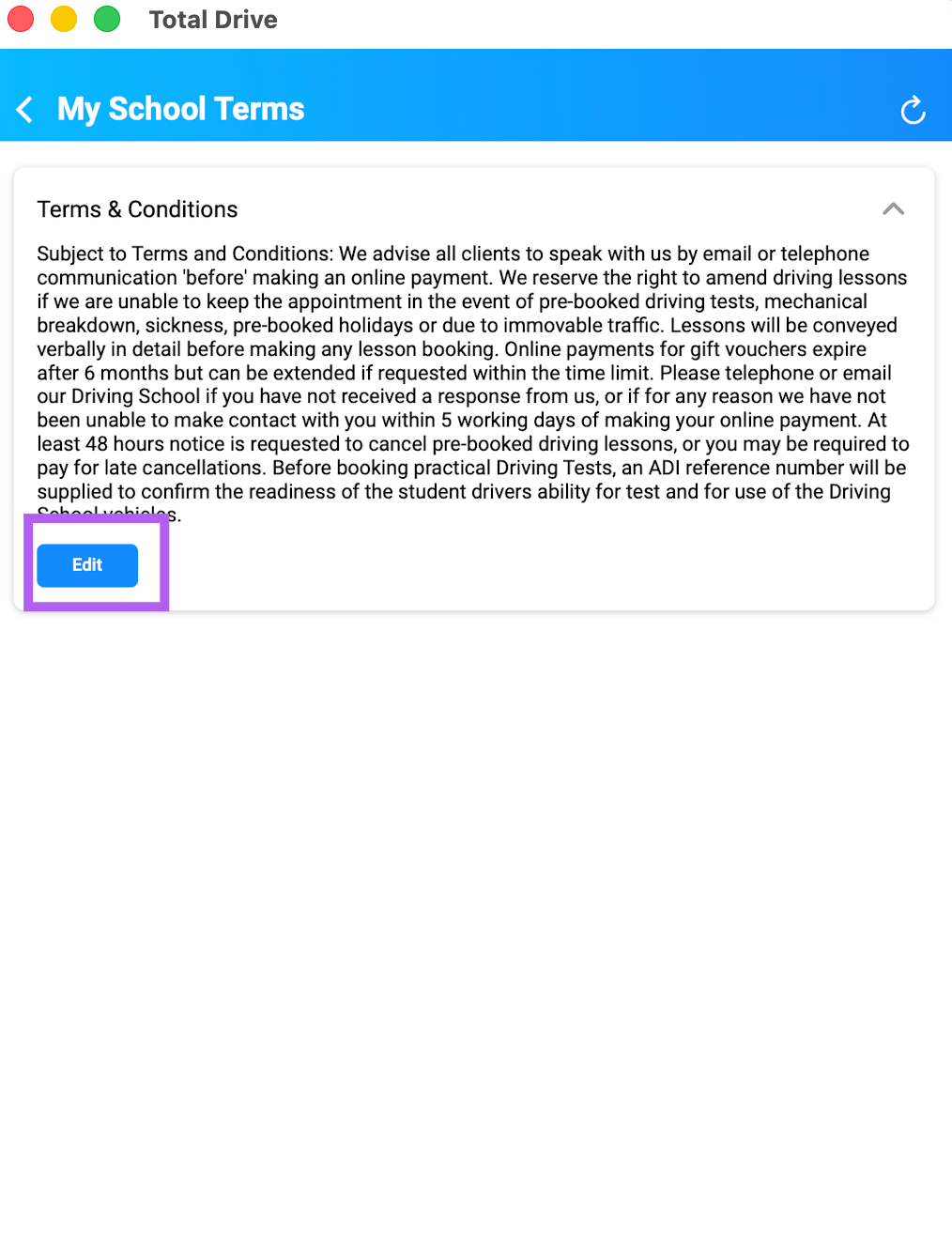
Editing Your Terms and Conditions
On the School Terms screen, tap the blue Edit button to enter editing mode.
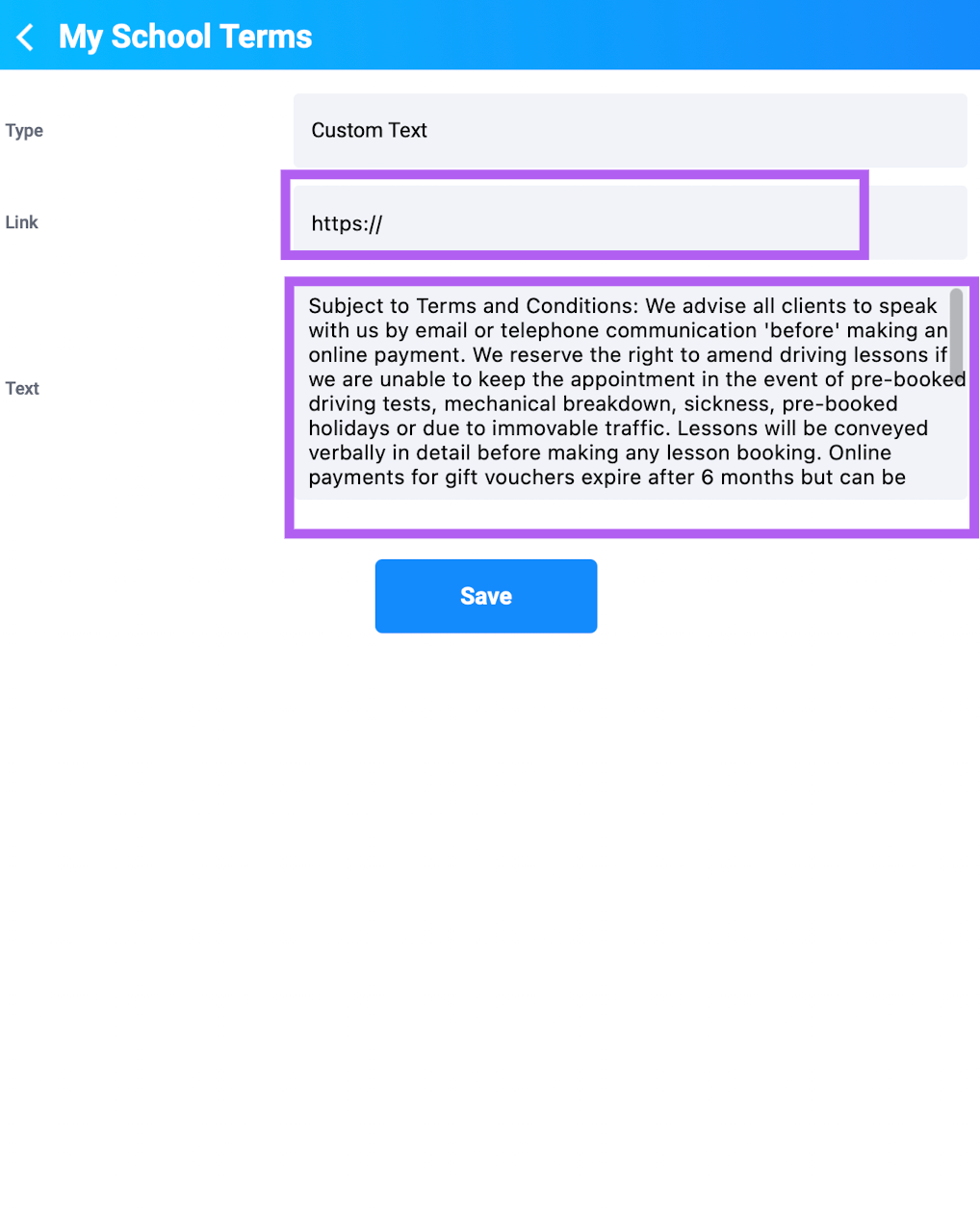
Make any changes you require to the text – you can add, remove, or update clauses as needed. You can also copy and paste
Take your time to ensure all information is accurate and up to date.
If you have terms and conditions on your website, you can add the URL in the Link box instead of adding new terms and conditions
Saving Your Updates
Once you have finished making your changes, tap the Save button to apply the updates.
Your new Terms and Conditions will now be active. All future pupil invites and school joins will display this updated version.
Note: if you have changed your terms and conditions and want exisiting students to agree to these new ones, then you need to get them to log out of the app and back in again to approve the new ones.
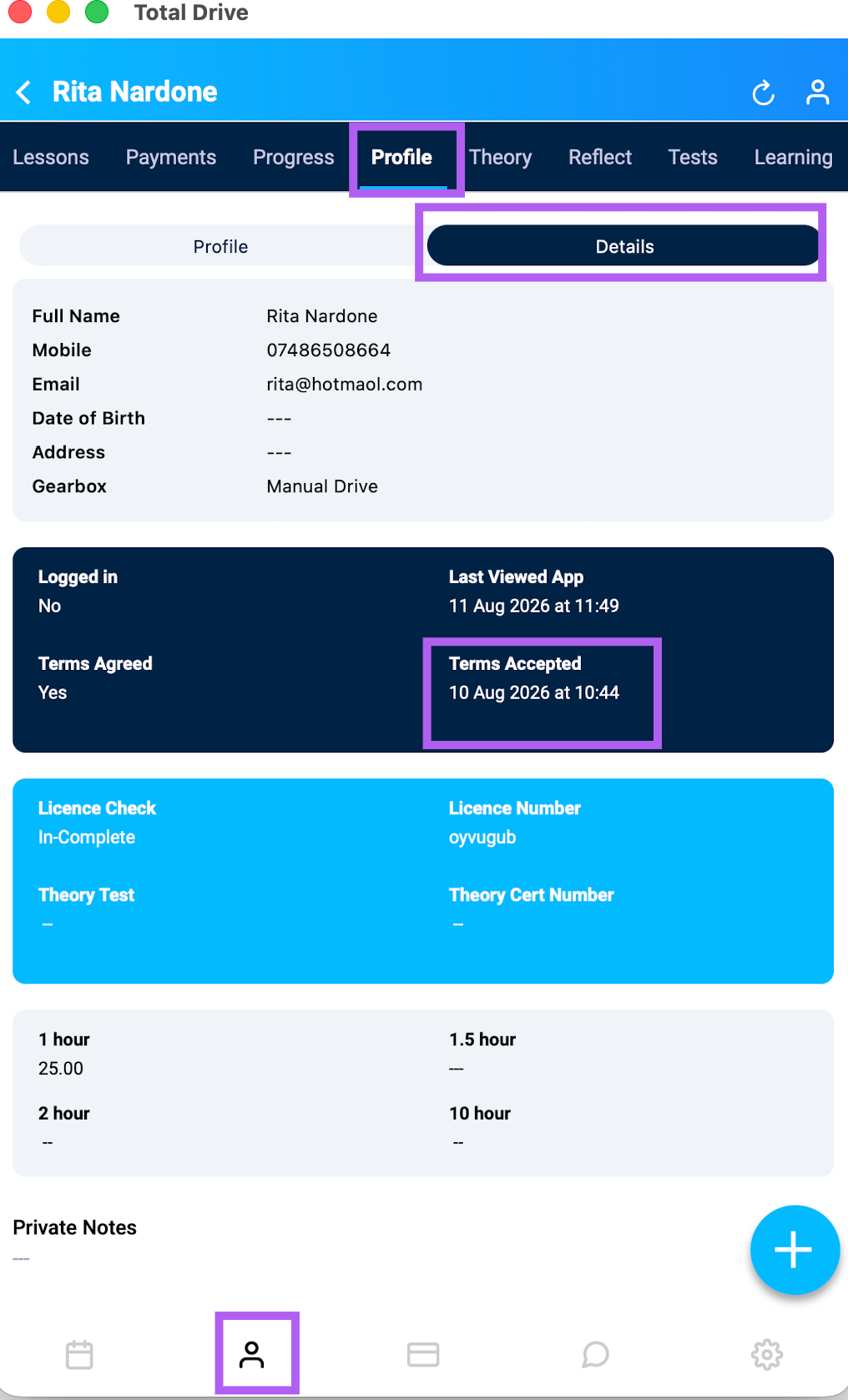
Checking when your pupil agreed to your terms
You can check when your pupil last accepted your terms by going to the learners list, clicking on the pupil in question, going to their profile, then Details and you can see from there the date the terms were agreed