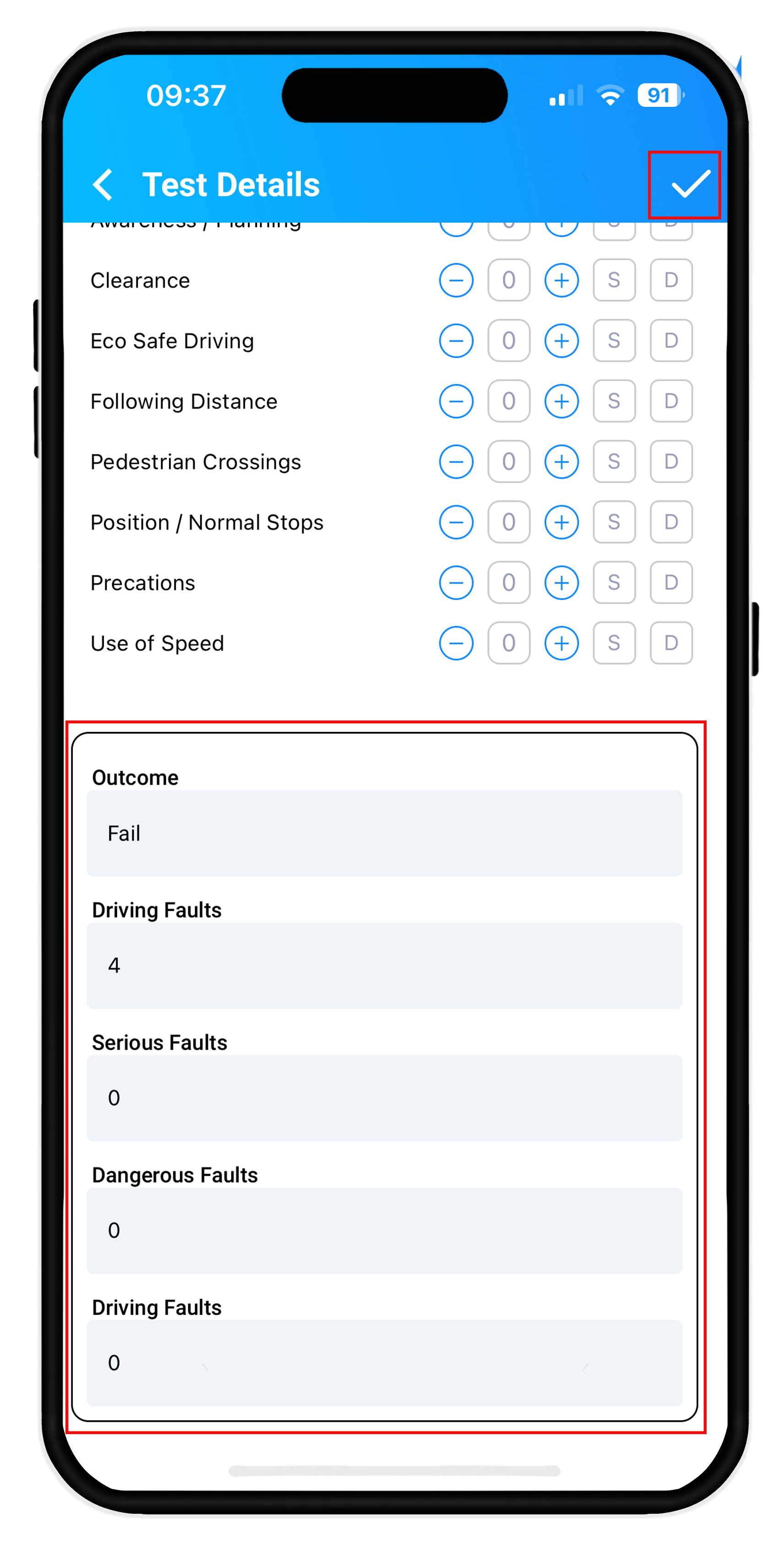
To update Driving Test Results in the app, start by tapping the Settings Cog located at the bottom right of the screen. You will notice at top you are currently in the "Tools" screen, just below this you will see "Practical Tests", select this to open you Driving Tests Screen.
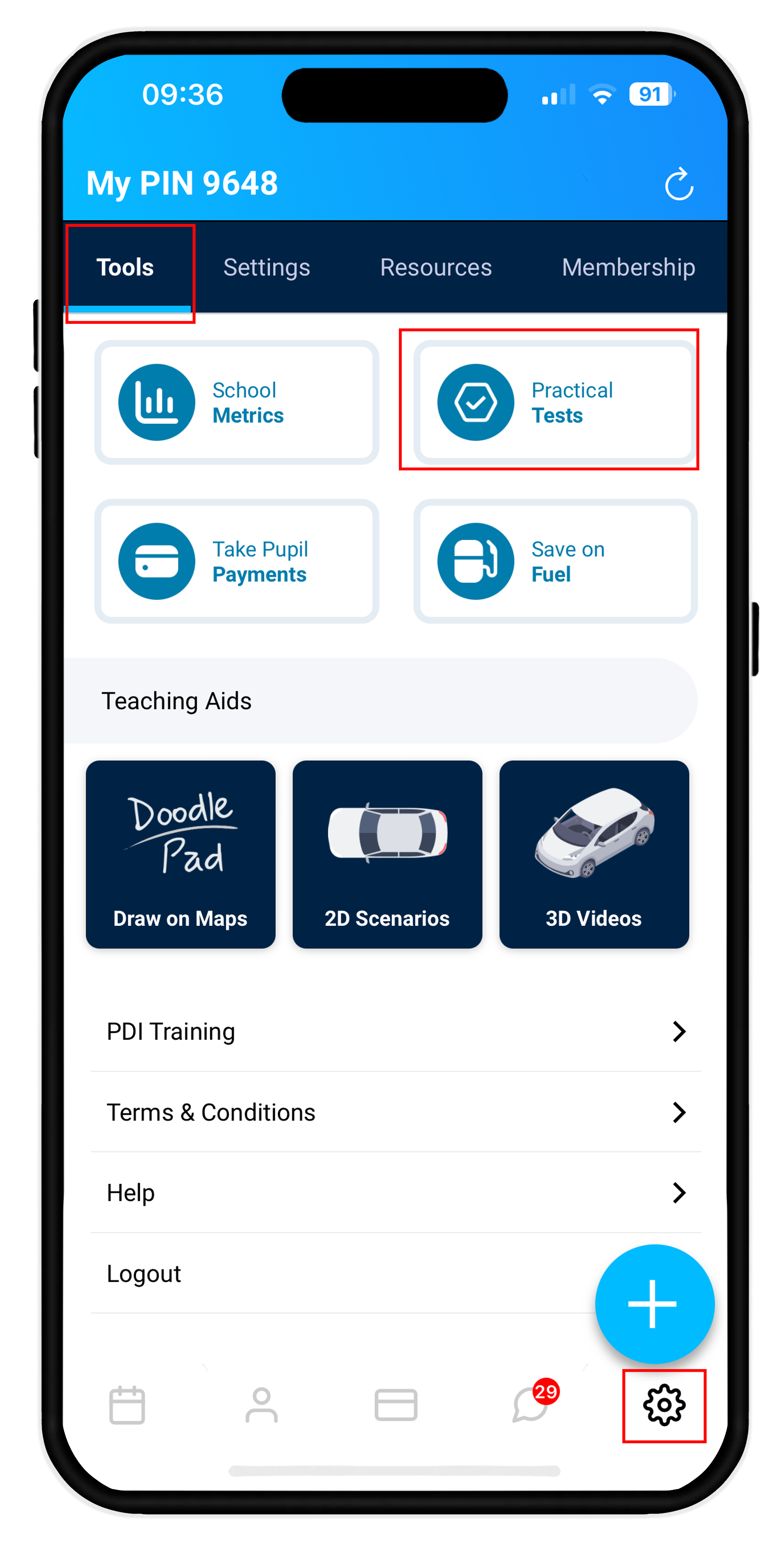
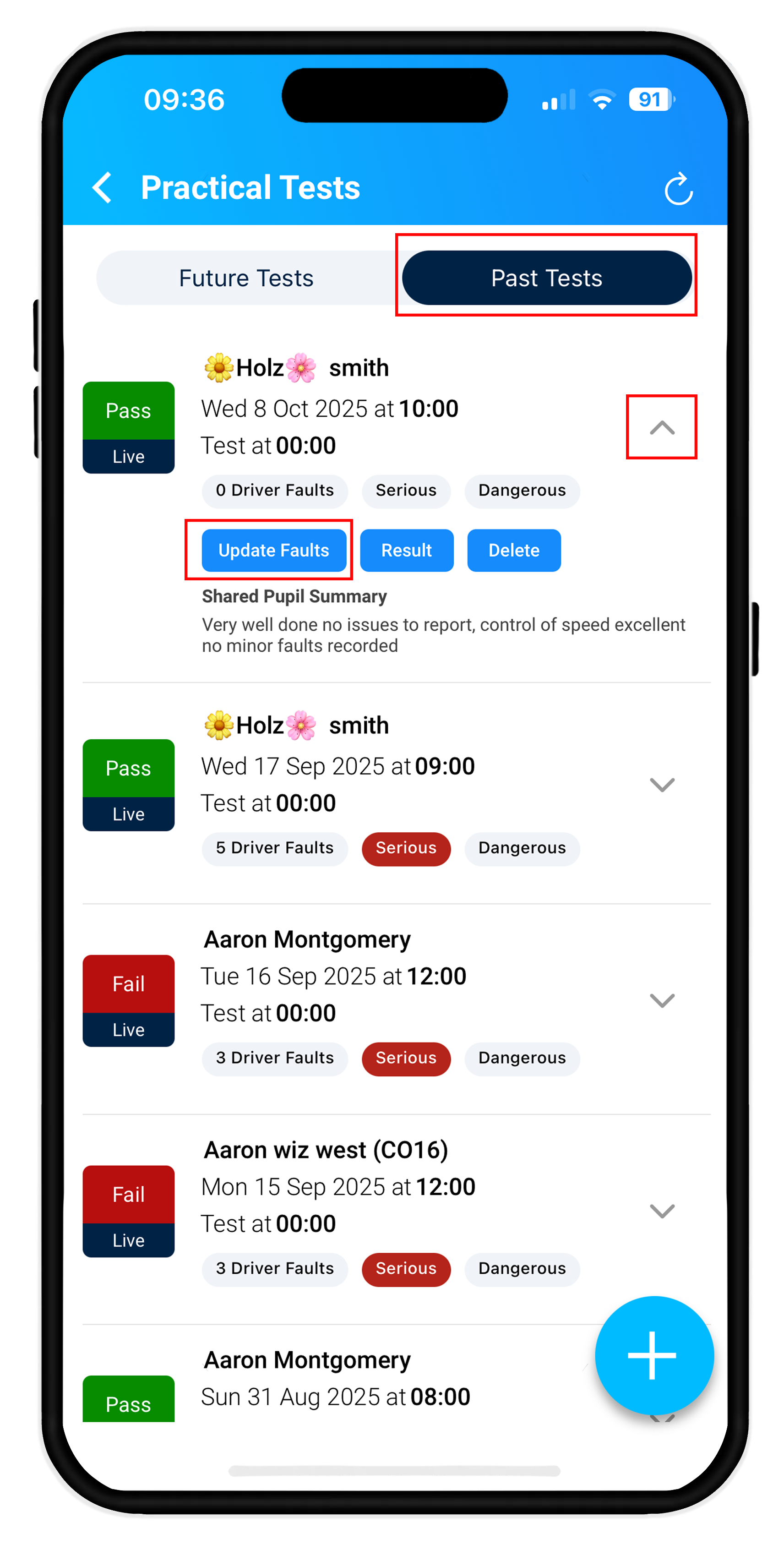
To update your pupils driving test results, select "Past Tests", this will display historic tests, locate the pupil you wish to update the results for. Tap "v" to open the menu options for that selection, select "Result".
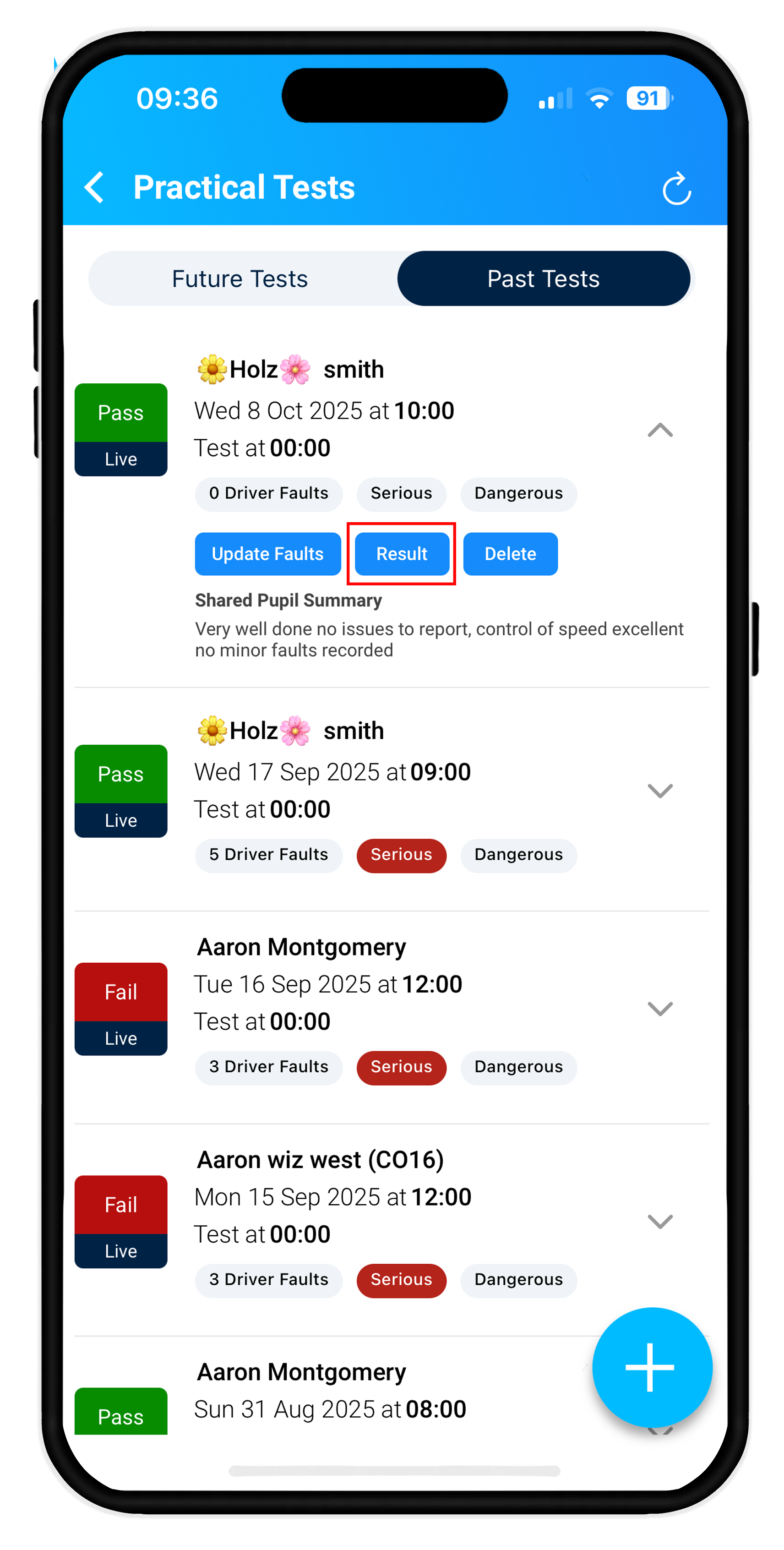
Update the test results Pass / Fail, input any Serious and Dangerous faults and if the Examiner took Physical Action, you can then add a write up in the notes section at the bottom. Tap the tick to save the entry.
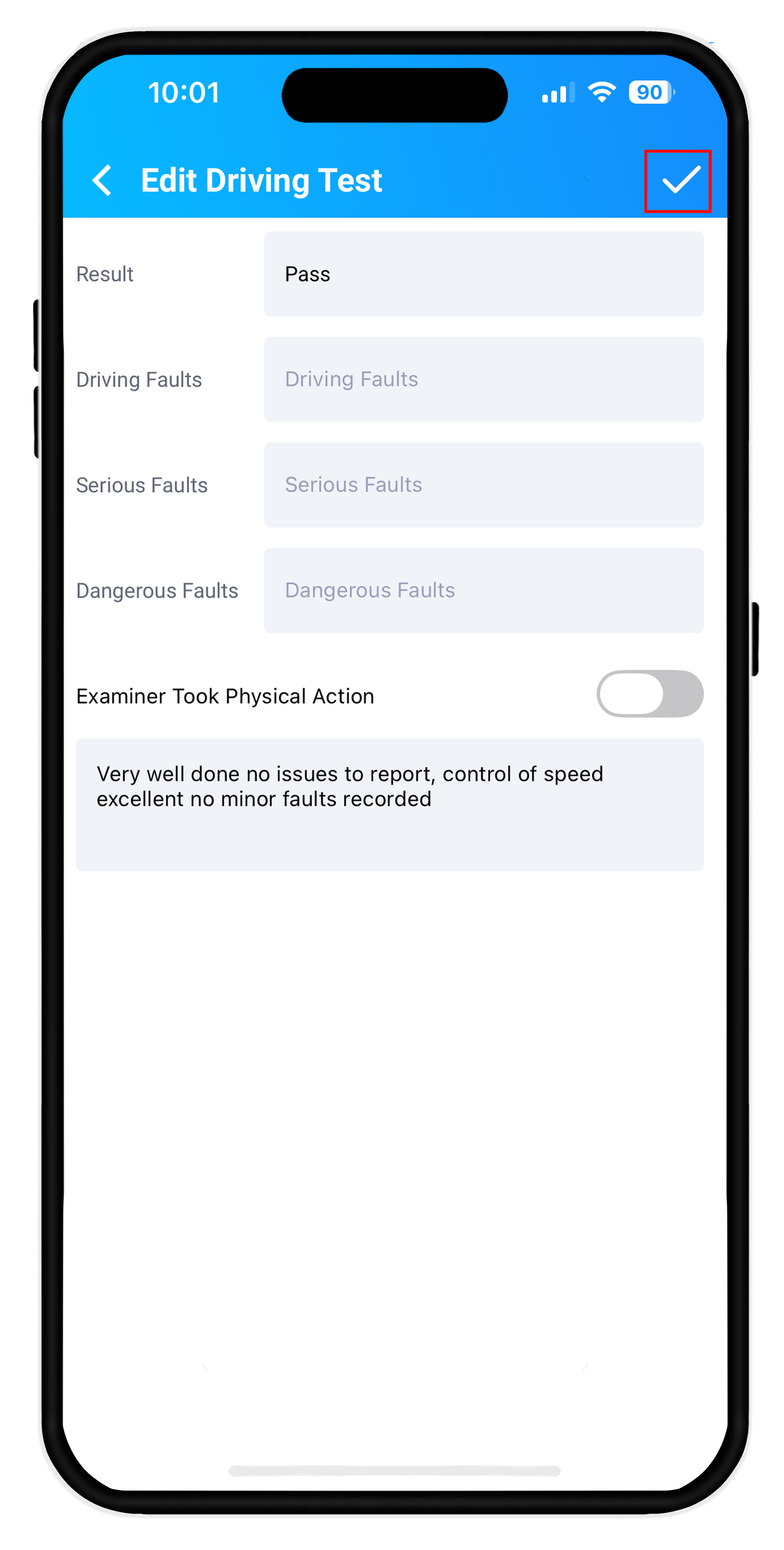
To update faults for this Driving Test select "Update Faults".
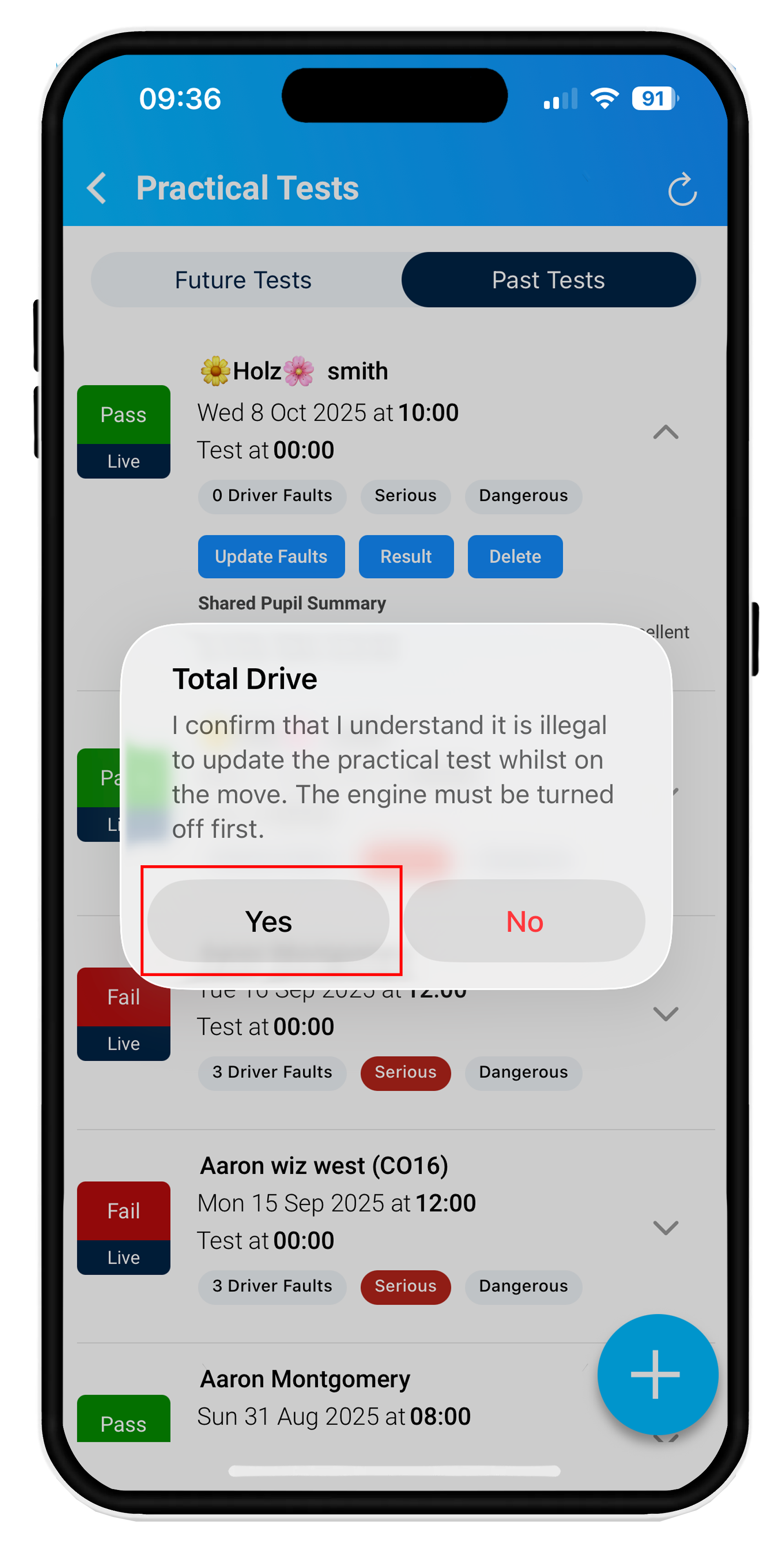
A notification will pop up advising that updating the test results should be done whilst stationary with the engine turned off. Select Yes to proceed to the next screen.
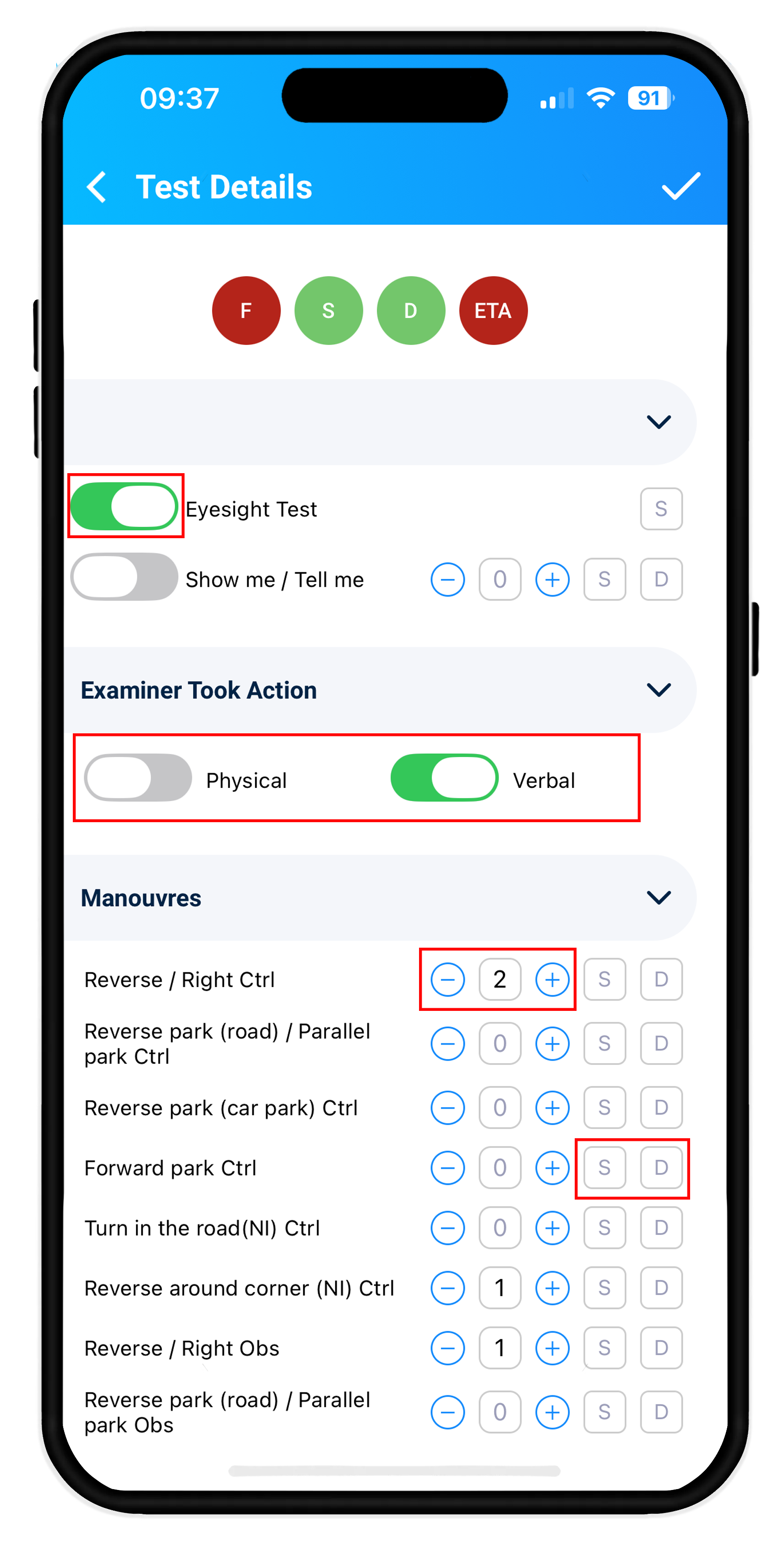
You can now update the Driving Test Results for Driving Faults, Serious Faults and Dangerous Faults.
Using +/- will record Driving Faults
S is for Serious Faults
D is for Dangerous Faults
You can also toggle if the Examiner Took Action by means of Physical or Verbal Action.
When you reach the end of the results screen, you will see the overview of the test showing each entry that has been recorded. Tap the tick top right of the screen to save the Driving Test update.