This guide explains how to record or update a pupil's practical driving test results, including pass/fail status, faults, and examiner actions.
Contents
Accessing the Practical Tests Screen
Updating the Test Result (Pass/Fail)
Updating Faults (Driving, Serious, and Dangerous)
Reviewing and Saving Your Entries
Accessing the Practical Tests Screen
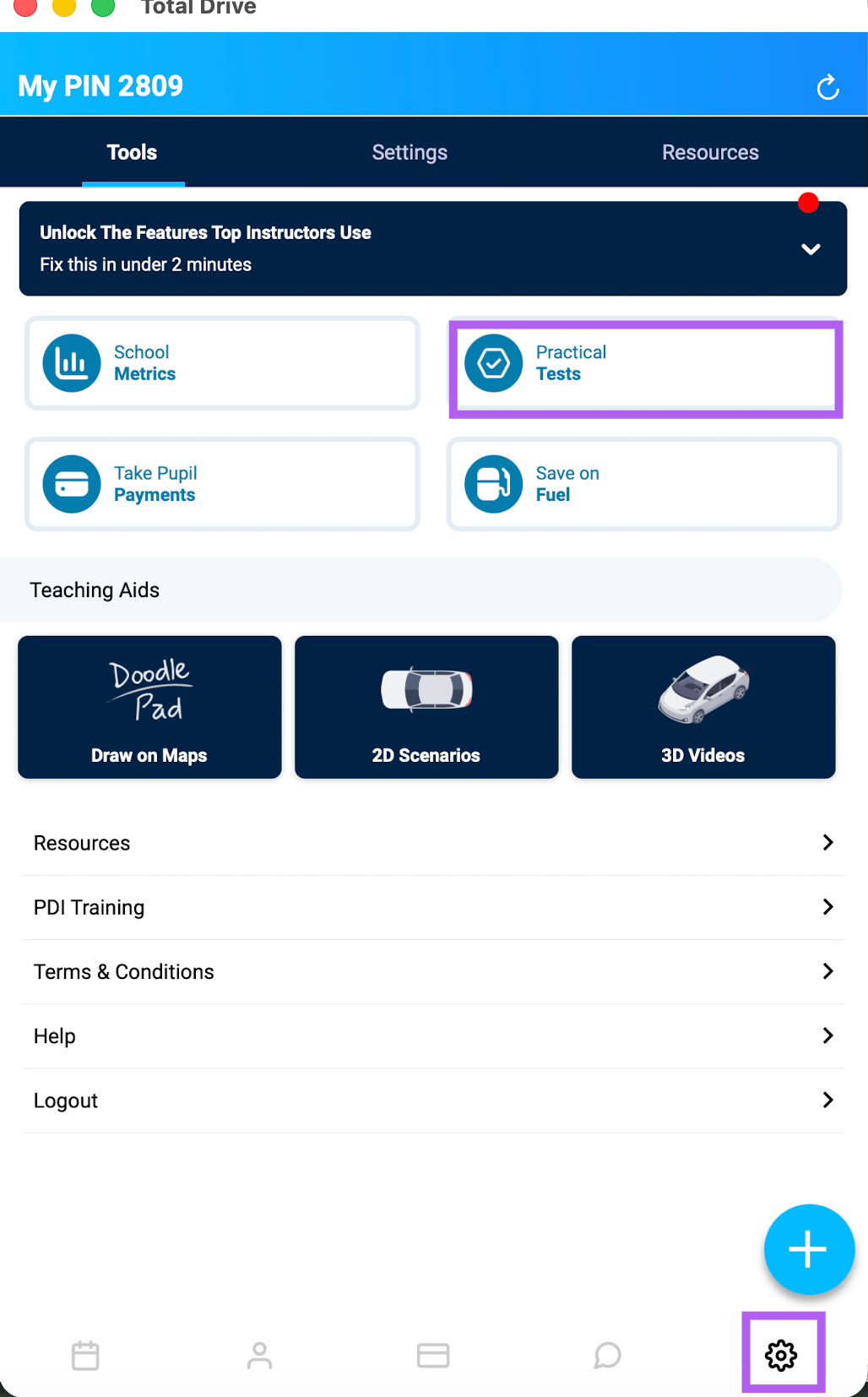
From the main app screen, tap the Settings Cog located at the bottom right.
You will see you are on the Tools screen. Just below this, tap Practical Tests to open your Driving Tests screen.
Updating the Test Result (Pass/Fail)
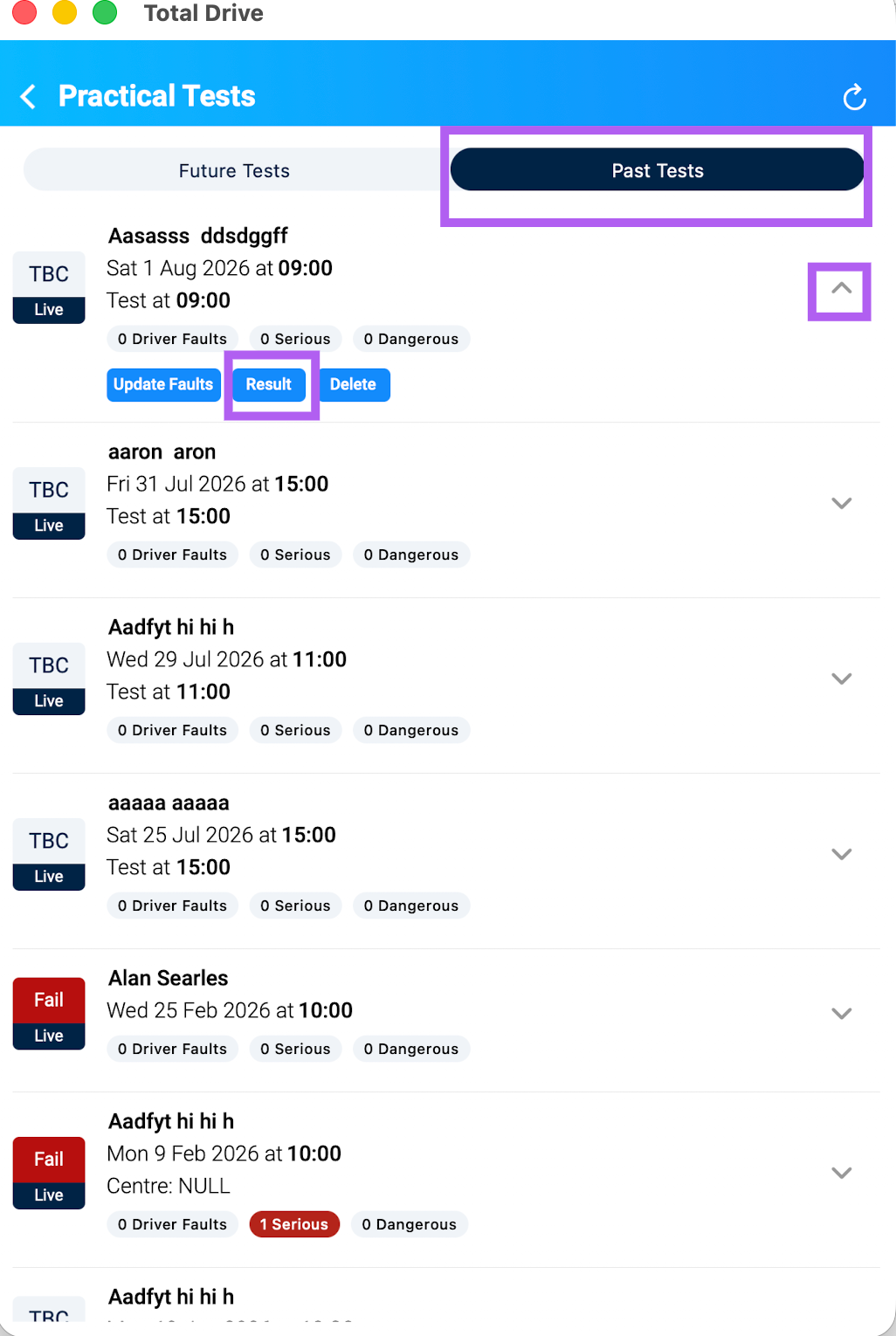
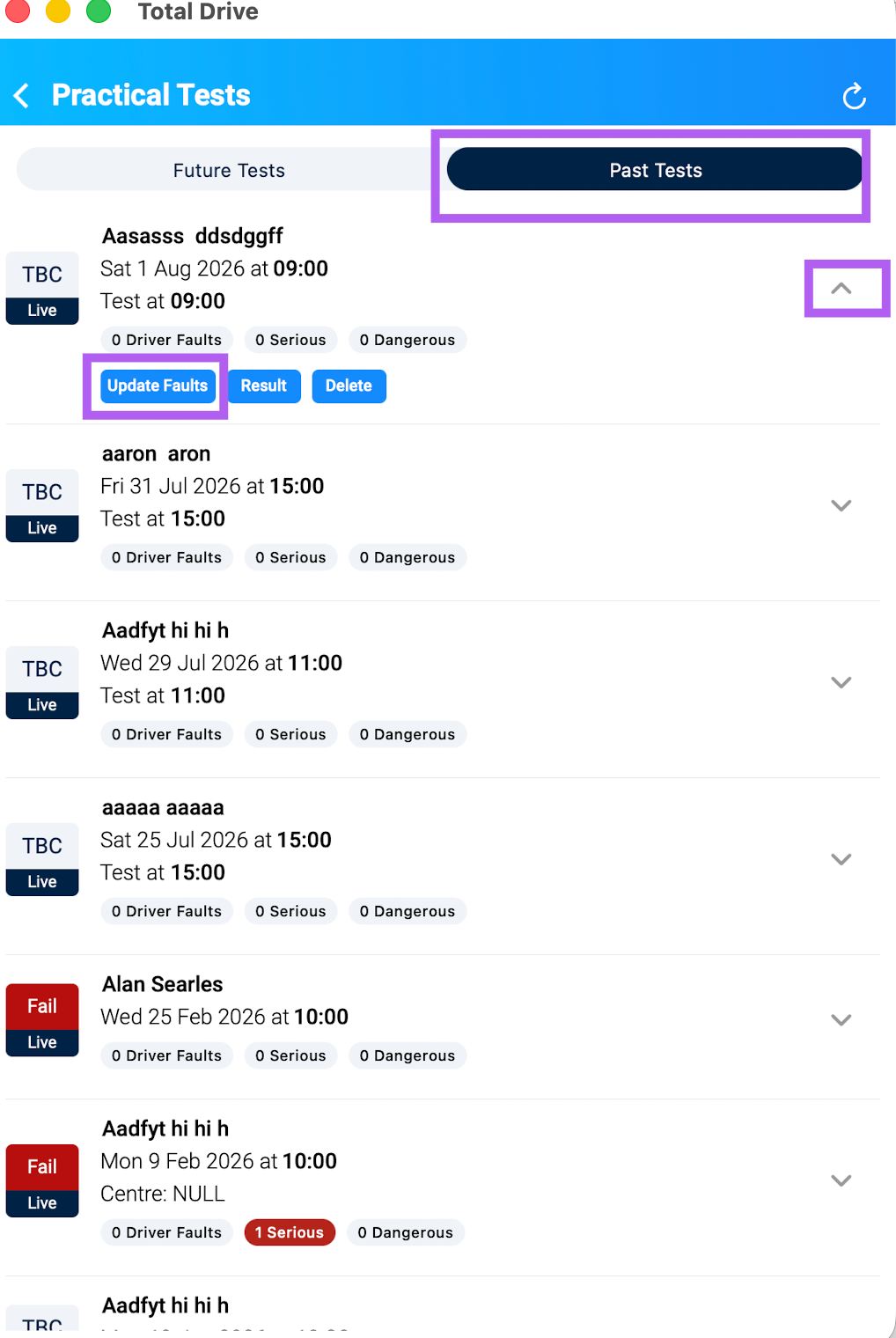
On the Driving Tests screen, tap Past Tests to view historic test records.
Find the pupil whose test results you wish to update.
Tap the "v" icon next to their entry to open the menu options, then select Result.
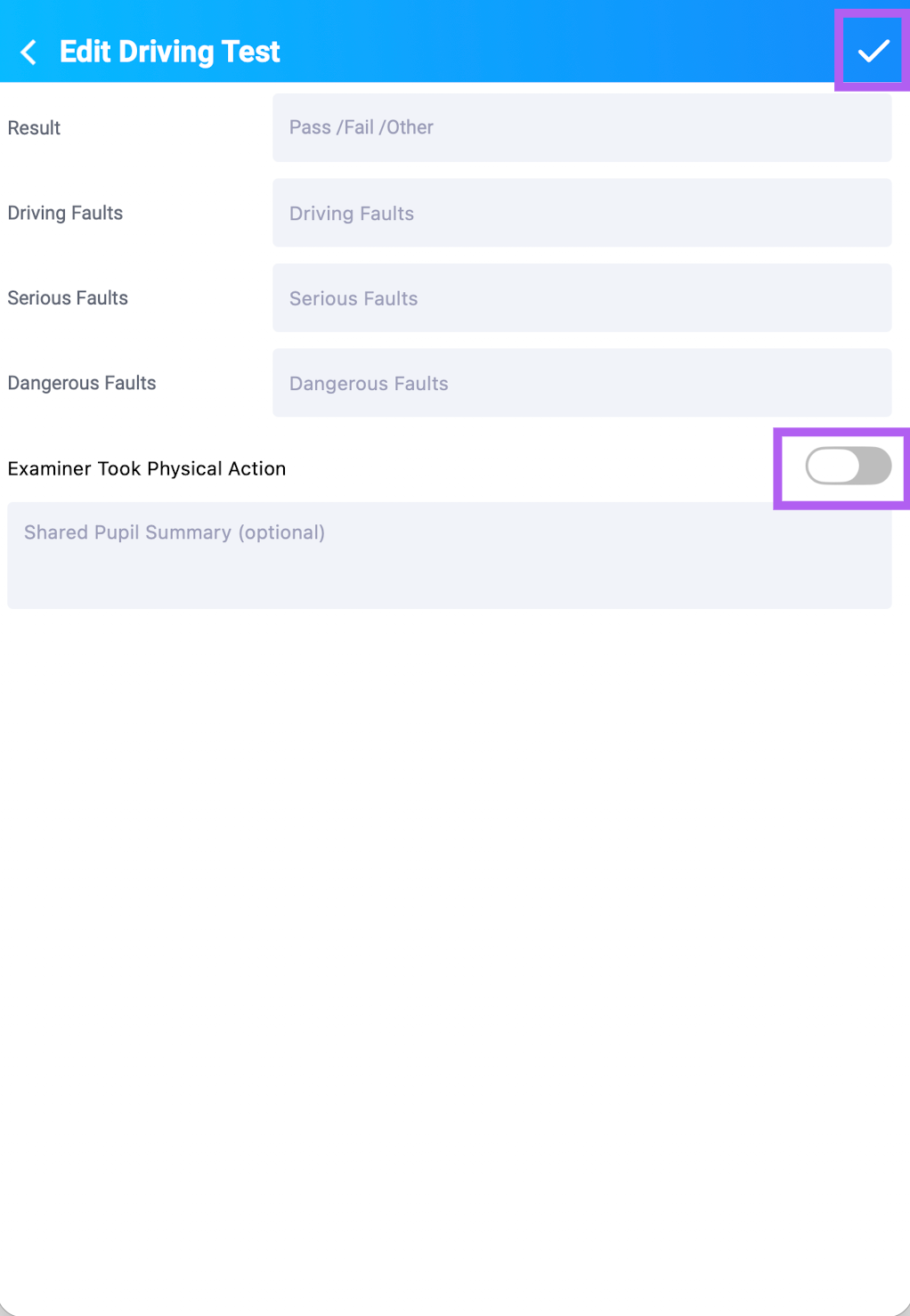
Update the following details:
Pass / Fail – select the outcome.
Serious faults – enter the number of serious faults.
Dangerous faults – enter the number of dangerous faults.
Examiner Physical Action – toggle if the examiner took physical action.
You can also add additional notes in the Notes section at the bottom.
Tap the tick icon to save this entry.
Updating Faults
After saving the result, you can record the specific fault details.
From the pupil's test entry, select Update Faults.
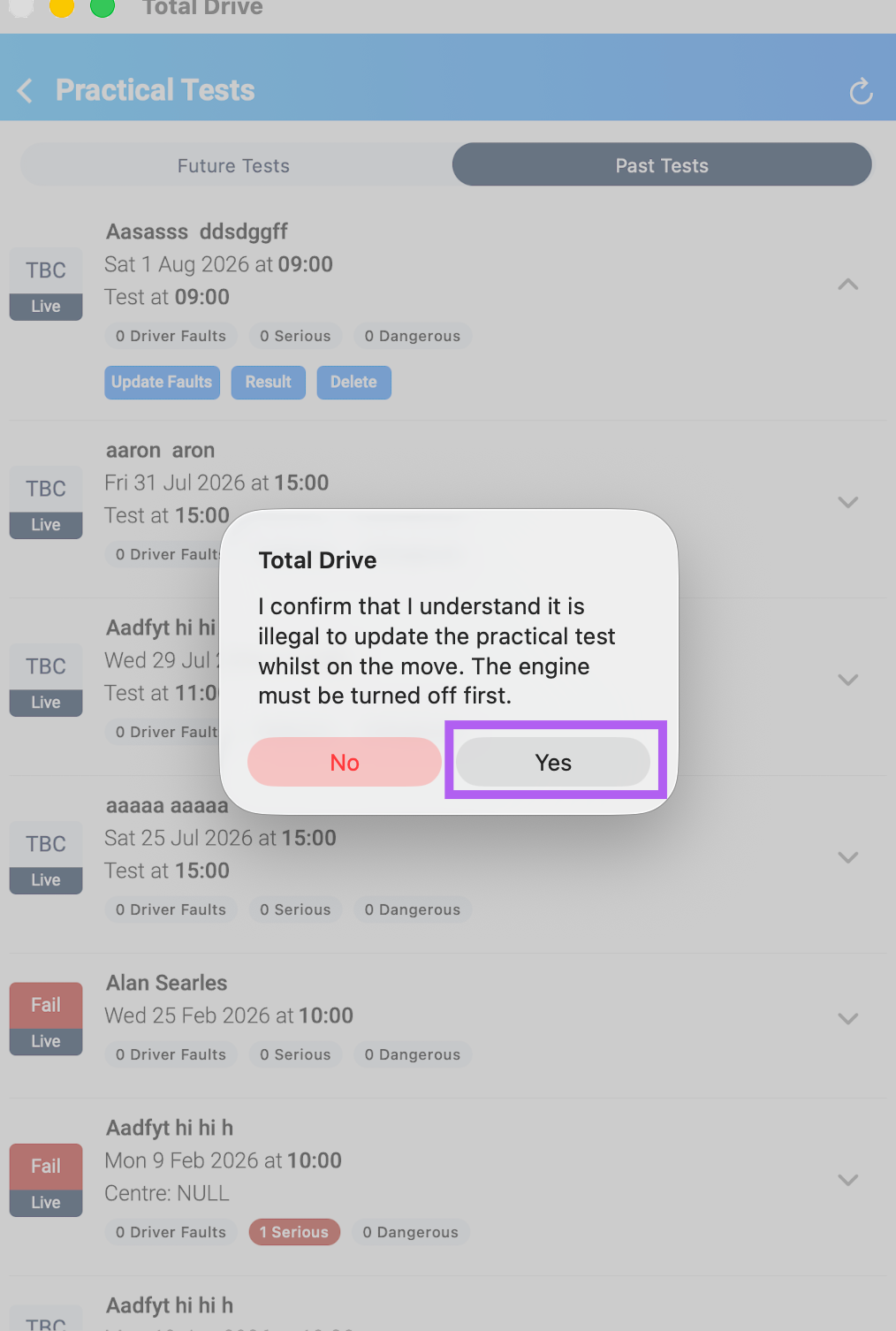
A safety notification will appear, reminding you that updating test results should only be done while stationary with the engine turned off. Tap Yes to proceed.
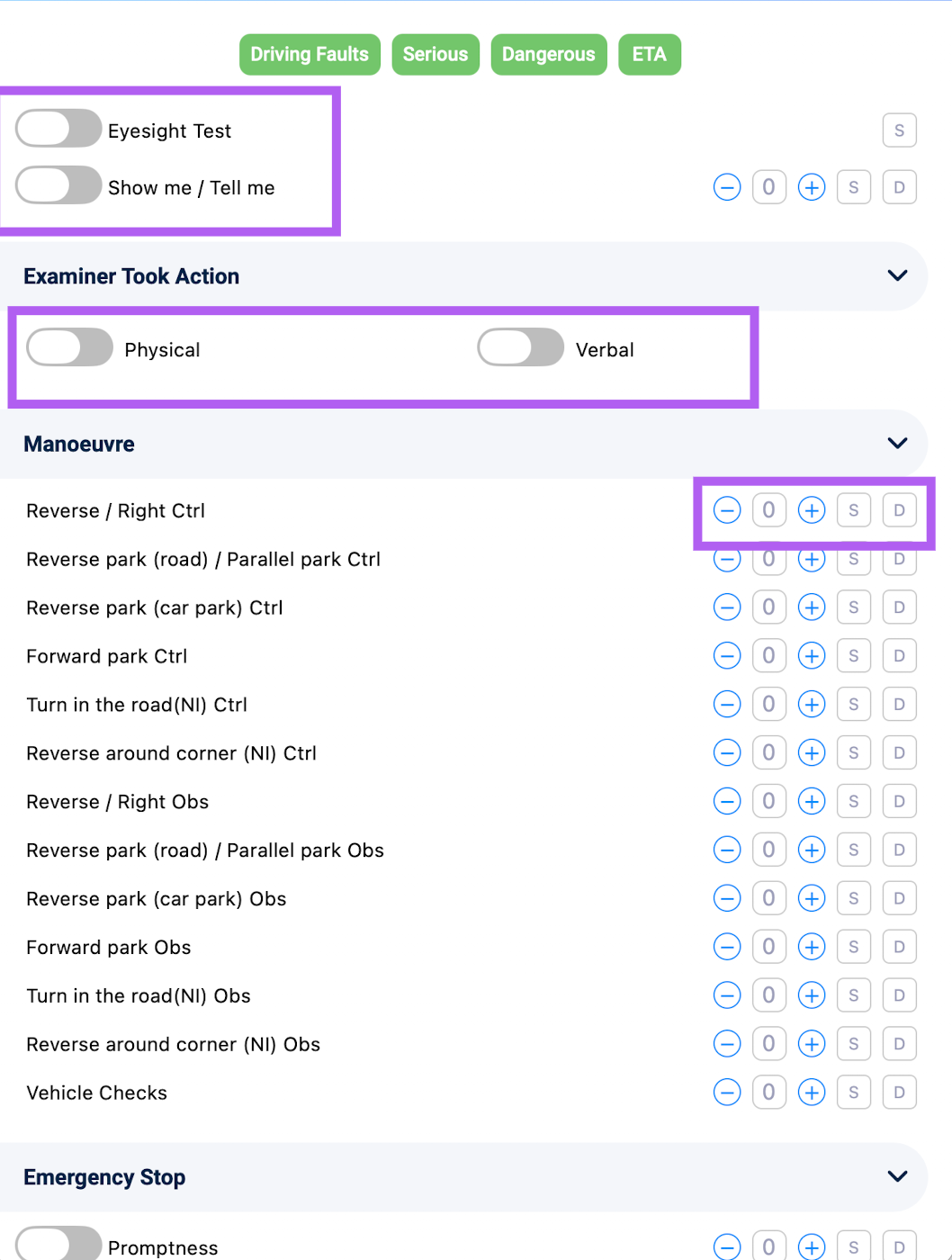
You will now see the fault recording screen, where you can log:
Driving Faults – use the + and - buttons to record the number of driving faults.
Serious Faults – tap the S button to record serious faults.
Dangerous Faults – tap the D button to record dangerous faults.
You can also toggle whether the examiner took Physical or Verbal action.
Reviewing and Saving Your Entries
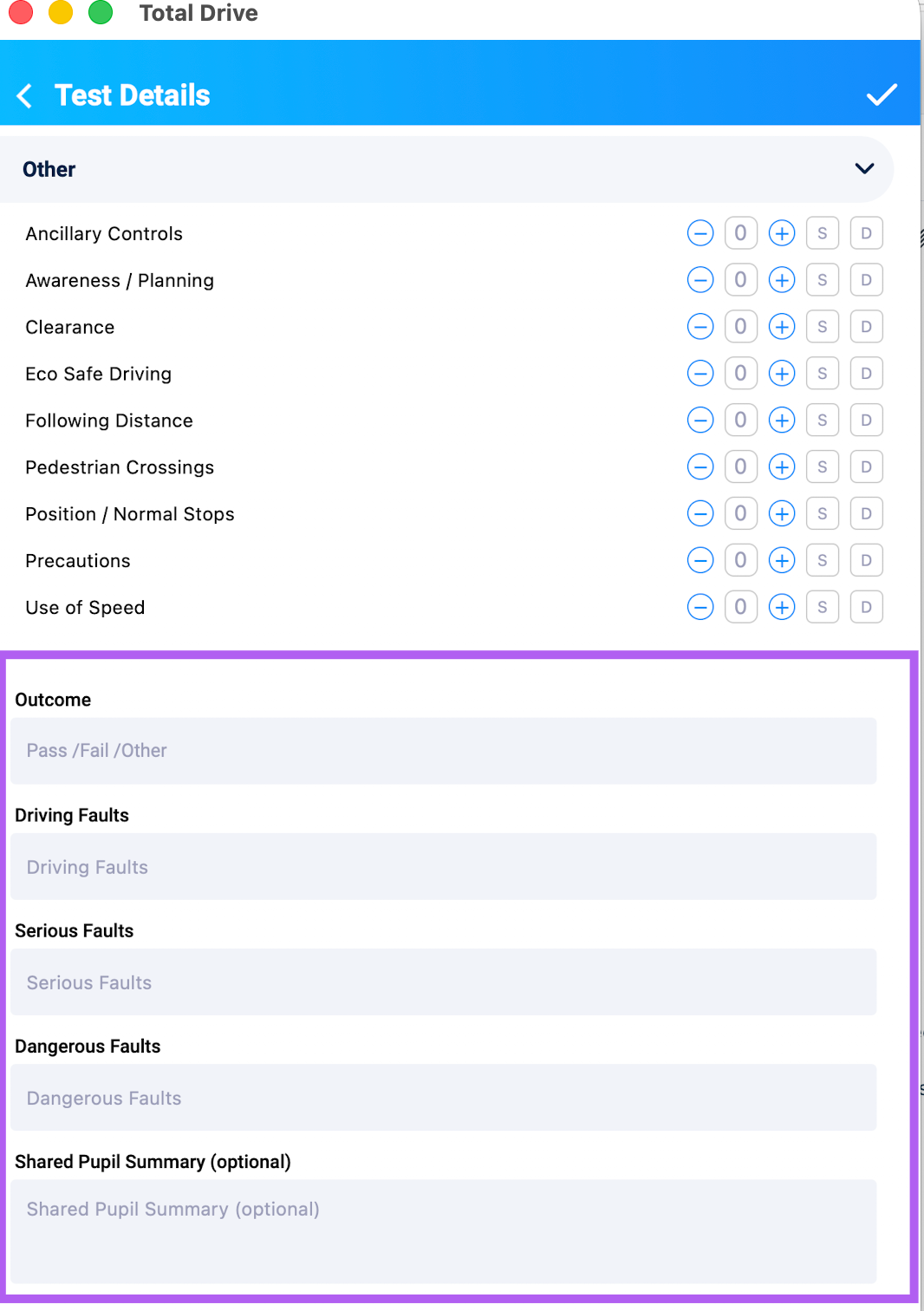
Scroll to the bottom of the fault recording screen to view an overview of all entries recorded for this test.
Double-check that all details are correct.
Tap the tick icon located at the top right of the screen to save all updates to the Driving Test record.