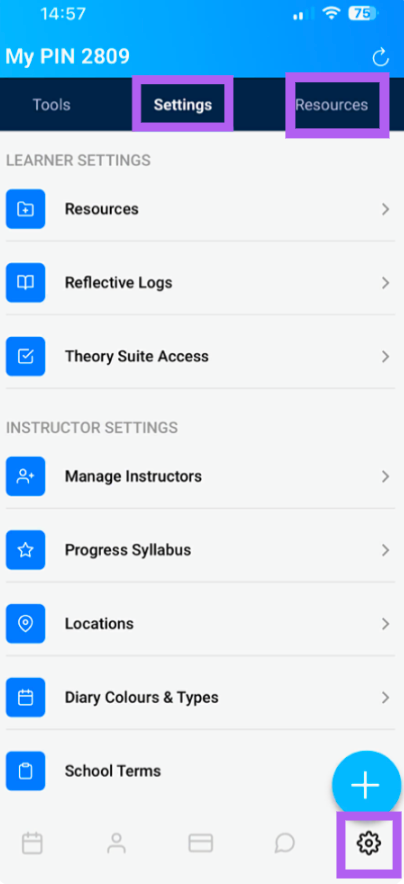
The Settings menu is your central hub for customising the Total Drive app. Access it by tapping the cog icon (⚙️) on the lower navigation pane. At the top you have 3 options Tools, Settings, & Resources. Please see https://totaldrive.freshdesk.com/a/solutions/articles/80001096719 for Tools help file
Table of Contents - Settings
Resources
Reflective Logs
Theory Suite Access
Manage Instructors
Progress Syllabus
Locations
Diary Colours & types
School Terms
Resources
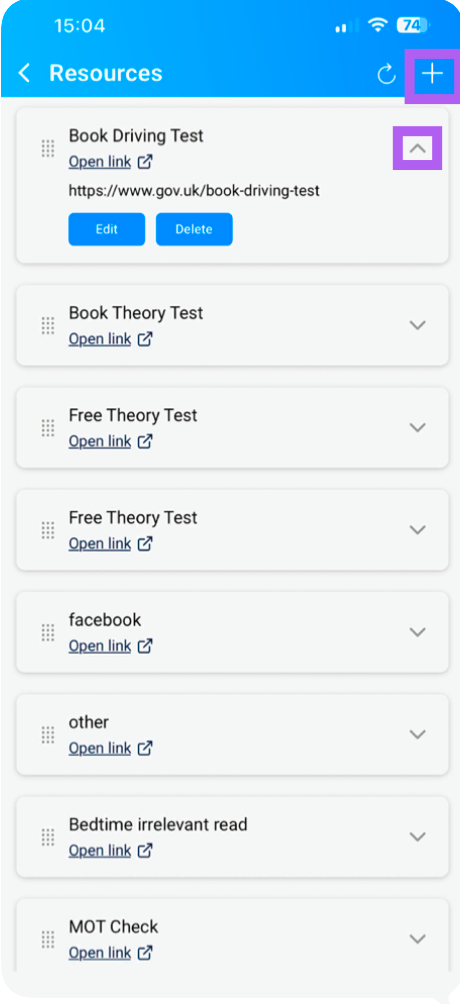
This section allows you to store helpful resources for your pupils.
Add a Resource – Tap the "+" icon to upload a new resource. (This must be a secure website)
Manage Resources – Tap the expand icon to Edit or Delete an existing resource.
Reflective Logs
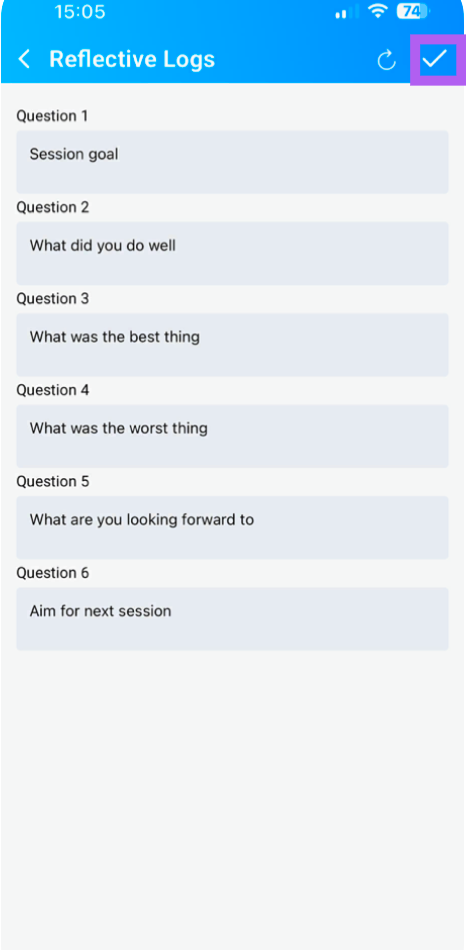
Here you can set the reflective log questions that pupils will answer.
Edit your questions as needed.
Tap "tick" when you're finished to save your changes.
Note: the last question populates the first question of the next reflective log which can be used as a great aid memoir, but bear this in mind if you change the first or last question.
Theory Suite Access
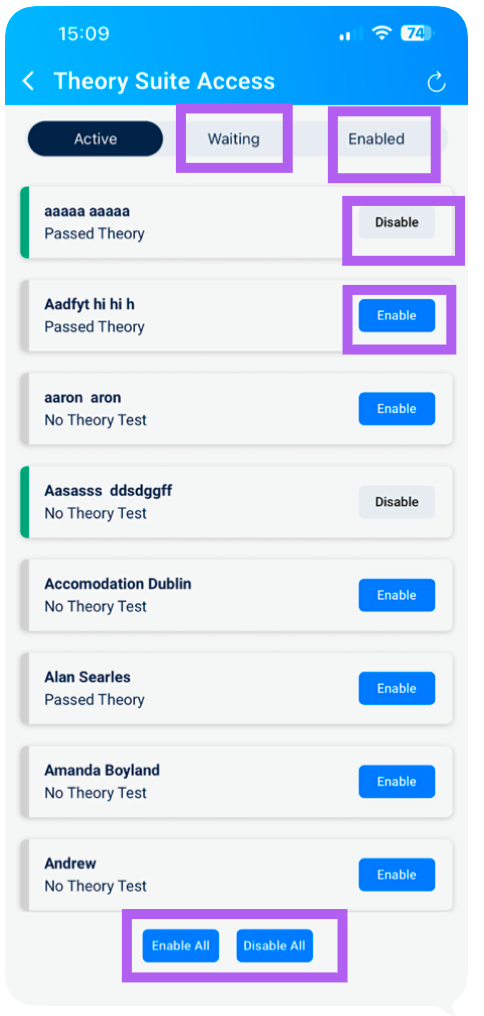
This screen lets you manage pupil access to the Theory Suite, if you have enabled it on then web admin. Extra costs apply.
What You Can Do:
Enable/Disable access for individual pupils, the charges increase at 11 & 30.
Toggle between Active, Waiting, and Enabled statuses.
Enable All pupils or Disable All access with a single tap.
Manage Instructors
This section allows you to manage all instructors within your driving school. To add an instructor please see - https://totaldrive.freshdesk.com/a/solutions/articles/80001181016
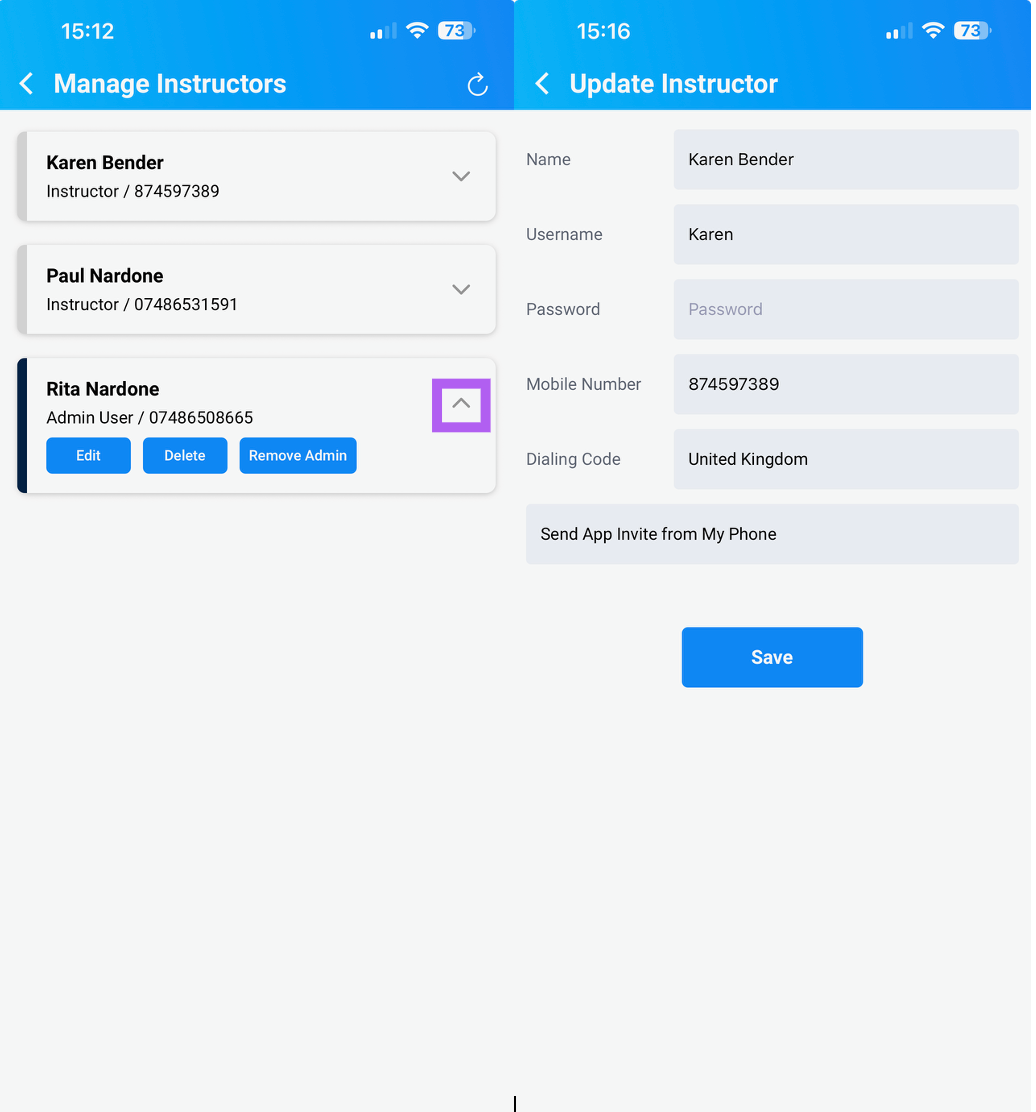
View Instructors – Tap the expand icon next to an instructor to see their details.
Edit Details – Modify instructor information as needed.
Delete – Remove an instructor from your school.Please note that they will lose access immediately. Their pupils will remain but with an unassigned instructor
Assign Admin – Grant admin privileges to an instructor.
Progress Syllabus
A full guide on the Progress Syllabus can be found here:
https://totaldrive.freshdesk.com/a/solutions/articles/80001096313
What You Can Do:
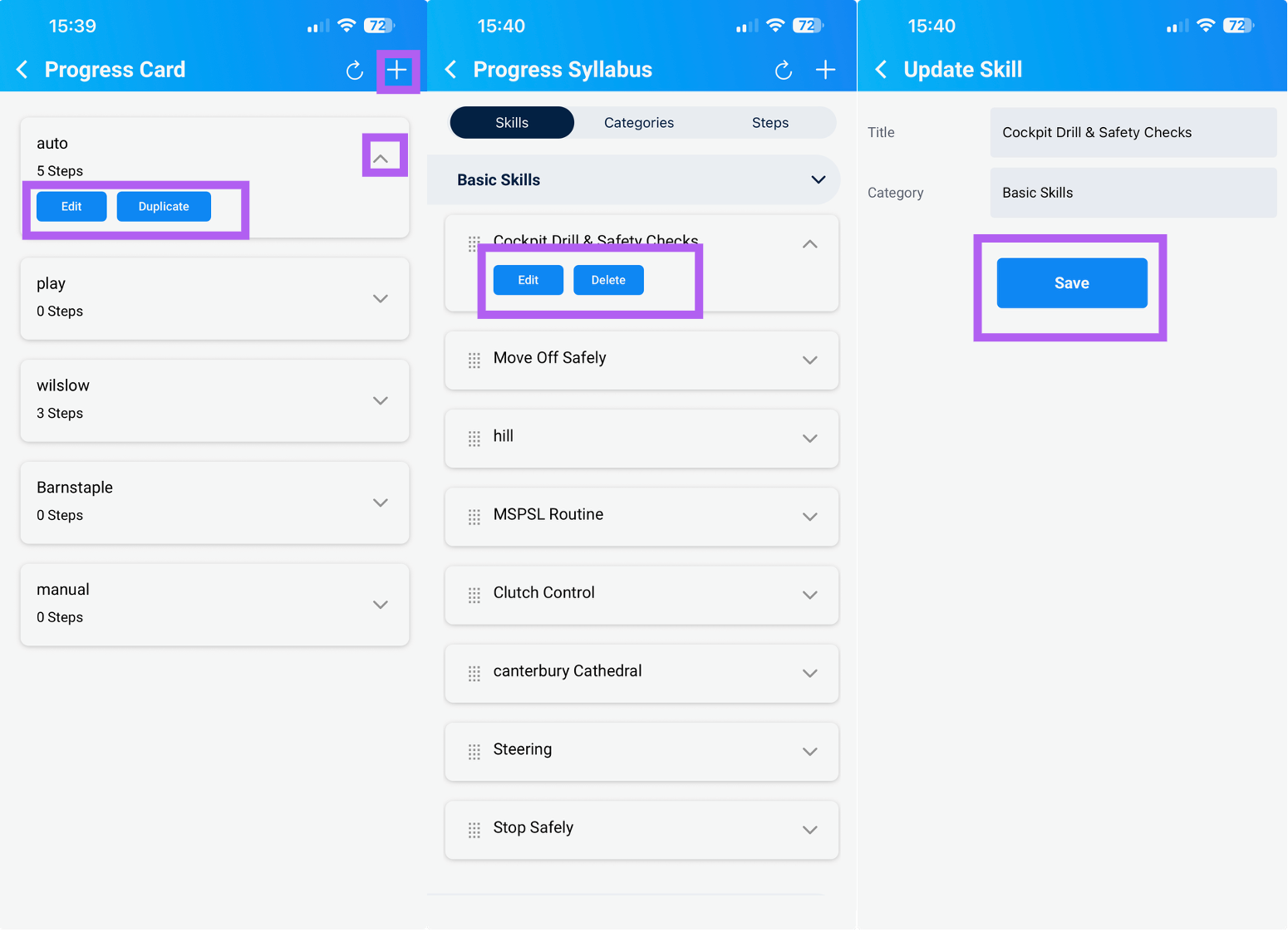
Edit current syllabuses.
Duplicate an existing syllabus to rename and customise it.
Add New – Tap the "+" icon to create a new Progress Syllabus.
Remember to tap "Save" when you've finished making changes.
Locations
This screen allows you to manage saved locations, such as your regular pick up spots
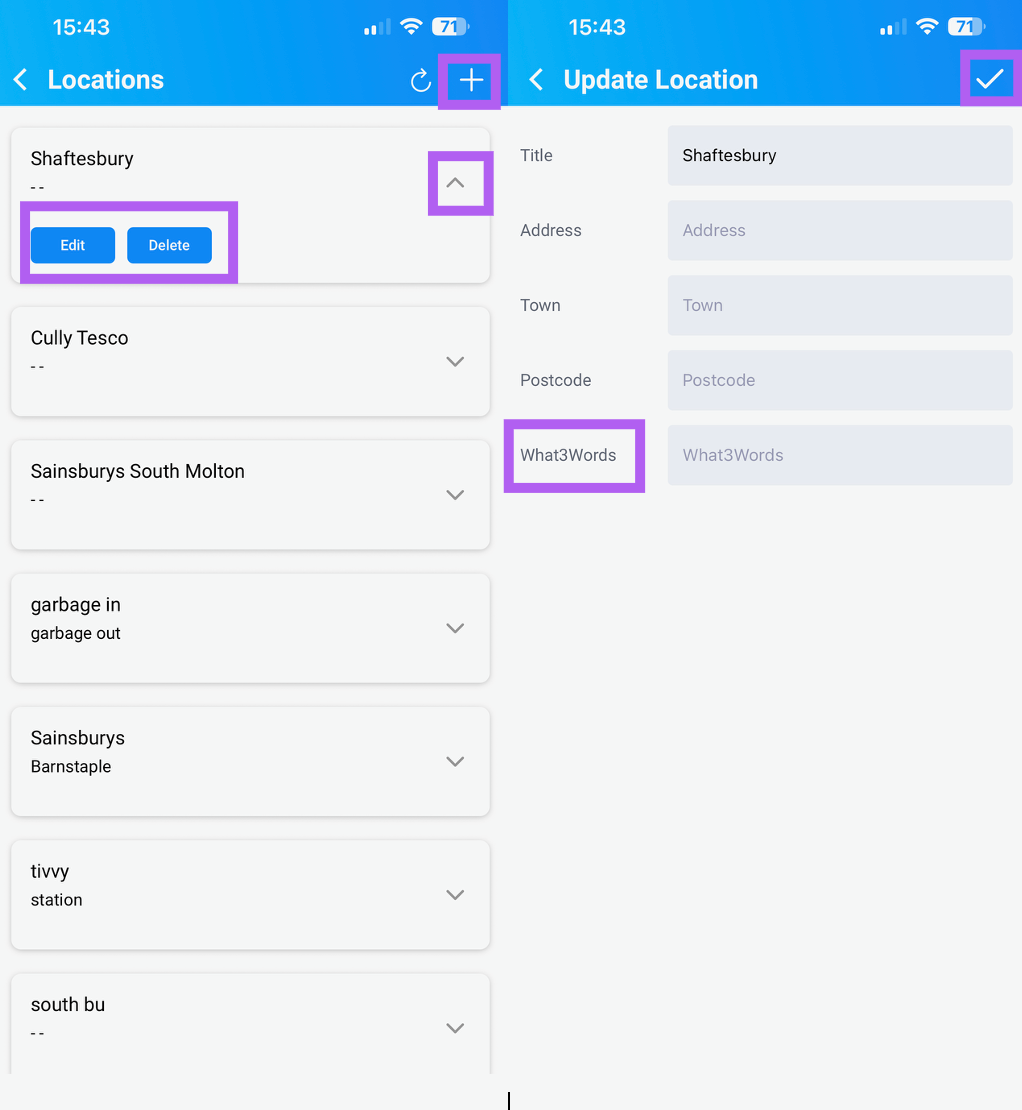
Edit Locations – Tap the expand icon next to a location to modify it.
Delete Locations – Remove unwanted locations from the list.
Add New Location – Tap the "+" icon to create a new location entry. Tap "tick" when finished to save. Note: What3Words can now be added
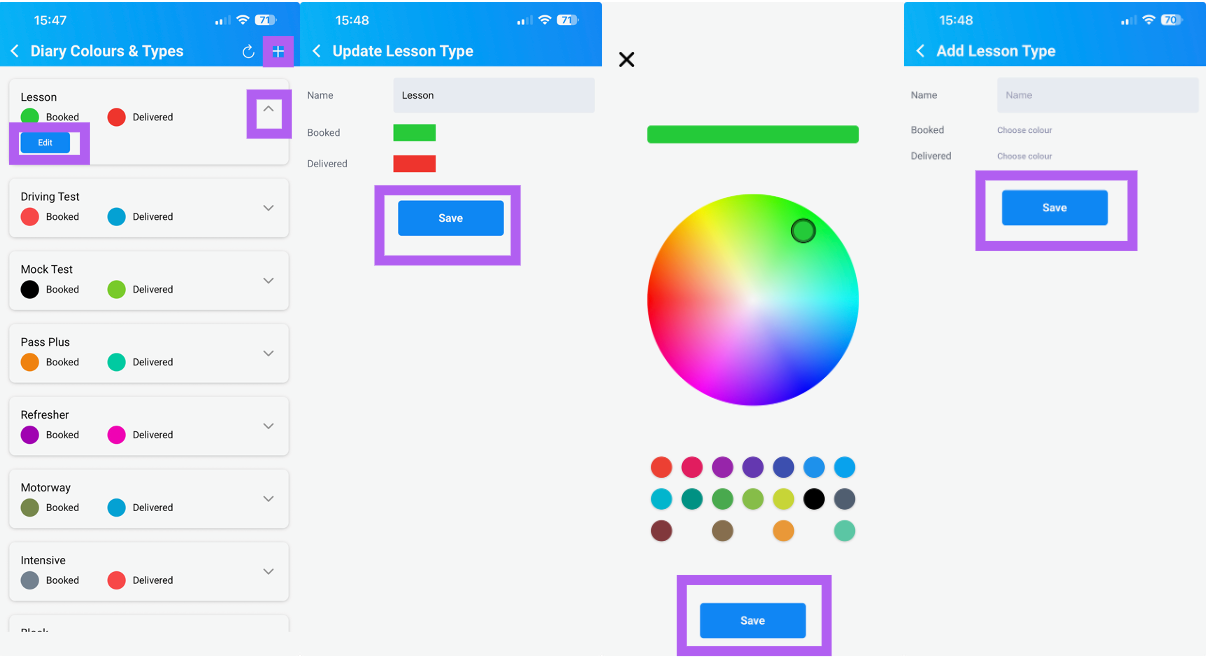
Diary Colours
Customise your Diary Colour Key to make different lesson types easier to identify at a glance.
Edit Colours – Tap the expand icon next to a colour entry to modify it. This will take you off to a colour chat where you can pick any colour.
Add New Lesson Type – Tap the "+" icon to create a new lesson type and select colours .
Once you've made your changes, tap "Save" to apply them.
School Terms
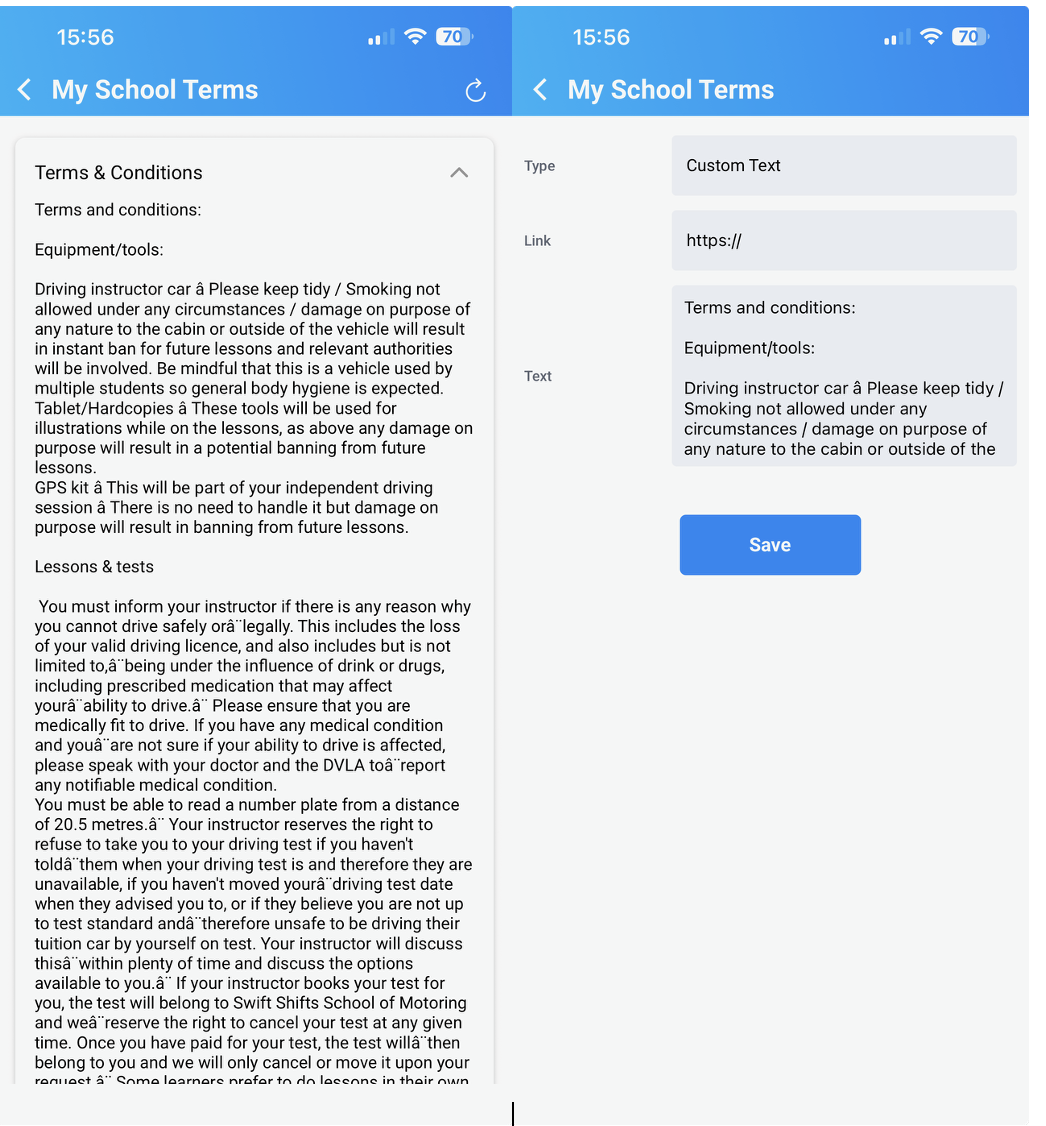
This section allows you to manage your school terms
Edit Terms – Tap the expand icon next to a term to show the "Edit" button. (You may need to scroll down to see this
Make your changes as needed.
If you have your terms on your web site - you can also add the web link
When you're finished, tap "Save" to confirm your updates.
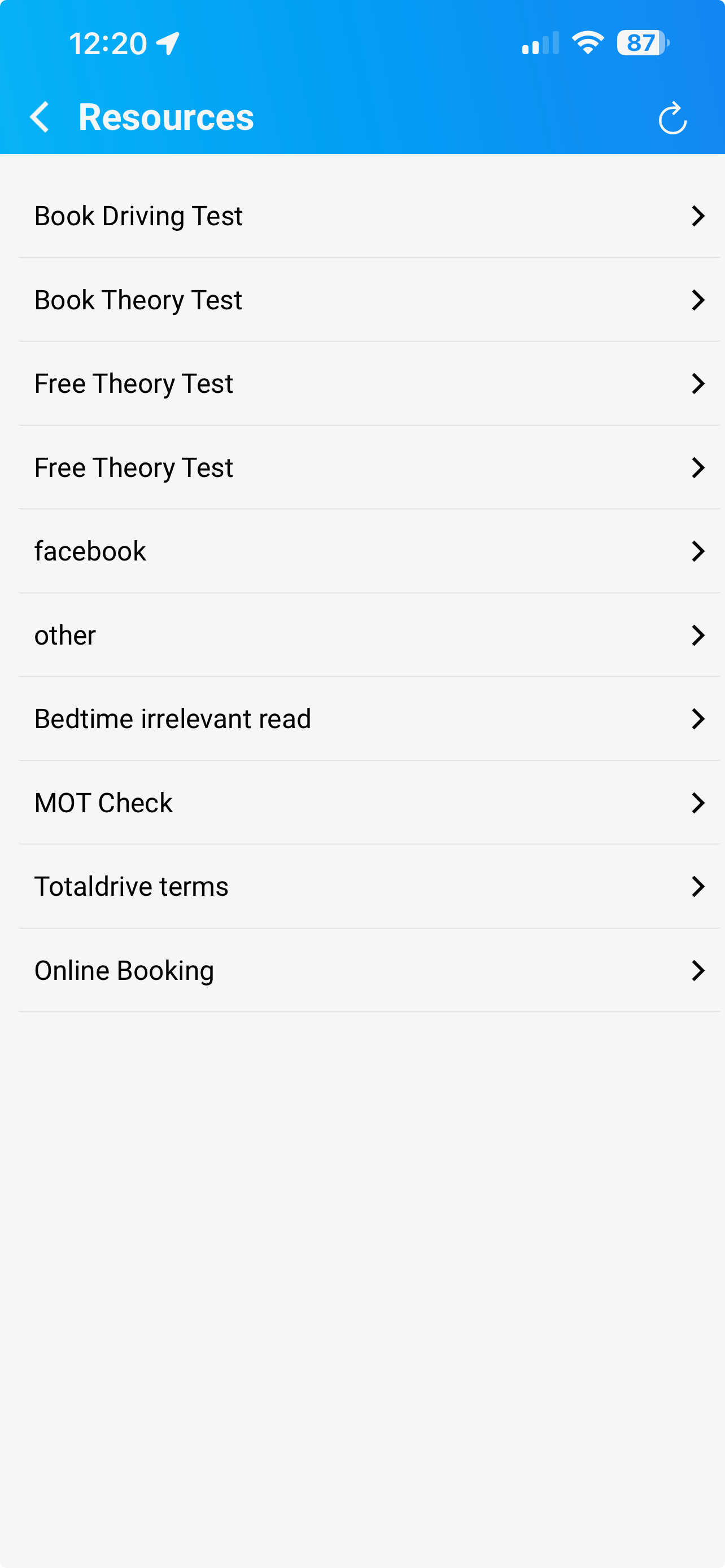
Resources
This section allows you to go straight to your resources, to show pupils in the car and is the same as on Tools > resources, please also see https://totaldrive.freshdesk.com/a/solutions/articles/80001096719 and scroll down to resources