
How to Clear App Cache
If your app starts behaving unexpectedly—such as freezing, loading slowly, or displaying incorrect data—it is often due to a build-up of cached data. Follow the steps below in order to clear the cache and resolve most common issues.
Steps to Clear Cache
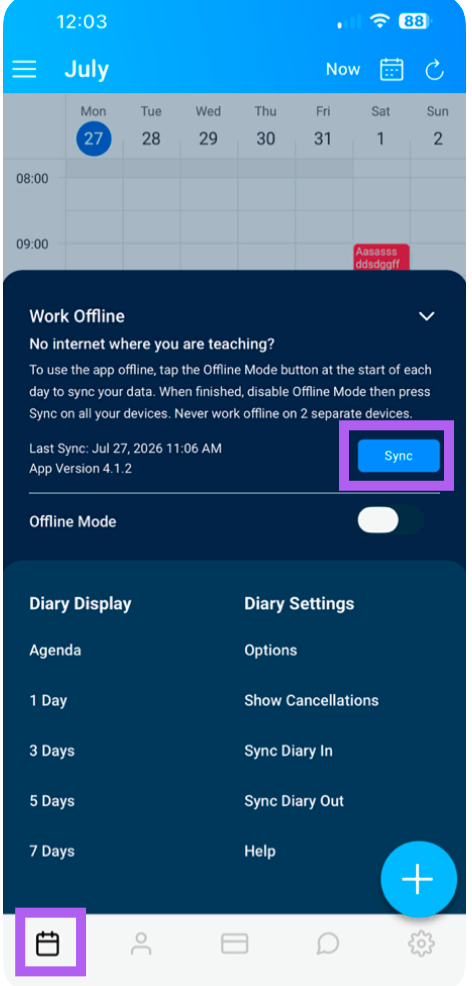
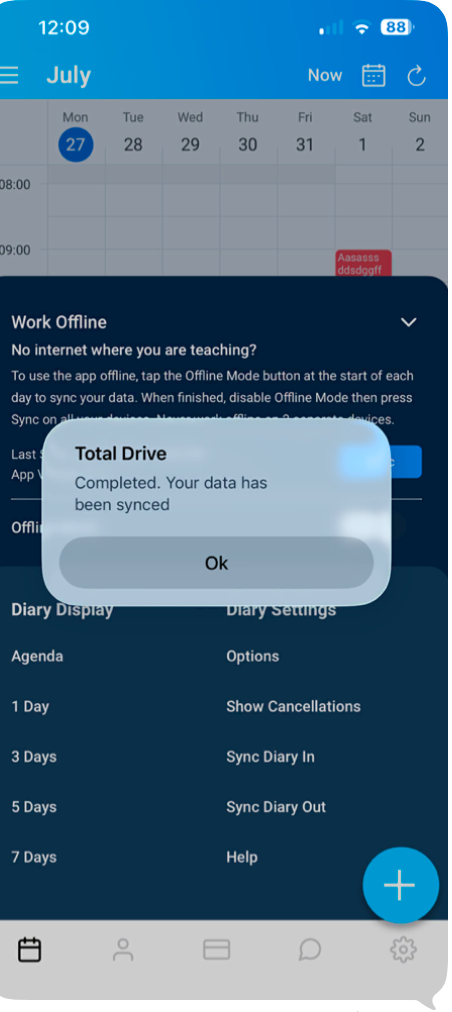
1. Sync Your App
From the Diary View, tap the three lines (≡) next to the month.
Tap "Sync" from the menu.
Wait for the pop-up confirming: "Congratulations. Your data has been Synced."
2. Delete the App
Remove the Total Drive app from your device.
Once deleted, shut down your phone completely (do not just restart).
3. Restart Your Phone
Turn your phone back on. This step clears the system cache and refreshes your device.
4. Reinstall the App
Download and install Total Drive from your device's app store.
Log in and check if the issue still persists.
What If the Issue Continues?
If the problem remains after completing all the steps above, please contact our support team with the following details:
A screen recording showing the issue in action.
Any relevant screenshots that help illustrate the problem.
Your device type, operating system, and software version (e.g., iPhone 14, iOS 17.5).
Send this information to: support@totaldrive.co.uk
We'll investigate and get back to you as soon as possible.
Tip: Performing a sync before deleting the app ensures all your latest data is safely stored in the cloud before you reinstall.