
Important: In this system, phone numbers are used as usernames for both pupils and parents. Using the same phone number for two different accounts will lock both accounts until the issue is fixed. Follow this guide carefully to avoid that.
Overview
When a parent has two or more pupils in your system, you need to create separate logins for each pupil while allowing the parent to access both. This guide walks you through the process step by step.
Step-by-Step Instructions
Step 1: Access the First Pupil's Profile
Log in to the Web Admin portal: https://web.totaldrive.app/login
Navigate to Learners and select the first pupil's name.
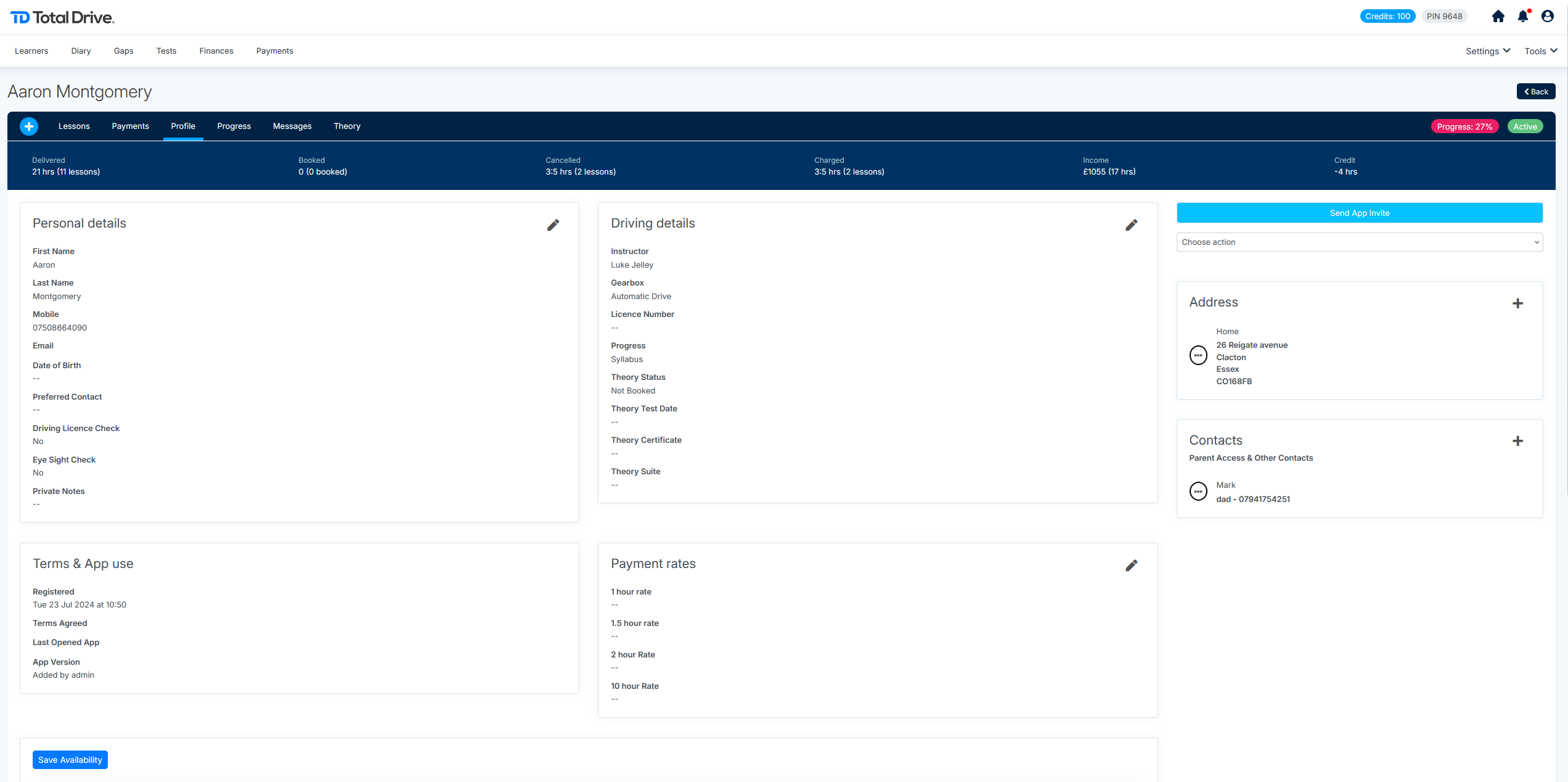
Locate the parent profile you've already created for this pupil.
Make a note of the phone number used here – you'll need it for Step 3.
Step 2: Access the Second Pupil's Profile
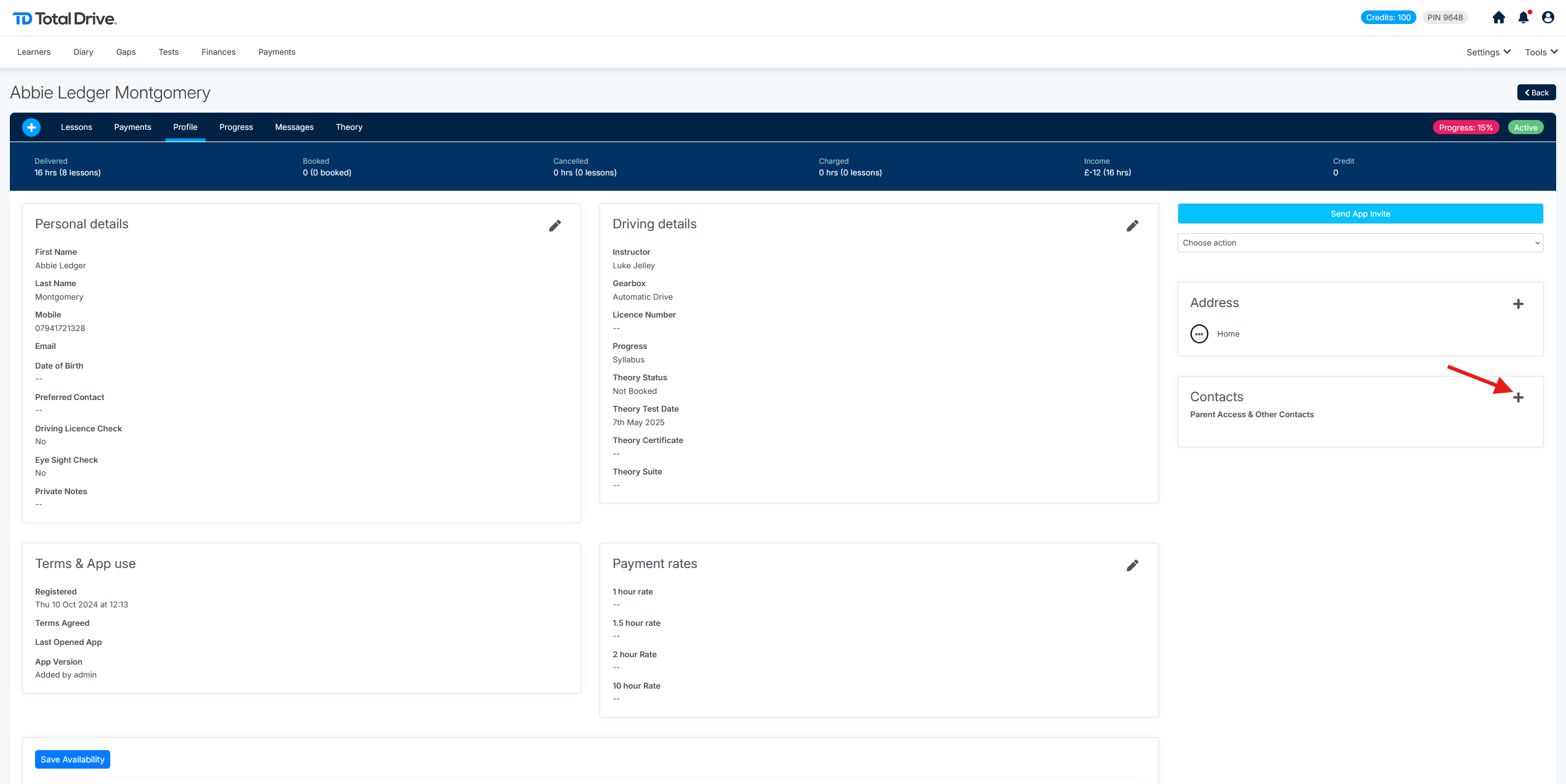
Go back to Learners and select the second pupil's name.
Click the "+ Contact" button to add a new parent contact.
Step 3: Add the Parent Contact for the Second Pupil
This is the critical step to avoid locking accounts.
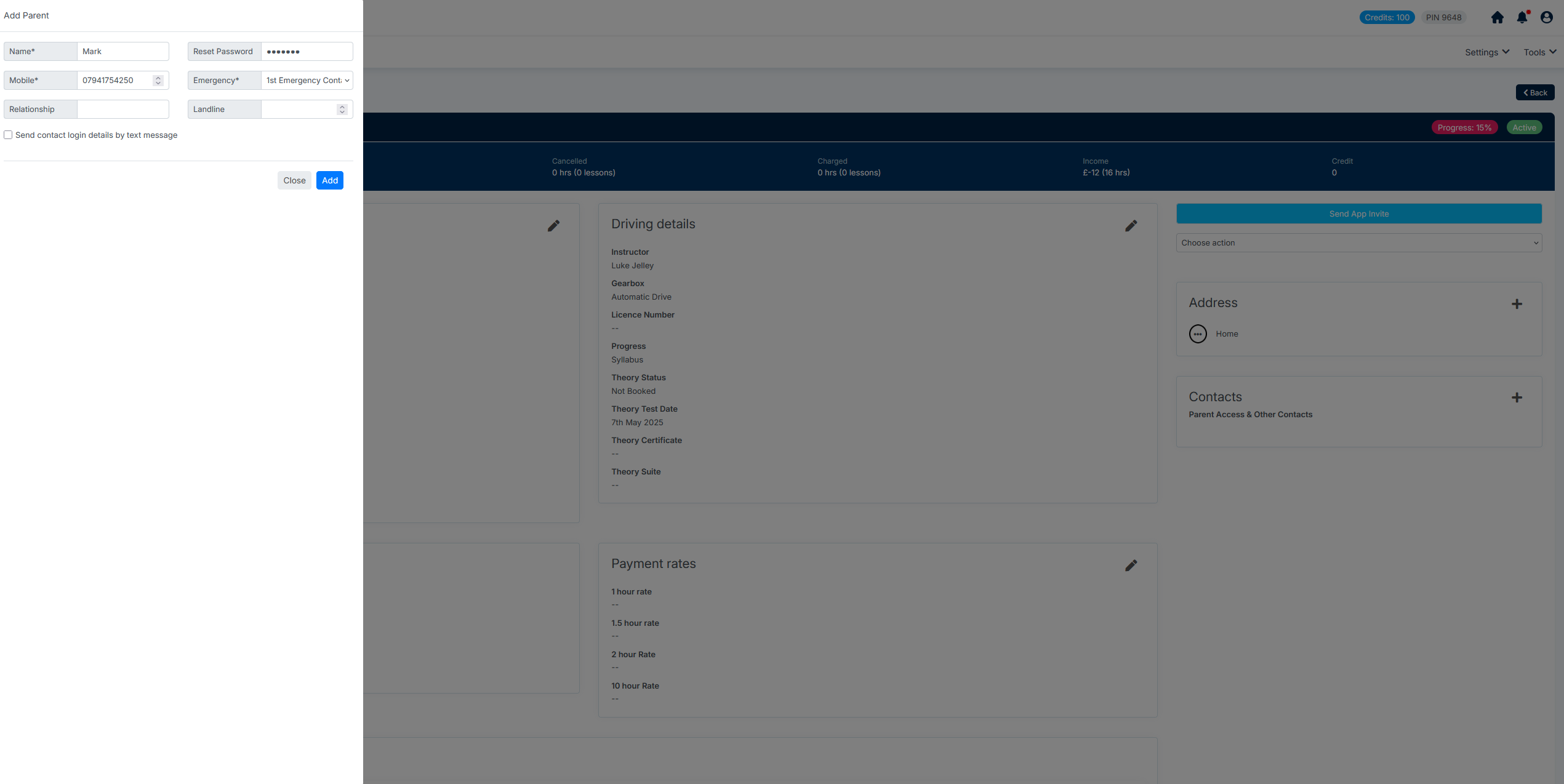
Enter the parent's details, using the same phone number as you noted in Step 1.
Before saving, locate and uncheck the option "Send contact login details by text message". (This prevents the system from automatically sending a login that could cause a conflict.)
Temporarily change the last digit of the phone number.
Example: If the real number is
07654321987, enter17654321987for now.
Save the contact.
Make a note of the temporary number you just used.
Final Step: Provide Login Details to the Parent
Because you unchecked the automatic text message, the system won't send the login details. You'll need to provide them manually:
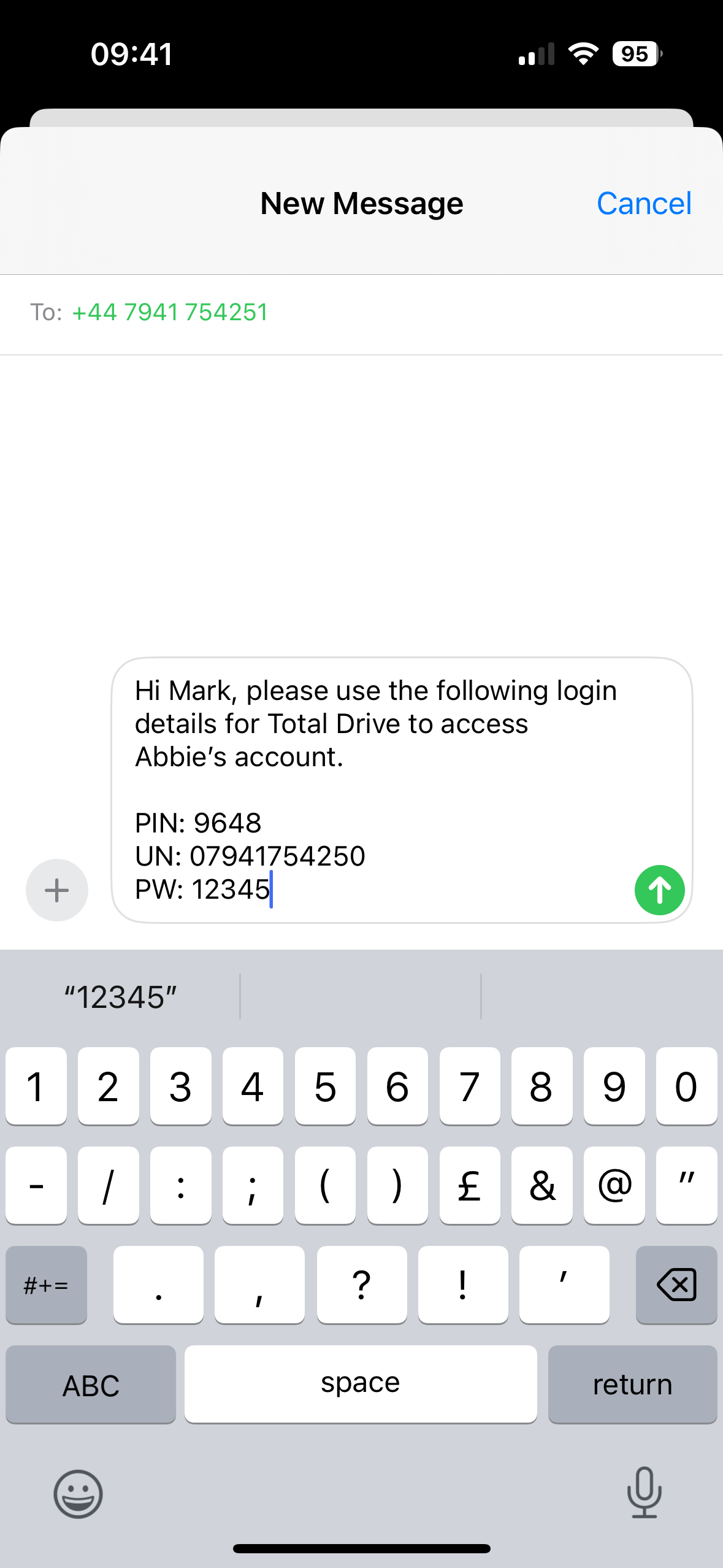
Send an SMS, WhatsApp, or email directly from your own phone or email.
Include the correct login details:
Username: The parent's actual phone number (not the temporary one)
Password: The password you set up for this account
Quick Reference Checklist
| Step | Task | Done? |
|---|---|---|
| 1 | Note the phone number from the first pupil's parent profile | ☐ |
| 2 | Go to the second pupil's profile and click "+ Contact" | ☐ |
| 3 | Uncheck "Send contact login details by text message" | ☐ |
| 4 | Temporarily change the last digit of the phone number | ☐ |
| 5 | Save the contact and note the temporary number | ☐ |
| 6 | Manually send the correct login details to the parent | ☐ |
Need Help?
If you encounter any issues or need further assistance, please contact support@totaldrive.co.uk