
Customising Your Online Booking Form
You can tailor your online booking form to collect additional information from pupils—such as their date of birth or driving licence number—during the booking process.
Step 1: Access Booking Settings
Log in to the Web Admin https://web.totaldrive.app/login
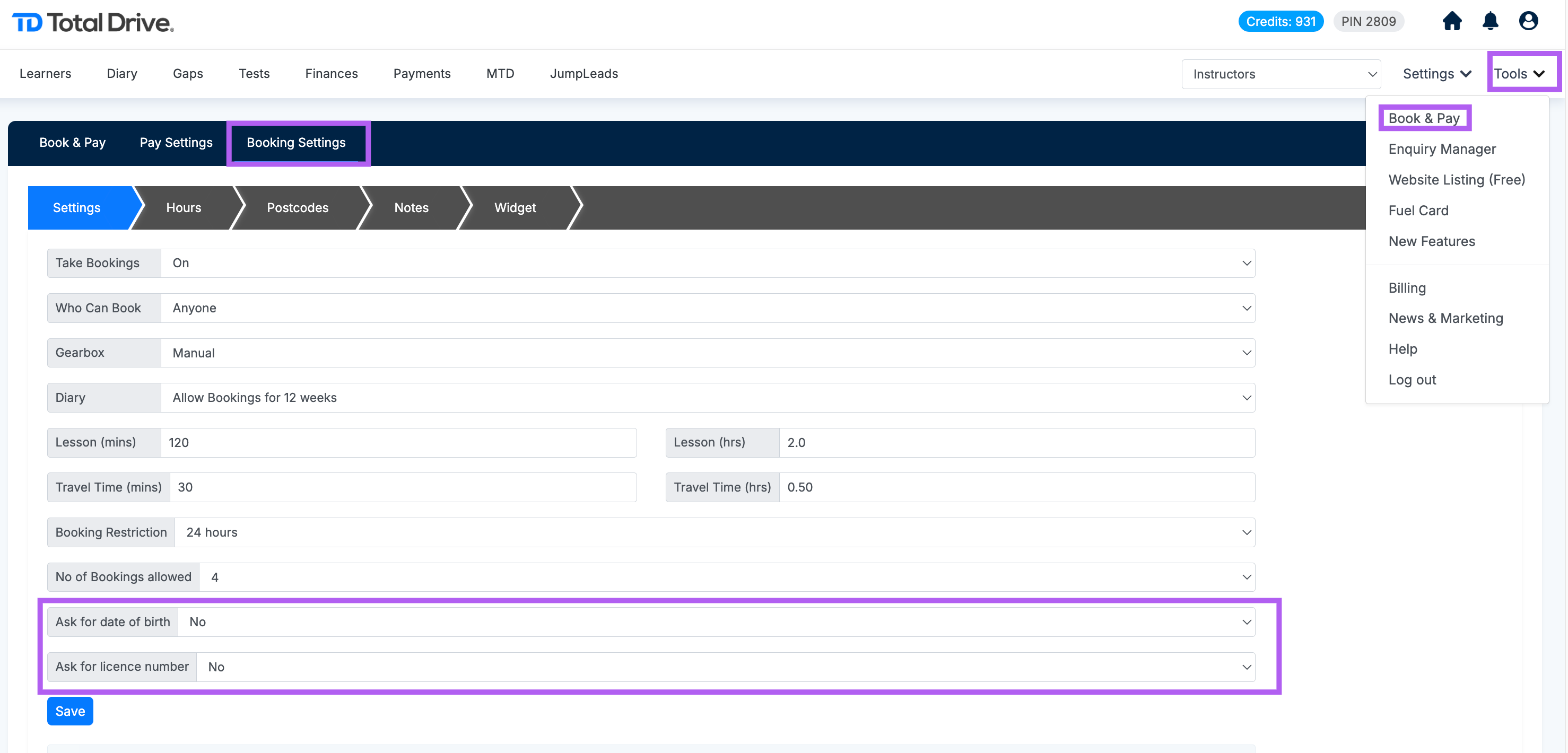
Navigate to Tools > Book & Pay.
Select the Booking Settings tab.
Step 2: Enable or Disable Form Fields
In the Settings Overview section, you'll find two optional fields:
Date of Birth
Licence Number
By default, both are set to No (disabled).
To enable a field: change the setting from No to Yes, then click Save.
To disable a field: change it back to No, then click Save.
✅ Changes take effect immediately after saving.
Step 3: Preview Your Form
To see how the updated form will appear to your pupils:
Click the Widget option within the Booking Settings page.
This opens a live preview of your online booking form, so you can verify that the fields display correctly before going live.
Tip: Only request information you genuinely need—keeping the form short can improve conversion rates, but collecting key details like licence numbers can save time during check-ins.