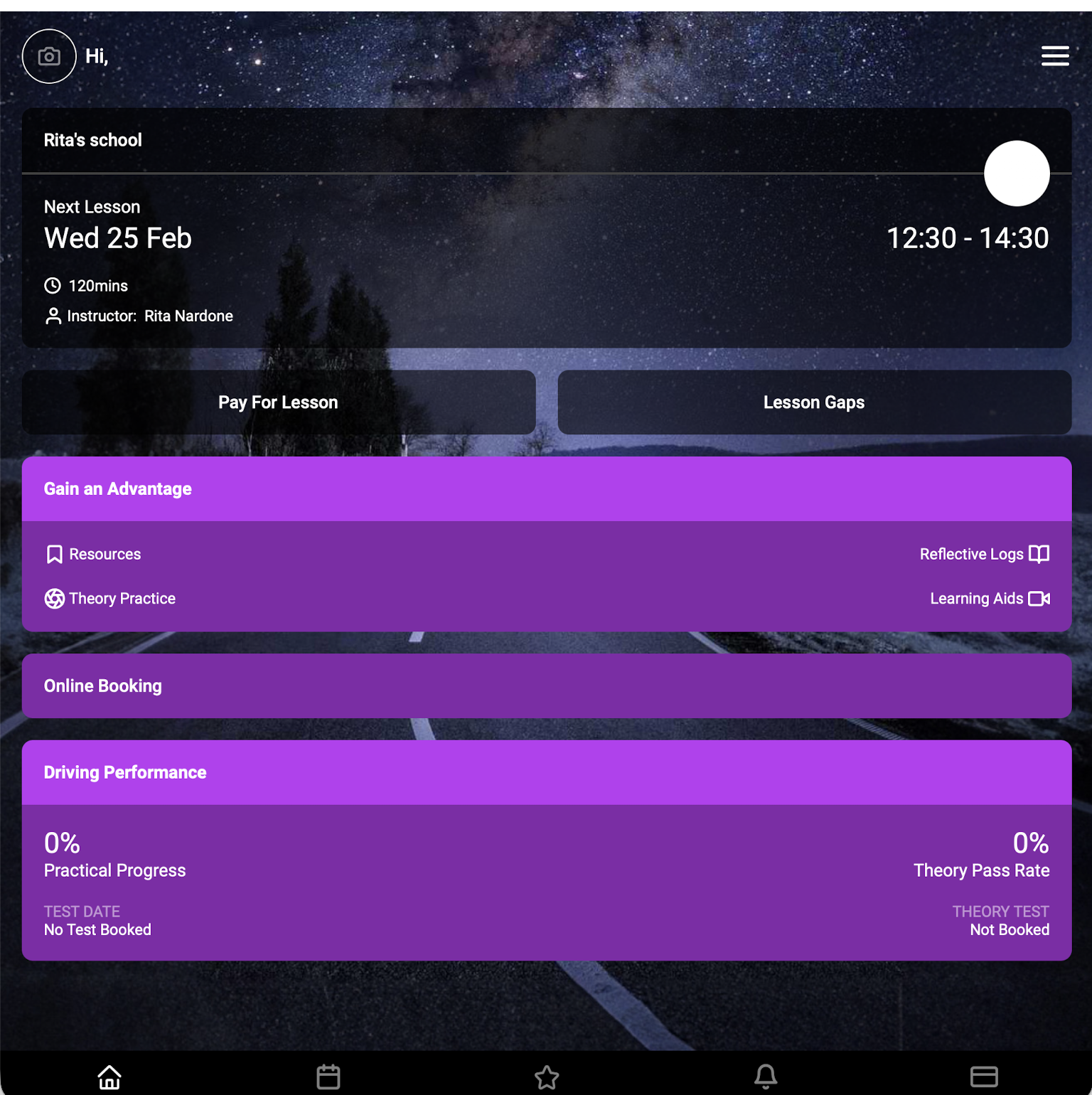
You can invite a parent or guardian to access a pupil’s app directly from the pupil profile.
Step 1: Open the Pupil Profile
Go to the pupil’s profile
Tap Add Parent
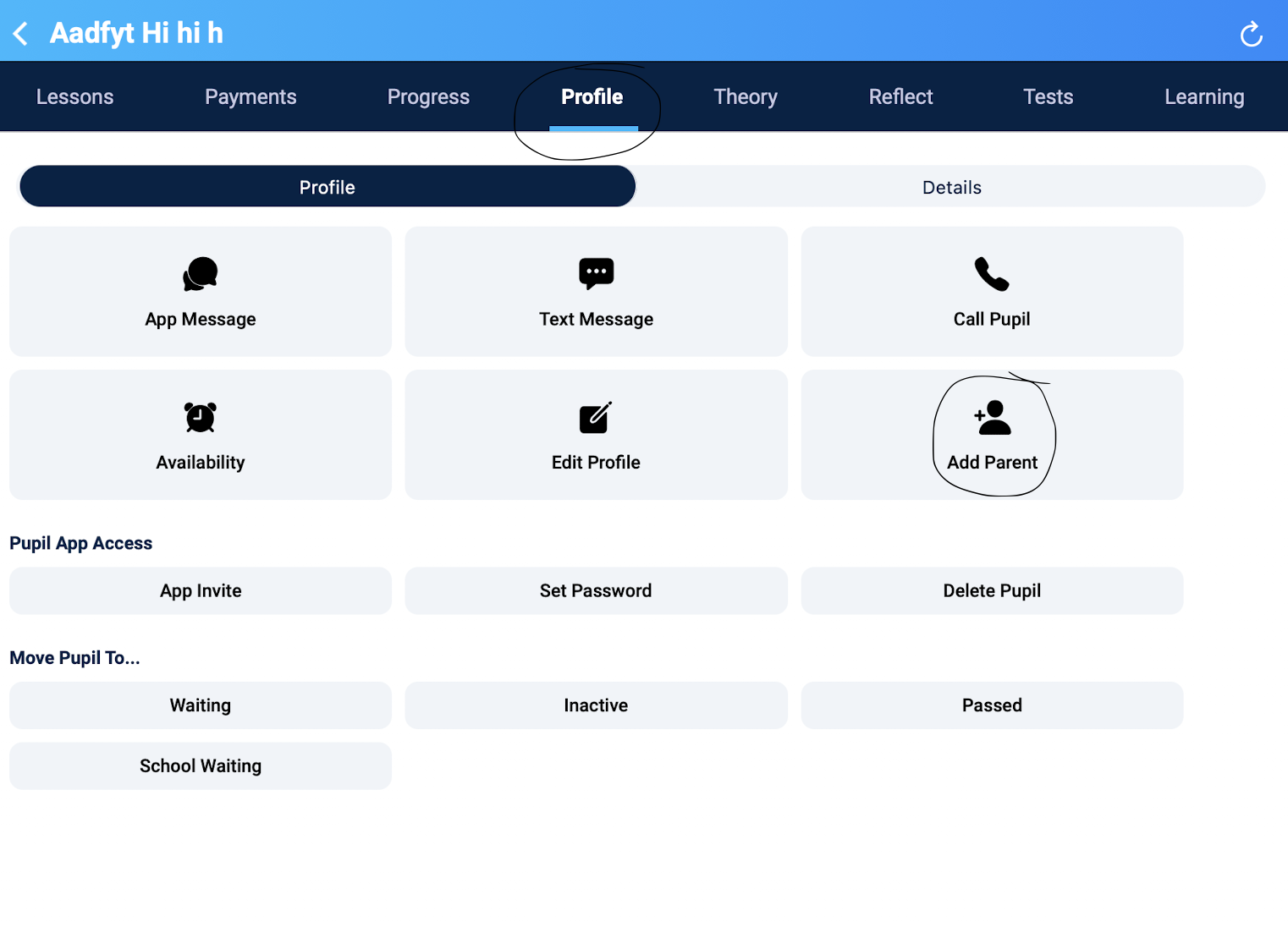
Step 2: Add the Parent or Guardian
Tap the + icon in the top-right corner
Either:
Import an existing contact, or
Add the parent’s details manually
Send the app invite
What Parents Can Access
Once the parent logs in, they will be able to see and do almost everything the pupil can, including:
View lesson details and progress
See all messages sent to the pupil
Check the pupil in for lessons
Pay for lessons
Book available lesson slots
Important Note
Parents cannot message the instructor through the app.
However, they can still contact you directly via phone call or text.
Please see below example of the front screen of parent app