
Total Drive Web Directory
Free and exclusive: This feature is free and exclusive to Total Drive subscribers and PDIs.
Prerequisites
- Access to your Total Drive web admin.
- Your instructor/school details to enter.
- Your contact details and preferred booking/enquiry links (if applicable).
- Any postcodes/areas you want your listing to appear on.
- Your hours, description, and (optionally) photos/logo for the listing.
Video Guide
If you prefer to watch a video guide, please click here
Step-by-step
1. Open the Web Directory setup page
- Go to your Total Drive web admin.
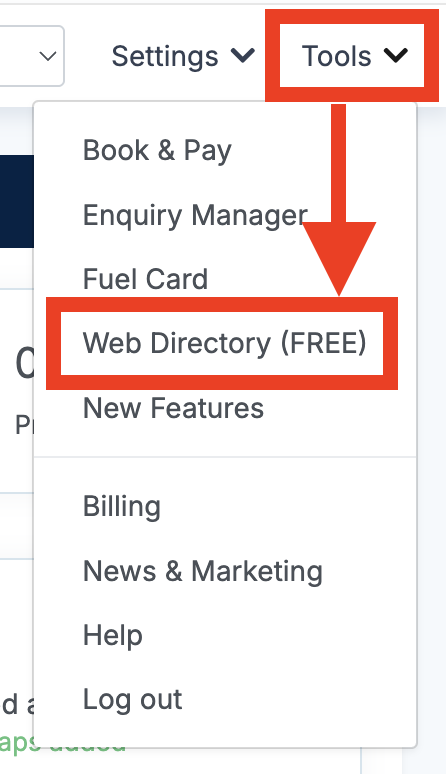
- Open the Tools Menu and Select "Web Directory", this will take you to the set-up page
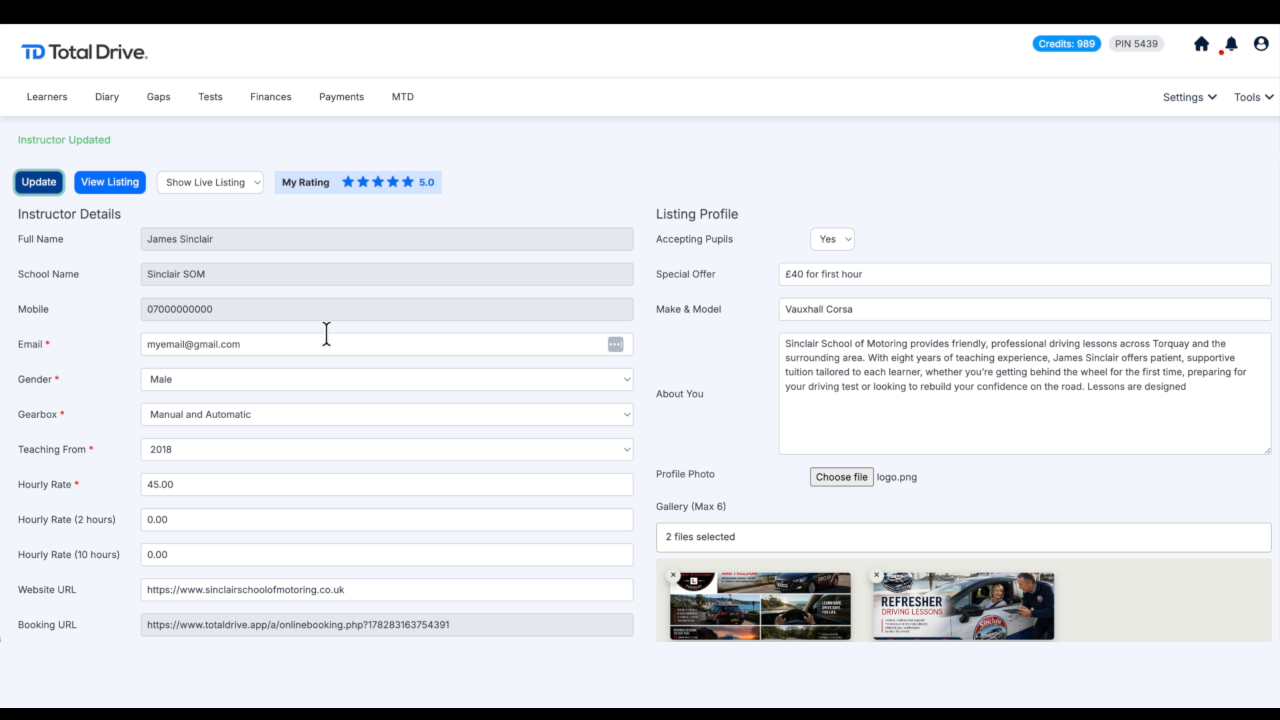
2. Enter your core business details
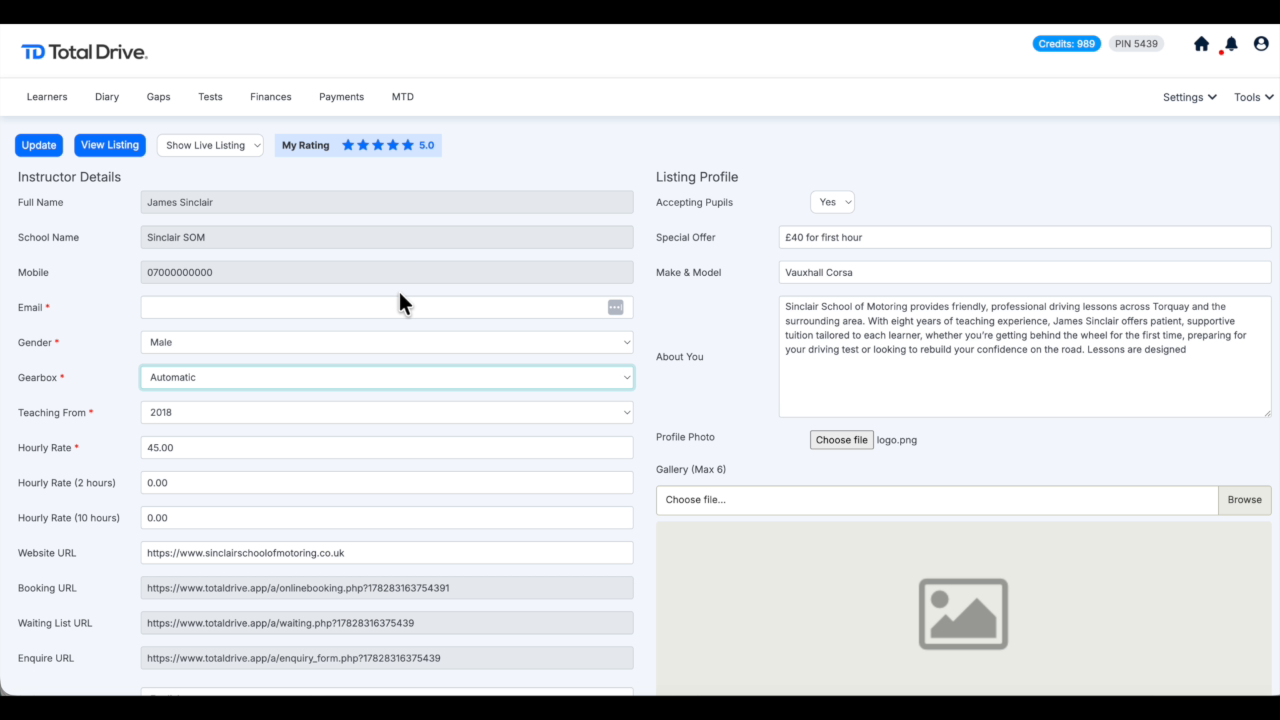
- Fill in your Full Name and School Name.
- Add your Mobile and Email.
- Select Gender and Gearbox.
- Set your Teaching From (start year).
- Enter Hourly Rate and (if applicable) the other hourly rate fields shown.
- Add your Website URL (if you have one).
3. Configure booking/contact options
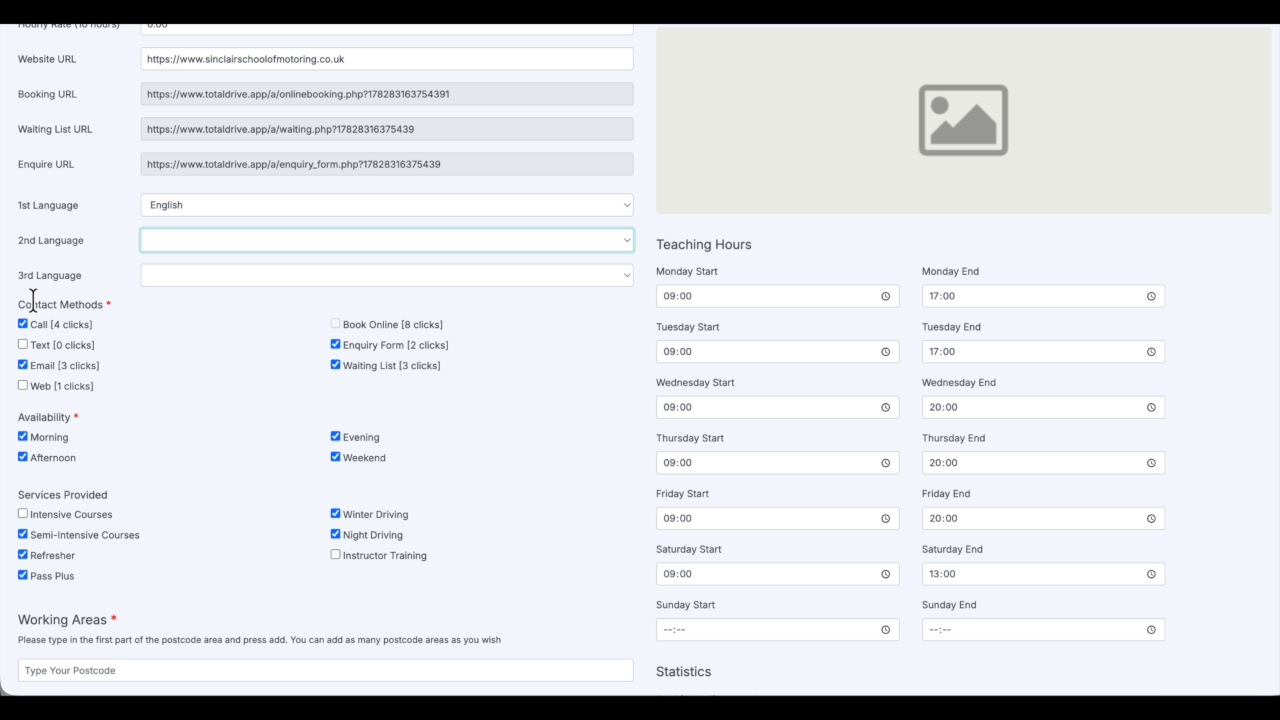
- Review the booking/enquiry-related URLs/fields shown on the page.
- Choose your language options as per the fields on screen.
- Under Contact Methods, tick the options you want visitors to use (Call / Text / Email / Web).
- Under Availability, select morning/afternoon/evening/weekend options as needed.
- Under Services Provided, tick the categories that match what you offer.
- Complete Teaching Hours for the days you teach.
4. Add your outward postcode/working areas
- Enter your postcode areas that you cover one at a time (the video guide shows TQ12 as an example).
IMPORTANT: ONLY ADD THE FIRST PART OF THE POSTCODE. i.e. for TQ12 9XR you would only add TQ12 - Press enter/add the postcode so it appears in the “working areas” list.
- Repeat for every area you want your listing to appear on.
5. Finalise content (uploads, description, etc.)
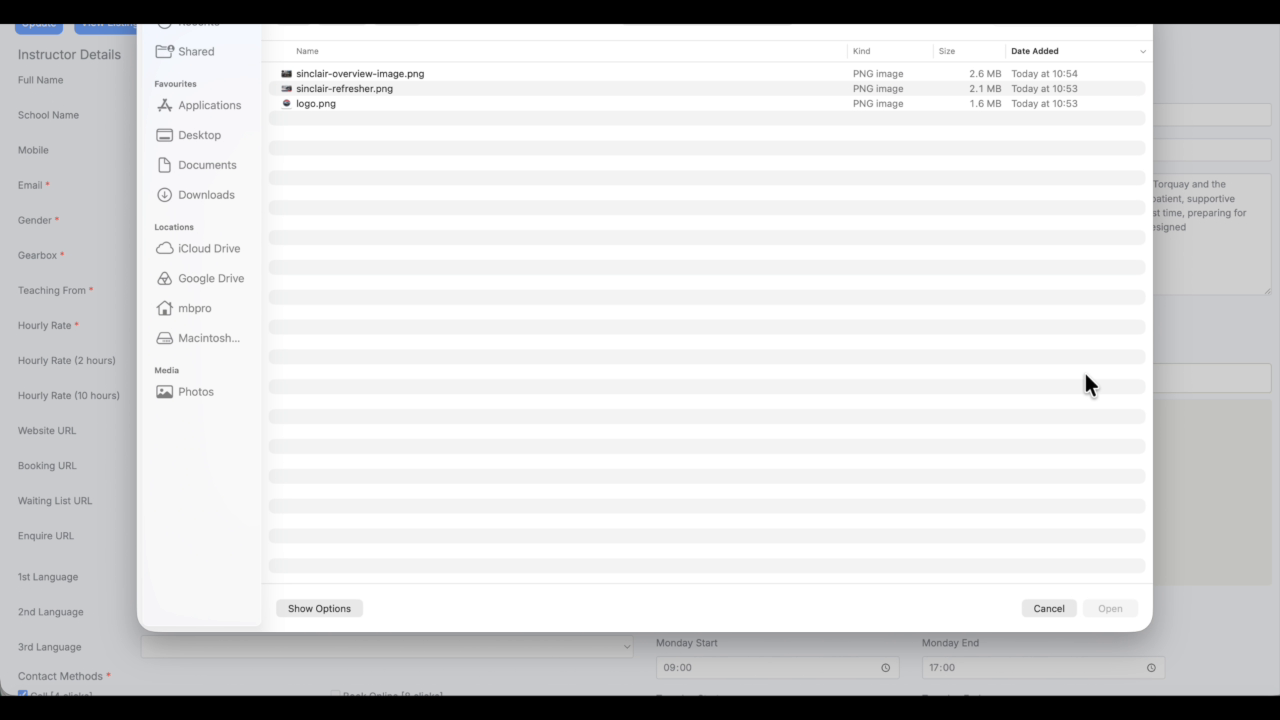
- Upload your profile photo / logo if you’re prompted to do so.
- Upload gallery images (as shown in your recording).
- Make sure the content area fields are complete, then proceed to save.
- Leave any auto-calculated statistics fields alone (they update automatically).
6. Update and view your live listing
- Scroll up to the top of the page.
- Click Update.
- Click View Listing to open the live version.
- If you need to remove it from the live site, use Hide Listing and then click Update again.
Troubleshooting
- If your listing doesn’t appear where expected, double-check the working areas/postcodes you added.
- Check that you selected the contact methods you want customers to see.
- If you get stuck, send an email to support at support@totaldrive.co.uk